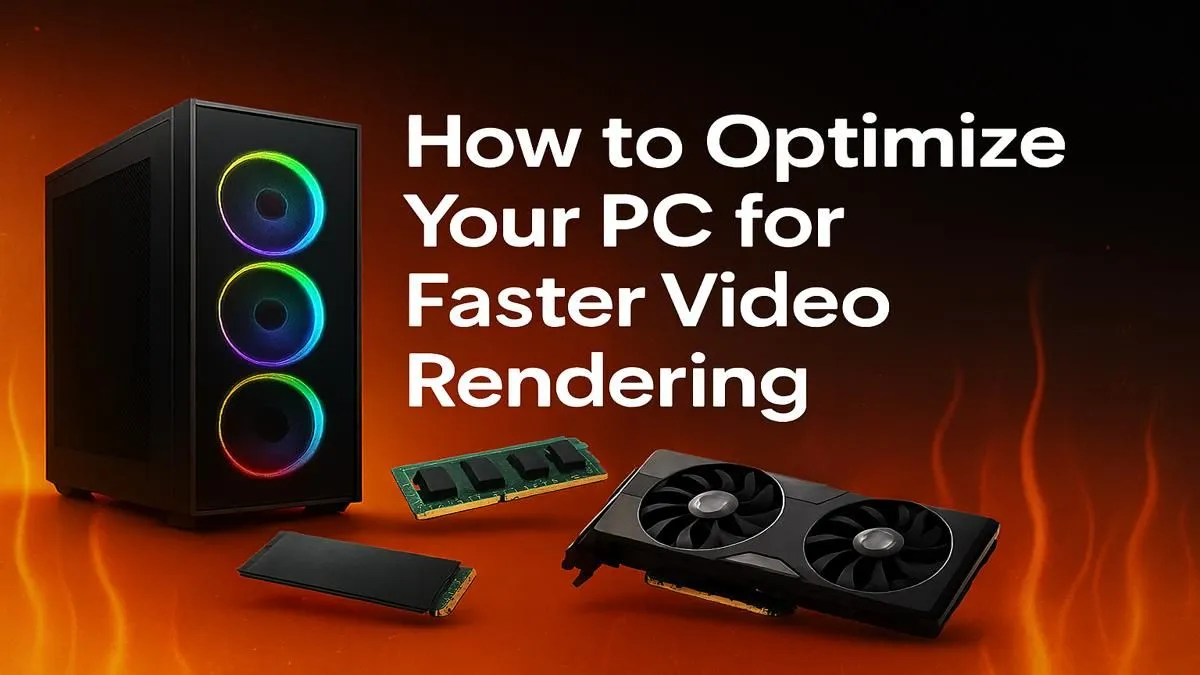
Staring at a render progress bar is a special kind of pain. For South African creators, streamers, and gamers, every minute spent watching that blue line crawl is a minute you're not creating or playing. Waiting for that export to finish is a pure gees-killer. But what if you could significantly speed things up? Achieving faster video rendering isn't magic; it's about smart optimisation. These 10 tips will help you reclaim your time, today. 🚀
Fine-Tune Your Software for Faster Renders
Before you even think about new hardware, let's squeeze every drop of performance from the software you already use. A few simple changes can make a massive difference to your rendering speed.
1. Lower Your Playback Resolution
Working with 4K or even 8K footage? Your timeline can become sluggish. In your editing software (like Premiere Pro or DaVinci Resolve), drop the playback resolution to ½ or ¼. This doesn't affect your final export quality at all; it just makes real-time playback and scrubbing much smoother, freeing up system resources for a faster video rendering process when you finally hit 'Export'.
2. Use Proxies and Optimised Media
This is a non-negotiable for serious editors. Proxies are smaller, lower-resolution copies of your original high-res files. You edit with the smooth, lightweight proxies, and when you're ready to render, the software automatically switches back to the original high-quality files. It's the single most effective trick for a lag-free editing experience and a more stable, often faster render.
3. Close Unnecessary Background Apps
It sounds obvious, but it’s amazing how many resources background tasks consume. Before starting a big render, close everything you don't need: your web browser (especially with many tabs), Discord, Spotify, and any other background utilities. Give your PC's full attention to the task at hand. Every bit of CPU power and RAM helps.
4. Keep Your GPU Drivers Updated
Your graphics card does a lot of heavy lifting during video rendering. Both NVIDIA and AMD frequently release driver updates that include specific optimisations for creative applications. Ensuring you have the latest drivers is a free, easy way to boost performance. Whether you're running one of the latest NVIDIA GeForce gaming PCs or a rig powered by Team Red, updated drivers are crucial for stability and speed. Many powerful AMD Radeon gaming PCs in South Africa also see significant gains from the latest Adrenalin software.
Hardware Tweaks for a Video Rendering Boost
With your software dialled in, let's look at your machine's settings. These tweaks help your components work smarter, not just harder. 🔧
5. Enable Hardware Acceleration (GPU)
Make sure your editing software is actually using your powerful GPU. In your project or export settings, look for an option like "Hardware Acceleration," "CUDA," or "OpenCL." This offloads encoding and decoding tasks from your CPU to your GPU, which is specifically designed for these parallel processes, resulting in dramatically faster video rendering times.
Storage Pro Tip ⚡
For the absolute best performance, structure your storage smartly. Use a fast NVMe SSD for your operating system and software. Use a second NVMe SSD for your active project files and cache. Finally, use a large, cheaper hard drive (HDD) for long-term storage and archiving completed projects. This prevents bottlenecks and keeps everything running smoothly.
6. Manage Your Storage Effectively
Where you store your files matters. Editing directly from a slow external hard drive is a recipe for frustration. For optimal speed, your project files, media cache, and scratch disks should all be on a fast internal drive, preferably an NVMe SSD. The speed difference is night and day.
7. Consider a CPU Overclock (With Caution)
For those comfortable with diving into the BIOS, a stable CPU overclock can provide a noticeable performance uplift in rendering tasks. Modern CPUs are incredibly capable right out of the box, but a little extra clock speed can shave valuable minutes off your export times. Many of the best Intel PC deals feature "K" series processors built for this, just as the latest AMD Ryzen PC deals offer incredible multi-core performance that loves a good tune-up.
The Upgrade Path: When Tweaks Aren't Enough
Sometimes, software tricks and tweaks just can't overcome the limits of older hardware. If you're still waiting too long, it might be time to invest in your productivity.
8. Add More RAM
Video editing is incredibly RAM-hungry. If you're working with 4K footage, complex timelines, and effects, 16GB of RAM is the absolute minimum. Upgrading to 32GB is the sweet spot for most creators, providing a much smoother experience. For professionals using After Effects or 8K footage, 64GB or more is a worthy investment.
9. A Powerful GPU is Your Best Friend
We mentioned drivers, but the card itself is paramount. A modern GPU with plenty of VRAM accelerates effects, colour grading, and, most importantly, encoding. Technologies like NVIDIA's NVENC encoder can render videos many times faster than a CPU alone.
10. Step Up to a Purpose-Built Machine ✨
If your livelihood depends on getting content out quickly, fighting with an underpowered PC is costing you money. While many great pre-built PC deals can handle both gaming and editing, a dedicated workstation is the ultimate tool for faster video rendering. They are designed from the ground up for sustained, heavy workloads with powerful multi-core CPUs, ample RAM, and certified components for maximum stability.
Ready to Stop Waiting and Start Creating?
Software tweaks are great, but nothing beats the raw power of purpose-built hardware. If you're serious about content creation, a dedicated workstation is the ultimate investment in your productivity. Explore our range of powerful workstation PCs and find a machine that renders as fast as you can create.