


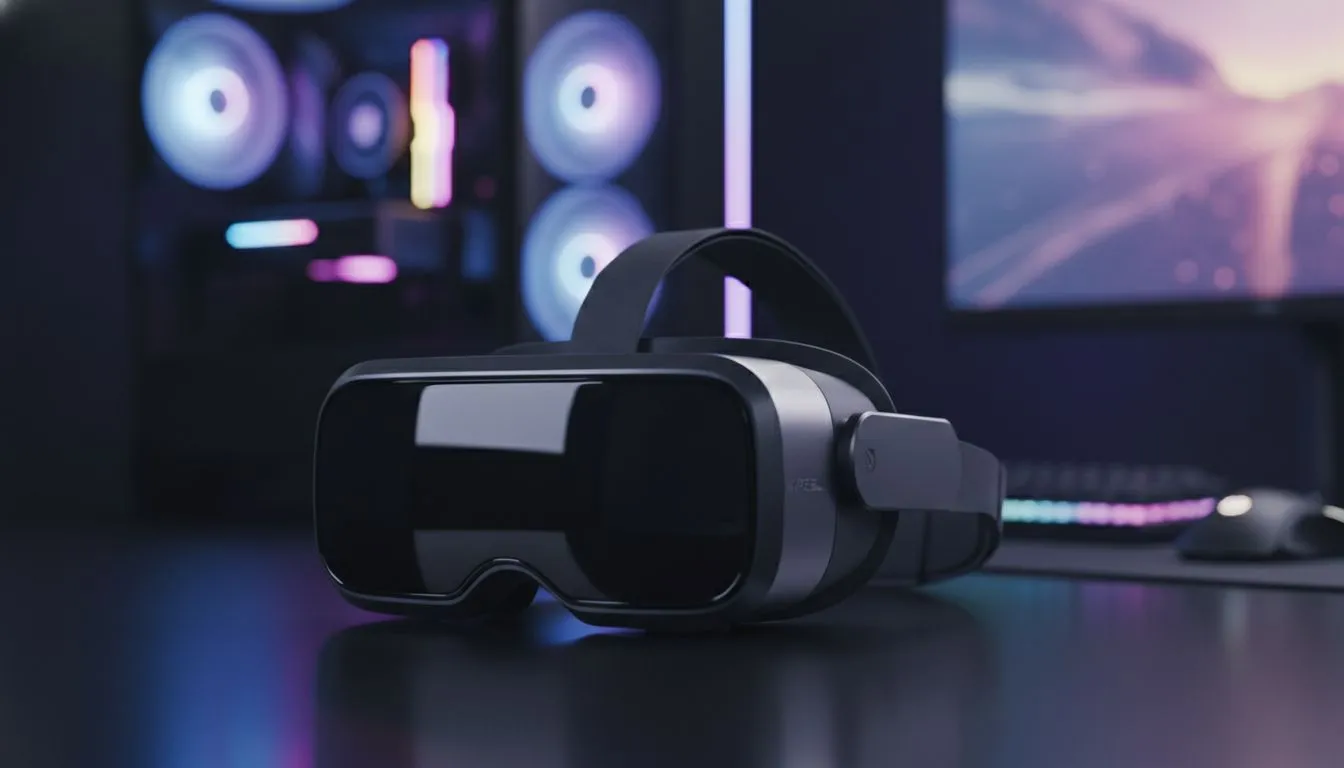
Unlock Fluid Motion with XREAL One 120Hz Settings
Imagine swapping your bulky 24-inch monitor for a massive virtual screen that floats in mid-air while you relax on your couch. For South African gamers, the XREAL One is a total shift in how we consume media. However, to get that buttery smooth motion, you need to dial in your XREAL One 120Hz settings and optimize PC for spatial display performance properly to avoid any stutter. 🔧
Configuring Your Windows Environment
Getting the most out of our AR glasses range starts with the right hardware connection. You must ensure your laptop or desktop USB-C port supports DisplayPort Alt Mode... otherwise, the glasses simply won't receive a signal. Once plugged in, Windows often defaults to a standard 60Hz refresh rate to conserve power.
To change this, right-click your desktop and head to "Display Settings". Select the monitor representing your XREAL glasses... usually identified as a secondary display. Scroll down to "Advanced display settings" and look for the "Choose a refresh rate" dropdown menu. Selecting 120Hz here is the first step to achieving that fluid, high-end feel that makes spatial computing so immersive.
Bandwidth Matters ⚡
When you optimize PC for spatial display at 120Hz, always use the original cable provided in the box. Many standard phone charging cables lack the high-speed data lanes required to push a 120Hz signal, which can result in the display reverting to 60Hz or flickering during intense gaming sessions.
GPU Tweaks for Spatial Stability
If you are browsing the latest AR tech at Evetech, you likely already have a decent GPU. Whether you use NVIDIA or AMD, there are specific software tweaks to ensure your spatial display remains stable. Spatial rendering requires consistent frame times to prevent motion sickness.
Open your GPU control panel and navigate to the "Manage 3D Settings" section. Find the "Power management mode" and set it to "Prefer maximum performance" specifically for your AR applications. This ensures your GPU doesn't try to save power by downclocking while you are mid-match in a fast-paced shooter. Additionally, disabling "Vertical Sync" in-game and letting the hardware handle the 120Hz limit often results in lower input lag.
Maximising Your Virtual Workspace
For those investing in premium AR options, the XREAL One isn't just for gaming... it is a productivity powerhouse. When using the Nebula for Windows app, you can pin multiple virtual screens around your room.
To keep things crisp, ensure your Windows scaling is set to 100% or 125%. If the scaling is too high, text in your spatial environment might look blurry. By keeping the resolution at the native 1080p per eye and maintaining that 120Hz refresh rate, you create a flicker-free workspace that is much easier on the eyes during long coding or editing sessions. 🚀
Ready to Step Into the Future? Spatial computing is no longer science fiction... it is right here in South Africa. Whether you are gaming or crushing your to-do list, the right gear makes all the difference. Browse our full range of AR glasses and upgrade your reality today.










