

Why Is My RX 9070 XT Running Hot in SA Summer?
Why Is My RX 9070 XT Running Hot in SA Summer Detailed answer with SA data, expert analysis & practical recommendations for local buyers.
Read moreBluetooth connection issues on laptops can ruin meetings and audio. Here’s how to fix pairing failures, disconnects, and slow reconnects with quick checks and reliable steps 🔧🎧
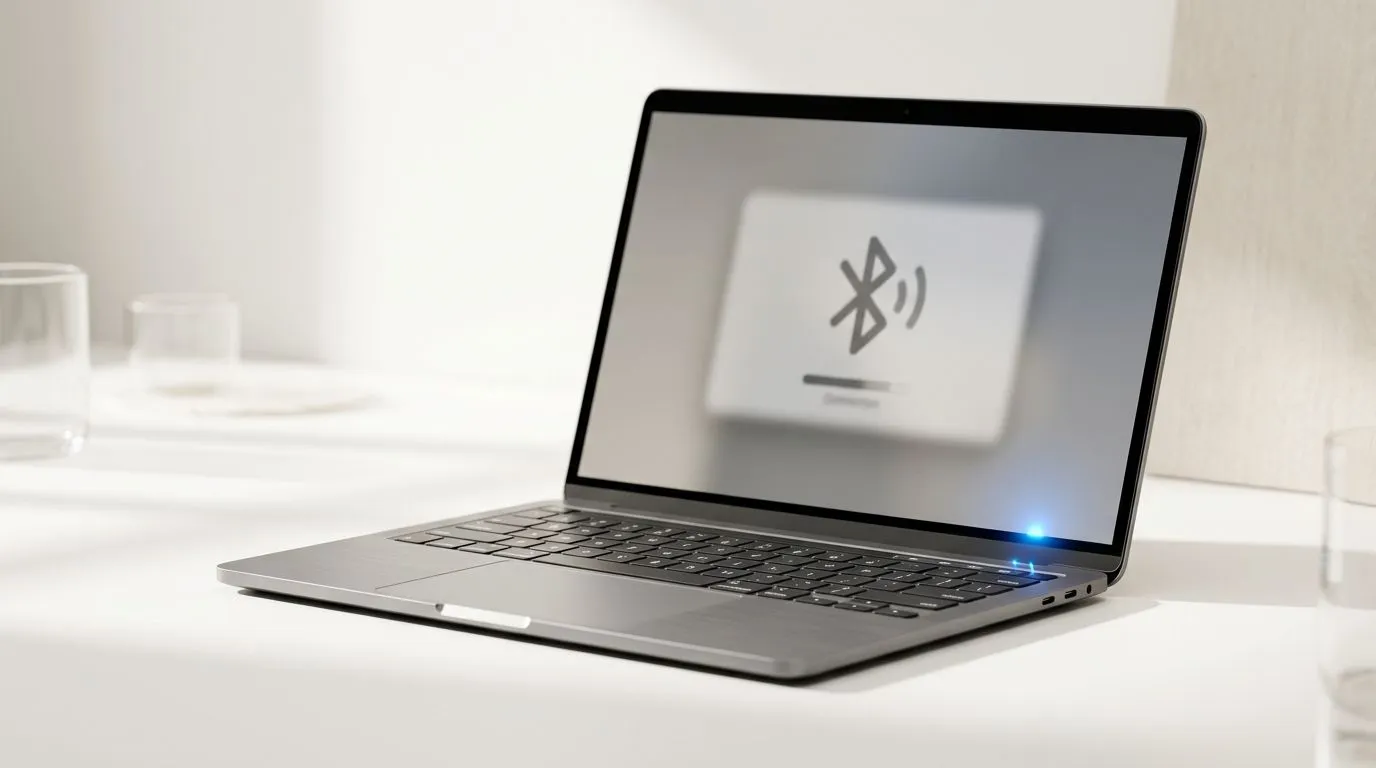
South African gamers and students know the pain… you sit down, boot your laptop, and suddenly your Bluetooth headset or controller won’t stay connected. Or it connects, then drops when the action gets intense. That’s not just annoying, it kills immersion and wastes time. The good news? Most Bluetooth problems on laptops are quick to fix once you know the usual culprits: pairing data, power settings, and driver hiccups.
Before you restart everything, try these checks in order. They’re simple, but they solve a lot of “why is my device flaking?” moments.
If your controller or earbuds were paired months ago, stale pairing data can cause random disconnects. Go to your laptop’s Bluetooth settings, remove the device, then pair again from scratch. Keep the device close during pairing (within ~1 metre) to improve signal stability.
It sounds basic, but toggling Bluetooth forces a fresh connection attempt. Many “connected but not working” cases resolve immediately.
Laptops often save battery by allowing Bluetooth to enter low-power states. On Windows, open Bluetooth device settings and disable options that let Windows turn off the device to save power. If you’re on a budget gaming laptop, this setting matters even more when you’re running on battery.
Windows, create a focused test routine: disconnect Bluetooth devices, reboot, then re-pair one device at a time. After each change, do a 60-second audio or controller input test. This helps you spot whether the issue is caused by a specific device, a driver change, or pairing order.
If re-pairing fails, update your Bluetooth driver. Driver updates often fix connection stability, audio stutter, and handshake issues with specific device models. Use your laptop maker’s support page or Windows Update, depending on what’s recommended for your system.
Here’s the gamer-friendly truth… sometimes you’re fighting Bluetooth limitations, not your settings. For latency-sensitive sessions, a wired mouse or a reliable wireless receiver can be more consistent than Bluetooth on the same laptop, especially if you multitask during matches.
If you’re switching up your setup, consider pairing your laptop troubleshooting with a better input device:
And if you’re in the market for something that just works for long ranked nights, shop deals and curated options:
Once your device is stable, lock in the win:
If you still see disconnects after updates and re-pairing, the next move is targeted support. Document what you tried (device name, laptop model, Windows version, and when it drops). Support teams can then narrow it down faster.
Ready to Find Your Perfect Match? The Mac vs Windows debate is complex, but for maximum power, choice, and value in South Africa, Windows is hard to beat. Explore our massive range of laptop specials and find the perfect machine to conquer your world.
Common causes include low battery, interference, outdated Bluetooth drivers, or power saving. Try re-pairing, updating drivers, and disabling power saving for Bluetooth.
Remove the device from Bluetooth settings, restart Bluetooth, then pair again. If it still fails, check device compatibility and update your Bluetooth drivers.
Make sure the device is in pairing mode, Bluetooth is enabled, and your laptop is discoverable. Also check airplane mode, Wi‑Fi conflicts, and interference.
Stuttering usually comes from bandwidth limits, interference, or an unstable audio profile. Reconnect the headset, set it as default, and update drivers.
Yes. Old or corrupted Bluetooth drivers can trigger disconnects and pairing failures. Update via Windows Device Manager or your laptop vendor tools.
On Windows, turn Bluetooth off and back on, remove the paired device, and restart. If needed, uninstall the Bluetooth adapter and reboot to reinstall.
Yes. Walls, USB 3.0 interference, and crowded 2.4 GHz channels reduce stability. Move closer, avoid metal obstructions, and keep USB dongles separated.
Why Is My RX 9070 XT Running Hot in SA Summer Detailed answer with SA data, expert analysis & practical recommendations for local buyers.
Read more
RTX 4070 Ti Super Black Screen Issue: Fix. Diagnosis steps, proven fixes & when to seek professional help. SA-specific support info included.
Read more
Can a 700W PSU Handle the RTX 4060? Power. Wattage requirements, recommended PSU models & efficiency ratings for SA buyers at Evetech.
Read more
Optimize RTX 4060 Ti for Minecraft. Step-by-step instructions with SA-specific tips, common pitfalls to avoid & expert recommendations.
Read more
Can the RTX 4090 Run Cyberpunk 2077 at 60fps. Real-world benchmark data, FPS numbers & performance analysis. What SA gamers can actually expect.
Read more
Can the RTX 5090 Handle 1440p 144Hz Gaming. Performance testing verdict with real data & practical recommendations for SA buyers.
Read more
Top Valorant Settings for RTX 5070: FPS Optimisation picks evaluated on performance, value & SA availability with current Rand pricing from Evetech.

RDNA 3.5 Graphics in Ryzen AI 400? Can You Game. Plain-English explanation of what it means, why it matters & how it affects your buying decisions in SA.

GPU Price Index : December Report. Current stock data & price tracking for SA buyers. See what is available and where prices are heading.
RX 9070 XT Elden Ring Nightreign at 4K: FPS. Real-world benchmark data, FPS numbers & performance analysis. What SA gamers can actually expect.

Core i5-14600K + B760 + RTX 5060 Build Under. Full parts list, Rand pricing & expected performance. Build confidently with SA-available components.

RX 7600 Apex Legends at 4K: FPS Benchmark. Real-world benchmark data, FPS numbers & performance analysis. What SA gamers can actually expect.

RX 7900 XTX GTA 6 at 4K: FPS Benchmark & Optimal. Real-world benchmark data, FPS numbers & performance analysis. What SA gamers can actually expect.

Head-to-head comparison of RTX 5070 vs RX 9070 XT: Gaming Performance for SA gamers. Performance benchmarks, Rand pricing & which delivers better value.
Top RTX 5070 Under R25,000 picks evaluated on performance, value & SA availability with current Rand pricing from Evetech.
Core i5-14600K + B760 + RTX 5060 Build Under. Full parts list, Rand pricing & expected performance. Build confidently with SA-available components.
Top Monitor for RX 9070: Resolution & Refresh Rate picks evaluated on performance, value & SA availability with current Rand pricing from Evetech.
Valorant Settings on RX 9060 XT: Performance. Real-world benchmark data, FPS numbers & performance analysis. What SA gamers can actually expect.