Moving photos and videos off your handset is quicker than most people expect, and a cable beats any app for speed. Connecting your phone to a PC takes one cable, one tap on the phone and about a minute in Windows, and it uses none of your mobile data, which matters when a prepaid bundle has to last the month.
Quick Answer
Plug the phone into the PC with a data cable, then pull down the notification shade on Android and set the USB mode to File transfer. On an iPhone, unlock it and tap Trust. Your photos then appear in File Explorer or the Windows Photos app. The cable transfer is free, and a 5-in-1 USB-C hub that adds ports for it costs from R299.
🔌 USB File Transfer on Android
Use the cable that came with the phone, because many cheap charge-only leads carry power but no data. Unlock the screen, plug in, and pull the notification shade down. Tap "Charging this device via USB", then choose File transfer. On some Samsung phones the same option reads "Transferring files".
Open File Explorer and the phone shows up under This PC. Go to Internal storage > DCIM > Camera for your photos and videos, then copy the folders across. USB 2.0 runs at 480 Mbps and USB 3.0 at 5 Gbps, so a USB 3.0 port and cable finish large video folders sooner.
🍎 Importing from an iPhone
Unlock the iPhone and plug it in. A "Trust This Computer?" prompt appears; tap Trust and enter your passcode. Without that tap the PC sees nothing at all.
Open the Photos app in Windows, choose Import, then From a connected device, and tick the pictures you want. iPhones save in HEIC format by default. If older software cannot open the files, go to Settings > Photos on the phone, scroll to Transfer to Mac or PC and pick Automatic, which converts to JPEG as the files copy across.
📶 Wireless Options When You Have No Cable
Wireless works best for a handful of pictures. On Windows 11, open Settings > Bluetooth & devices > Mobile devices to link an Android phone with Phone Link. Bluetooth itself is slow: a 4 GB video can take hours that way, so keep it to documents and a few images.
On a home fibre line, such as a Pretoria townhouse with an ONT and Wi-Fi router, wireless sharing stays on your local network and never touches your mobile data. For a bulk backup, though, the cable is still the dependable choice.
🧰 Fixing Ports and Cables
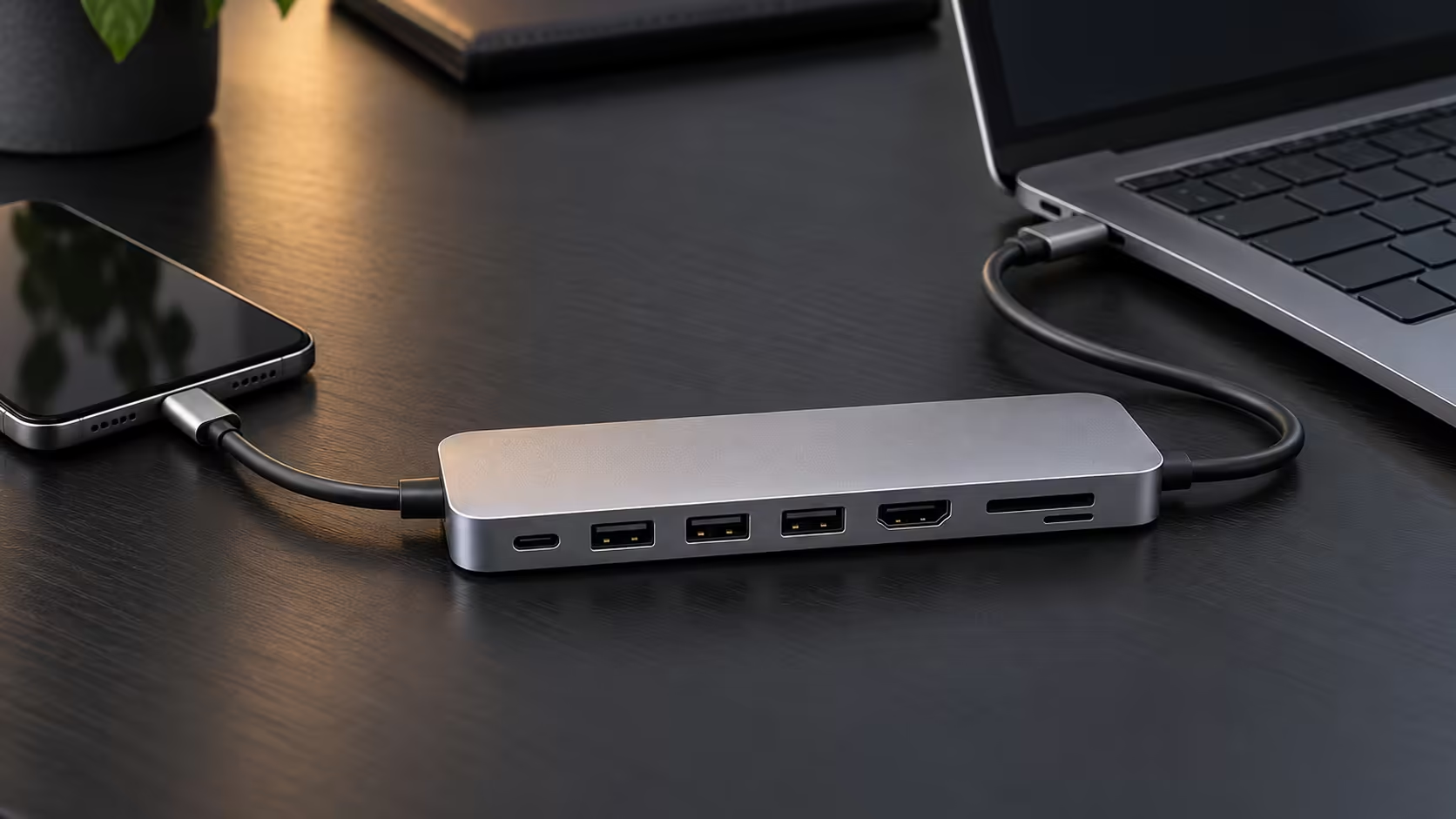
Slim laptops often have one USB-C port or only a couple of USB-A sockets. The GAMDIAS MERCURY M1-500 gives you a USB-C data port plus 2x USB-A 3.0 ports for R299, with 4K 30Hz HDMI and USB-C PD charging alongside. If you also copy from camera memory cards, the Promate TransHub Lite 7-in-1 at R499 adds SD and MicroSD slots to its 100W USB-C PD input, 4K HDMI port, and USB-A 3.0 and 2.0 ports.
Browse the full range of USB and docking hubs, and if the original lead has gone missing, our cable range covers USB-C and USB-A options. A student in a Cape Town residence on a prepaid bundle saves real money here: a 2 GB video moved by cable costs nothing, while the same file uploaded to a cloud service burns 2 GB of bundle.
Frequently Asked Questions
Why does my PC not see my phone?
Check the USB mode first. Android defaults to charging only, so pull down the shade and pick File transfer. If it still fails, swap the cable, because charge-only leads have no data wires, then try another port.
Do I need iTunes to copy iPhone photos?
No. Windows 10 and 11 import through the Photos app once you tap Trust on the phone. iTunes is only needed for backups and syncing, not for pulling pictures across.
Does transferring over USB use my mobile data?
No. A cable moves files directly between the two devices, so nothing touches your data bundle.
Is Bluetooth good enough for videos?
Not really. At a couple of megabits per second in practice, a long clip takes hours. Use the cable for video and keep Bluetooth for small files.
Can I connect a phone through a hub?
Yes. Plug the phone cable into the hub's USB-C data port or a USB-A 3.0 port, and the PC treats it like a direct connection. Keep the hub itself on a good port so the speed holds.
Ready to sort out your ports?
Browse the Evetech range of USB-C hubs and docking stations, and pick up a data cable that handles photos, video and charging.