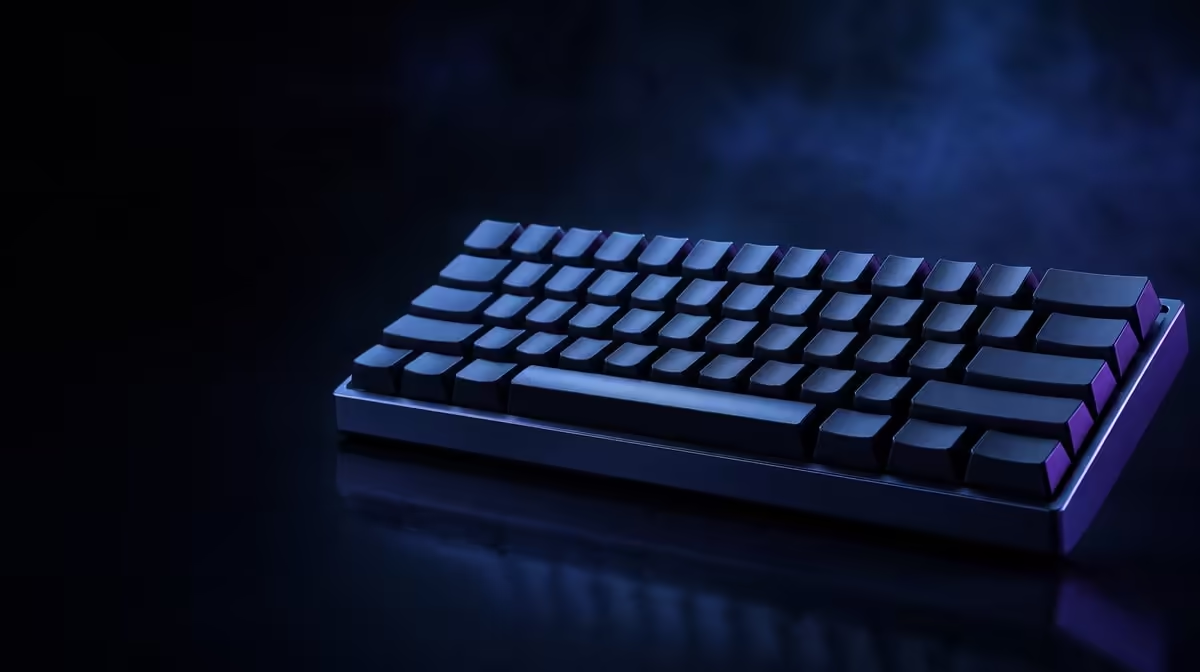
A slow-feeling key can be a connection, software or game problem rather than a low polling figure. A gaming keyboard that feels unresponsive should be tested from a neutral input view through USB or wireless behaviour, profiles, frame delivery and individual key condition.
Quick Answer
Test presses outside the game, reconnect through the supported path and load a clear default profile. Then compare game frame times, power behaviour and polling settings one at a time; investigate repair only when the symptom follows a key or hardware stage consistently.
🔎 Reproduce the symptom
Use a simple input view to test taps, holds and releases. Note whether one key, a combination or the whole board responds poorly.
Restart with unnecessary profiles disabled. A remap, macro or layer can resemble missed input.
Screenshot the default map and polling setting. This creates a known state for every later change.
Check the supported connection, cable seating and any hub or wireless condition. Begin with the simplest known route.
Try another supported port only as one controlled step and return unsuccessful changes.
Time the symptom instead of describing it only as slow. Note the affected key, connection mode, profile and exact scene, then repeat that sequence enough times to see whether the problem is consistent.
Test a second ordinary application before changing hardware. If presses appear correctly there, focus on the game's bindings, focus state and frame delivery; if they fail everywhere, continue down the keyboard path.
Review current keyboard options in Evetech's Logitech gaming-keyboard section.
🎮 Separate keyboard and game timing
Run a repeatable scene and watch frame times. Low or uneven frame delivery can feel like delayed input even when the board reports correctly.
Compare a menu, training area and demanding scene. If the feeling follows frame load, the game path deserves attention.
Compare polling settings only after the baseline is stable. The maximum can add host work and is not automatically the best choice.
Alternate several runs at each available rate. One success can reflect expectation or a different scene.
Check power management and active software profile according to supported guidance. Change one item per run and restore unsuccessful edits.
Note when the problem began. A nearby firmware, software or connection change can guide reversible checks.
Check whether the affected command is bound twice or placed on a layer. Conflicting assignments and mode indicators can create hesitation that feels electrical even when the physical press is sound.
Record several comparable runs rather than trusting the first change that seems better. A repeatable improvement should survive the same scene, warm system and input sequence.
Return to the known baseline after every unsuccessful experiment. This prevents a temporary port change, power option and software profile from remaining combined and creating a second problem.
If the board behaves correctly outside a demanding scene, repeat the game test with a steadier frame cap or less variable workload. That comparison can reveal whether visible delay follows frame delivery rather than keyboard reporting.
Browse Evetech's gaming-keyboard category after identifying the affected stage.
🧰 Escalate hardware checks carefully
Clean loose debris with the board disconnected and use approved care steps. Do not flood or dismantle it.
Test again after safe external cleaning. A single persistent position strengthens the case for a switch or socket issue.
On a compatible hot-swap board, a known-good switch can help isolate one failed key, but pins and sockets need careful handling.
Label the parts. If the fault follows the switch, the mechanism is implicated; if it stays at the socket, stop repeated insertion.
If several keys fail, connection or software deserves attention before individual replacement. Seek service for visible damage or persistent unexplained faults.
Keep a log containing key, connection, profile, game and outcome. Reproducible evidence makes support more effective.
Replace hardware only after the failing stage is clear. Frustration is not a diagnosis.
Check Evetech's accessories best sellers for wider context and review current availability.
Frequently Asked Questions
What should be tested outside the game first?
Check taps, holds, releases and combinations in a neutral input view.
How can the connection path cause slow or missed input?
A loose cable, unsuitable hub, wireless conditions or unsupported mode can disrupt reports.
Why should the active software profile be checked?
Layers, remaps and macros can change what a press sends.
Can low game frame rate feel like keyboard delay?
Yes. Input may be processed but shown late through uneven frame delivery.
Should polling rate be set to maximum immediately?
No. Establish a stable baseline and compare rates with frame times.
What power setting can affect some keyboards?
Device or USB power management can influence connection behaviour and should be checked through supported system guidance.
When should hardware repair be considered?
When controlled tests show a persistent key or board fault after connection and software causes are excluded.
Tracing a keyboard response problem methodically?
Test the input path first, then compare Evetech gaming keyboards only when the evidence reaches hardware.