

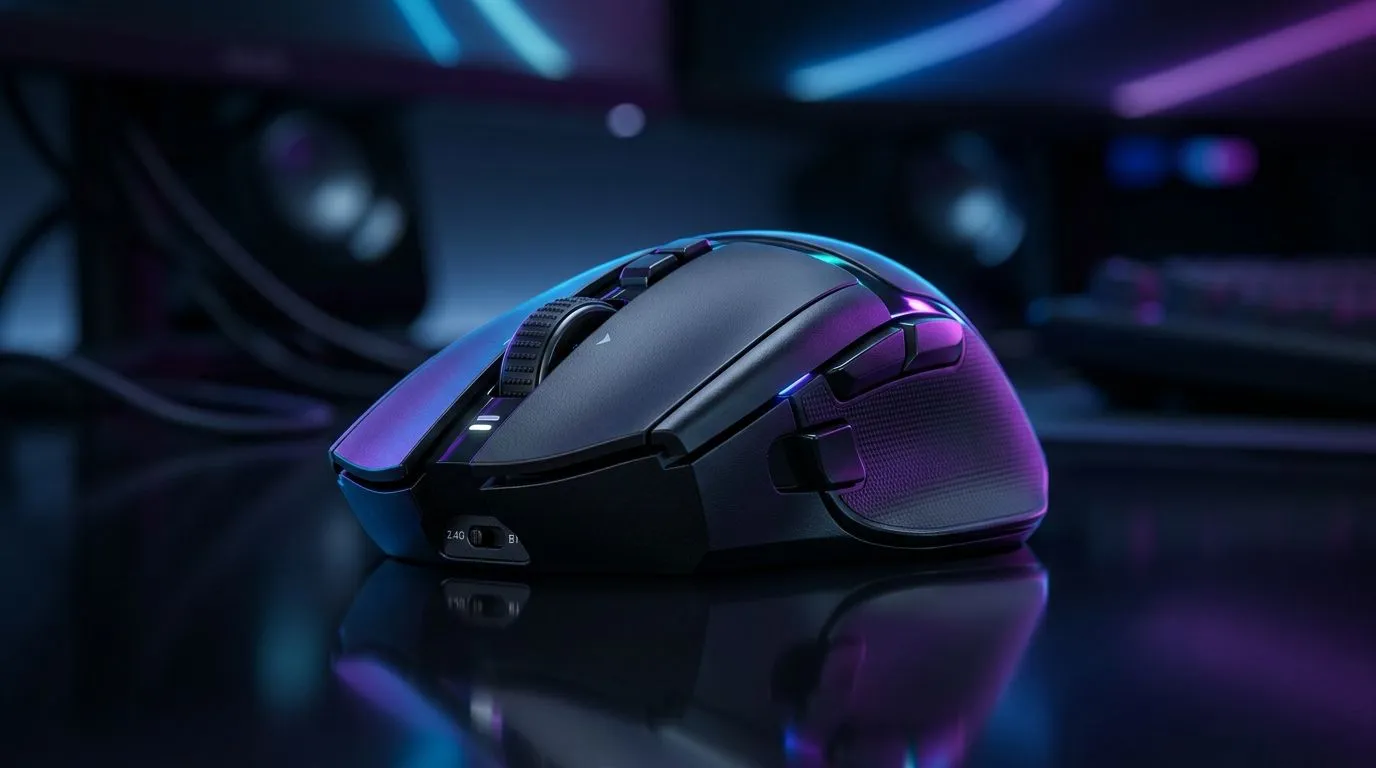
Dual Wireless Mouse Setup for Switch 2.4GHz and Bluetooth Without the Headache
If your mouse keeps “forgetting” you mid-match, you’re not alone. In South Africa, load shedding, router hiccups, and busy USB hubs all get blamed… but often it’s just a dual-mode mouse that’s not switching cleanly. 🚀 Whether you’re gaming at an internet café or working from home, this guide shows you how to set up a dual wireless mouse so you can switch between 2.4GHz and Bluetooth seamlessly.
What “seamless switching” actually means (and why it matters)
2.4GHz wireless (typically via a USB receiver) is usually the most consistent for gaming. Bluetooth is great for multi-device use, like switching between a laptop and a tablet, without unplugging a dongle. The best setup is the one that matches your day: gaming sessions on 2.4GHz, then quick work or content creation on Bluetooth.
Before you start, check your mouse’s control labels. Many models have a mode button (often marked 2.4G / BT / Off). If your mouse uses a different naming scheme, follow the manual, but the workflow below stays the same.
Quick hardware checks (2 minutes)
- USB receiver: Plug it directly into your PC, not behind a monitor USB hub. 🔧
- Bluetooth range: Stay within ~2–3 metres for stable pairing during setup.
- Battery: Low battery can cause “random” disconnects. Replace or recharge before troubleshooting.
Setup steps: 2.4GHz on, Bluetooth paired, switching smooth
Start with 2.4GHz first, because it’s usually plug-and-play.
1) Pair and test on 2.4GHz
- Insert the USB receiver.
- Move the mouse and click a test target on-screen.
- Confirm the cursor stays stable for 30 seconds.
If your setup feels “laggy”, try changing USB ports (front vs back ports on a desktop often behave differently). That small step fixes more than people think.
2) Pair Bluetooth (and give it a clean name)
- On your Windows PC: Settings → Bluetooth & devices → Add device.
- Put the mouse into Bluetooth pairing mode (watch for a blinking indicator).
- Select it from the list and confirm pairing.
Now, repeat on your second device later. But for today, focus on one clean pairing to reduce confusion.
3) Switch modes and avoid the classic “wrong device” problem
- Switch the mouse to Bluetooth mode, then wait a second before moving it.
- If the cursor doesn’t move, open your Bluetooth settings on the PC and confirm the mouse is connected.
- If you’re swapping between devices often, consider turning off Bluetooth on the device you’re not using.
Productivity Pro Tip ⚡
On Windows, use the PowerToys FancyZones utility to create custom snap layouts for your windows. It's a lifesaver for managing multiple apps on an ultrawide monitor, letting you organise your workflow (chat, browser, and editing timelines) while your mouse switches between 2.4GHz for gaming and Bluetooth for work.
Choosing the right dual wireless mouse (so switching stays painless) ✨
Not all “wireless” is the same. If you want reliable switching, look for features like a dedicated mode switch, strong connection stability, and easy multi-device support.
For more shopping direction in South Africa:
- Browse quality mouse accessories here: Mouse accessories at Evetech
- If you play competitive titles, compare with wired options too: Wired mice at Evetech
- For dual-mode models, start with this selection: Wireless mice at Evetech
- Want value right now? Check current savings in South African rands: Best gaming mouse deals at Evetech
- If you need a specific category filter, use: Gaming mouse category page
Real talk: if your budget is tight, a good dual wireless mouse at a sensible ZAR price can replace the “USB dongle shuffle” entirely. And if you’re already paying for premium gear, you deserve a setup that doesn’t fight you every day. 😉
When it still won’t switch: fast fixes that actually work
Try these in order:
- Re-pair Bluetooth (remove device, then add again).
- Move the receiver to a different USB port.
- Disable and re-enable Bluetooth on Windows.
- Restart the device if it cached a stale connection.
- Test on a second device to confirm whether it’s the mouse or the computer.
If you’re still stuck, it’s worth checking the exact model support page or manual notes. The fix is often different between brands because pairing prompts vary.
Ready to Find Your Perfect Match? The Mac vs Windows debate is complex, but for maximum power, choice, and value in South Africa, Windows is hard to beat. Explore our massive range of laptop specials and find the perfect machine to conquer your world.











