


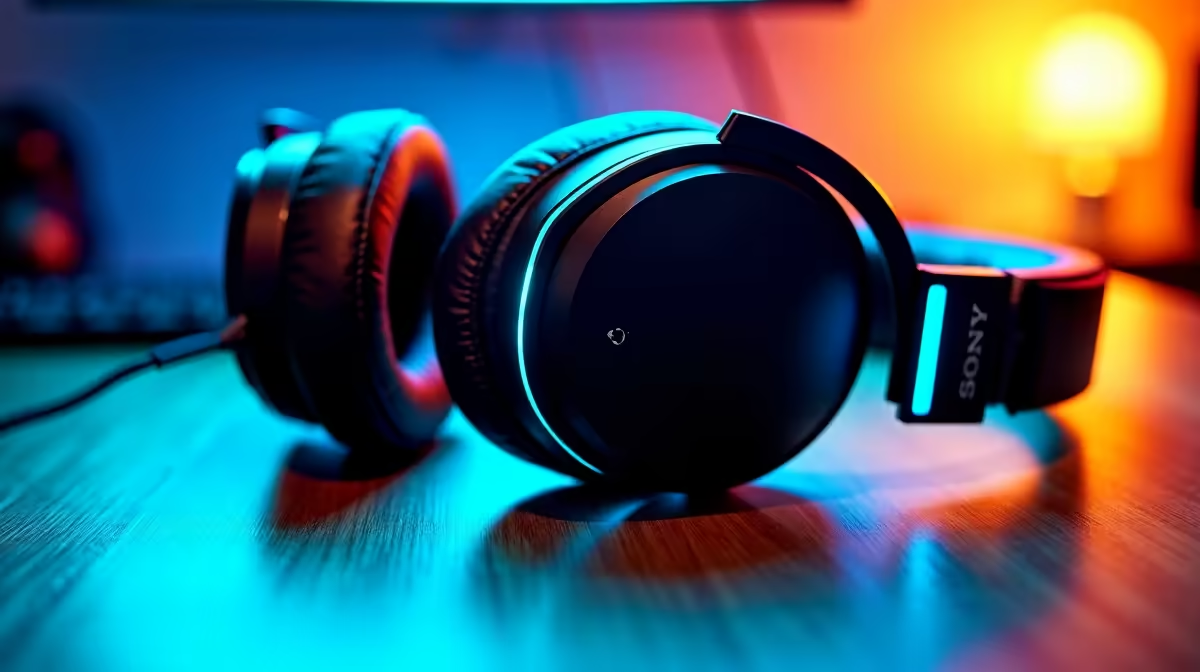
Recording audio and hearing an echo of your own voice is one of the most confidence-draining problems a home studio setup can produce. It sounds like a technical fault, but most of the time it is a configuration choice that takes about thirty seconds to correct once you understand the cause. Zero-latency real-time monitoring is the specific fix, and it works by bypassing the software path that introduces the delay in the first place.
Quick Answer
Switch from software monitoring to direct hardware monitoring in your interface settings, then mute the monitoring output in your DAW. The hardware path returns your voice at 0ms and the echo disappears immediately. Most self-heard delay complaints are fixed by this single change.
🔧 Why Software Monitoring Creates the Echo
Your audio interface converts the mic signal from analogue to digital and then routes it somewhere. Software monitoring sends it through the driver, into the DAW, through any processing the session applies, and back out to your headphones. The return trip takes time, and that time is measured in milliseconds. At a comfortable recording buffer setting such as 256 samples, the round-trip typically lands between 12ms and 20ms.
That range sits just at the threshold where the human ear registers delay as a distinct echo rather than a simple reverb tail. It is not enough delay to hear as separate words, but enough to break the timing of your own voice and create the uncomfortable doubling sensation that makes singers drift flat and narrators stumble.
Direct hardware monitoring routes the signal from the analogue input stage of the interface straight to the headphone amplifier before it ever enters the digital domain. No buffer, no driver, no DAW processing. The voice returns at whatever the analogue propagation time is, which is effectively zero for practical purposes.
⚡ The Quick Fix and the Buffer Setting Myth
Muting software monitoring in the DAW while enabling hardware monitoring on the interface is the one-step solution. Most interfaces expose a switch or a knob labelled Direct Monitor or similar. Enabling it while muting the corresponding DAW monitor output removes the delayed copy and leaves only the clean 0ms feed.
A common misconception is that lowering the buffer size to the minimum removes the problem. Dropping to 64 samples does reduce software latency to around 3ms, which is below the audible echo threshold. But it also forces the CPU to process audio in much smaller chunks, which increases the chance of clicks, crackles, and drop-outs during a demanding session. Hardware monitoring avoids this trade-off entirely because the return path has no buffer to shrink.
🧠 When Delay Is Not the Monitoring Path
If the echo persists after switching to hardware monitoring, the cause is elsewhere. Two common ones:
Room acoustics. A bare-walled room in a Joburg townhouse or a Cape Town flat reflects sound back to the mic almost instantly, and that reflection arrives in the recording and in the ambient room sound you hear around your headphones. Soft furnishings, a rug, and a bookcase behind the recording position all help more than any interface setting.
Driver or software misconfiguration. If both software monitoring and hardware monitoring are active at once, the result is two copies of your voice arriving at slightly different times, which sounds like an echo. Check that only one monitoring path is enabled before assuming the interface is at fault.
Frequently Asked Questions
How do I actually turn off software monitoring and switch to hardware monitoring?
In your DAW, find the input monitoring or software monitoring button for the track and disable it. On the interface itself, enable the direct monitor switch or turn the mix knob toward the direct input side. You should hear the software-delayed copy drop away and the clean 0ms feed take over immediately.
My buffer is already at 64 samples and I still hear an echo. What is wrong?
At 64 samples the software latency is around 2 to 3ms, which should be below the audible echo threshold. If an echo persists, it is likely that both hardware and software monitoring are active simultaneously, creating two copies of the signal. Mute the software monitor and confirm only one path is feeding your headphones.
Will updating my audio drivers help with delay?
Sometimes, for software monitoring. An outdated ASIO driver can add 5ms to 10ms above the interface's minimum. Updating recovers that, but hardware monitoring at 0ms makes driver version irrelevant because the direct path bypasses the driver entirely.
Is the delay I hear the same as the recorded offset DAWs correct?
No. Monitoring delay is what you hear live. Recorded offset is the fixed shift in the waveform from the interface round-trip, and DAWs compensate for it automatically. Fixing monitoring does not change how the DAW aligns tracks.
Does hardware monitoring work the same on USB interfaces as Thunderbolt ones?
Yes. The direct monitoring path is an analogue circuit in the interface, not a USB or Thunderbolt function. Both connection types route the signal from analogue input to headphone amplifier identically. Connection type only affects software driver latency, which becomes irrelevant once hardware monitoring is active.
Ready to record without the echo? Browse audio interfaces with built-in direct monitoring for South African home studios, streaming setups, and voiceover rigs.










