You’re in the final circle in Apex, the tension is thick... you call out the enemy’s position for a clutch win, but your team hears nothing. Silence. Or worse, a burst of static. We’ve all been there. When your gear fails, it’s beyond frustrating. But before you rage-buy a new one, let's run through some quick gaming headset troubleshooting. Many common audio and mic issues have surprisingly simple fixes that can get you back in the game fast. 🎧
Start with the Basics: Simple Fixes First
Before diving into complex settings, let's check the obvious. It sounds simple, but you’d be surprised how often the solution is right in front of you. This is the first step in any good gaming headset troubleshooting process.
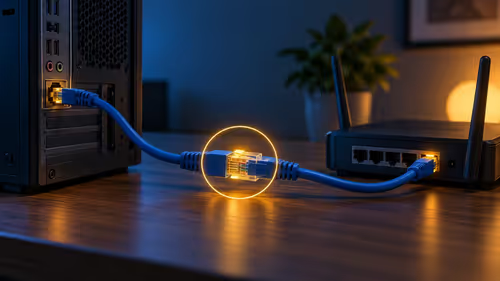
- Check Your Connections: Is the 3.5mm jack or USB plugged in securely? A loose connection is a classic culprit for audio cutting out. If you're using a wired headset, inspect the cable for any visible damage or kinks.
- The Mute Switch: Many headsets have an inline mute button or a flip-to-mute mic. Double-check that you haven't accidentally muted yourself.
- Volume Dials: Check both the physical volume dial on your headset/cable and your system volume.
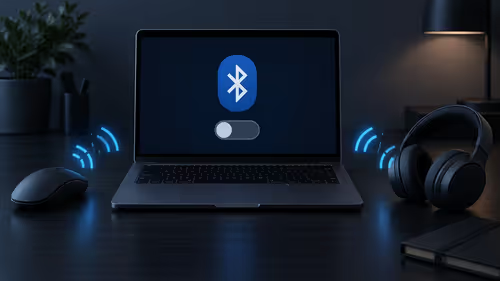
- Wireless Woes: For a wireless headset, ensure it's fully charged and properly paired. Sometimes, simply turning it off and on again can re-establish the connection.
Dive into Software-Level Troubleshooting 🔧
If the physical checks don’t solve your mic issues, the problem likely lies within your software settings. This is where things can get a bit tricky, but a methodical approach will sort it out.
On PC (Windows)
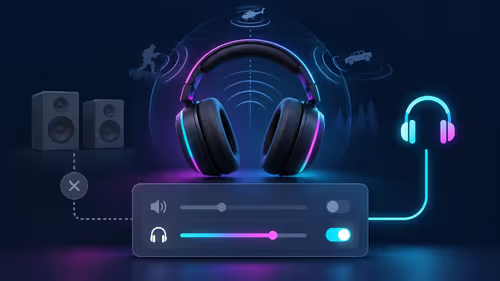
- Set Your Default Device: Right-click the speaker icon in your taskbar, select "Sounds," and go to the "Playback" and "Recording" tabs. Find your headset in both lists, right-click it, and select "Set as Default Device" and "Set as Default Communication Device."
- Check App Permissions: In Windows 10/11, go to Settings > Privacy & Security > Microphone. Make sure "Microphone access" is on and that your games and apps are allowed to use it.
- Update Your Drivers: Outdated audio drivers can cause all sorts of strange problems. Visit your motherboard or headset manufacturer's website to grab the latest drivers.
On Console
For console gamers, the process is more streamlined. On PlayStation, navigate to Settings > Sound > Audio Output and Microphone to ensure your device is selected. It's a similar process for those using dedicated PlayStation headsets. Likewise, on Xbox, you can manage your audio devices in the Settings > General > Volume & audio output menu, which is crucial for optimising your favourite Xbox headsets.
Discord & TeamSpeak Check! 💡
If your headset works everywhere except your favourite chat app, check the app's own settings. In Discord, go to User Settings > Voice & Video. Make sure your headset is selected as both the Input and Output Device. Sometimes, an update can reset these to 'Default,' causing mic issues even when your system settings are perfect.
Is It a Hardware Problem?
If you've tried everything and the crackling audio or silent mic persists, it's time to consider a hardware fault. The easiest way to confirm this is to test your headset on a different device, like your smartphone or another computer.
If the problem follows the headset, it's a clear sign that the hardware itself is failing. This could be an internal wiring issue or a worn-out component. At this point, further troubleshooting often isn't worth the hassle, especially with the great value available on modern headphones & headsets today. Sometimes, the most effective fix for persistent audio issues is a fresh start.
After years of intense gaming sessions, even the best gear can start to show its age. If your troubleshooting journey has hit a dead end, it might be the perfect excuse for an upgrade. A new headset can offer superior sound quality, a clearer microphone, and better comfort... saving you from future tech headaches. Why not check out some of the best gaming headset deals and get back to focusing on the win? ✨
Tired of Troubleshooting?
Don't let faulty gear ruin another match. Crystal-clear audio and a reliable mic are essential. Explore our massive range of gaming headsets and find the perfect upgrade to dominate the competition.