Why Your Gaming Mouse Is Crashing in Games and How to Fix It
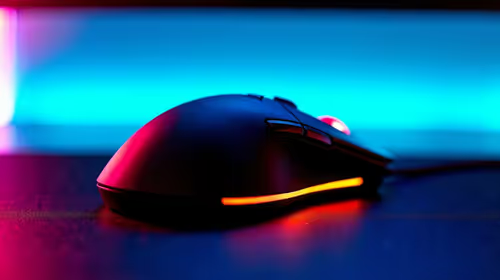
If your gaming mouse keeps crashing in games, you’re not alone. Many South African gamers face this frustration mid-battle, losing precious seconds and dying in-game. Whether it’s random freezing, erratic cursor movement, or sudden disconnection, these issues disrupt your flow and performance. But don’t worry—there’s a complete SA fix guide that will get your mouse back in action ⚡ without needing a costly upgrade.
Common Causes of Gaming Mouse Crashing in Games
Understanding what triggers mouse crashes is the first step to solving them. Here are the most frequent culprits:
1. Outdated or Corrupt Drivers
Drivers control how your PC and mouse communicate. If they’re outdated or corrupted, your mouse might lag, freeze, or disconnect during gameplay. Always update drivers from the manufacturer’s site or use trusted software to keep them current.
2. USB Port and Cable Issues
A faulty USB port or damaged cable can cause sudden mouse dropouts. Try switching ports or using a different USB slot, preferably USB 3.0 for lower latency. Check your cable for frays, and avoid USB hubs that can cause unstable power delivery.
3. Power Management Settings
Windows sometimes powers down USB devices to save energy. This setting can interfere with your gaming mouse. Disable USB selective suspend in power options to prevent your mouse from going to sleep mid-game.
Quick Tips to Optimise Your Gaming Mouse Performance 🔧
Simple Fix for Mouse Freezing
Before diving into deep troubleshooting, reboot your PC to clear temporary glitches. Also, unplug the mouse, wait 10 seconds, and reconnect it to refresh the USB connection.
4. Check Software Conflicts
Some background apps or overlay software interfere with mouse drivers or game input. Close unnecessary programs like chat clients or recording overlays when gaming. Also, avoid running multiple mouse software utilities simultaneously.
5. Adjust Polling Rate and DPI
Experiment with your mouse's polling rate and DPI settings. Sometimes, a very high polling rate overwhelms your system. Lower it slightly to see if stability improves. These settings are usually available in the mouse’s dedicated software.
For the latest gaming mouse models and peripherals tailored for South African gamers, browse Evetech’s comprehensive range right here: gaming mouse collection.
When to Consider Upgrading Your Setup for Better Stability
If troubleshooting doesn’t solve your issue, your hardware might be struggling with modern games. South African gamers often upgrade to pre-built PCs or laptops configured for gaming to minimise hiccups. Evetech offers some of the best gaming PC deals and laptops suited for local power standards and budget constraints.
Discover some hassle-free rigs here: best gaming PC deals at Evetech or browse ready-to-run gaming laptops in South Africa at: notebooks for sale in South Africa.
Maintenance and Regular Checks to Prevent Future Mouse Crashes
Keep your gaming gear in top shape by:
- Regularly cleaning your mouse sensor and buttons to remove dust and debris
- Updating your PC’s BIOS and USB controller drivers
- Inspecting cables for wear and replacing if needed
- Avoiding excessive USB device switching during gameplay
If you’re looking to score great deals on gaming gear, don’t miss Evetech’s specials page. Here you’ll find discounts and bundles on peripherals, including gaming mice: Evetech Specials.
Upgrade Your Gaming Experience Don’t let mouse crashes hold you back. Find your ideal gaming mouse or the perfect gaming rig at competitive prices—Shop now at Evetech for performance that leaves lag in the dust.