Software gain sliders feel convenient until you hear what they cost you. Push a weak microphone signal in Windows or on your streaming platform and you are amplifying the noise floor right alongside your voice, adding a thin hiss that post-processing cannot fully remove. Hardware gain control works before any of that happens, on the analogue signal itself, which means you get a louder and cleaner input rather than a louder and noisier one.
Quick Answer
Set your input level on the microphone's physical dial, not in software. Hardware gain amplifies the analogue signal before digital conversion, keeping noise out of the recording from the start. A 4-in-1 knob gives you gain, headphone volume, mix balance, and instant mute from one dial.
🎛 Why Signal Chain Order Matters
Audio gain operates in sequence. Your voice hits the capsule, becomes a tiny electrical signal, and is amplified before an analogue-to-digital converter changes it into numbers your PC can use. Hardware gain lives at the start of that chain. Software gain lives at the end, working on an already-converted file.
Turning up software gain on a quiet track raises everything equally: your voice, PC hum, street noise, and the microphone's own self-noise. The track sounds louder but busier. Hardware gain lifts the electrical signal while it is still analogue, giving the converter a strong clean input. The practical difference is audible in the finished recording.
🔧 The 4-in-1 Knob in Practice
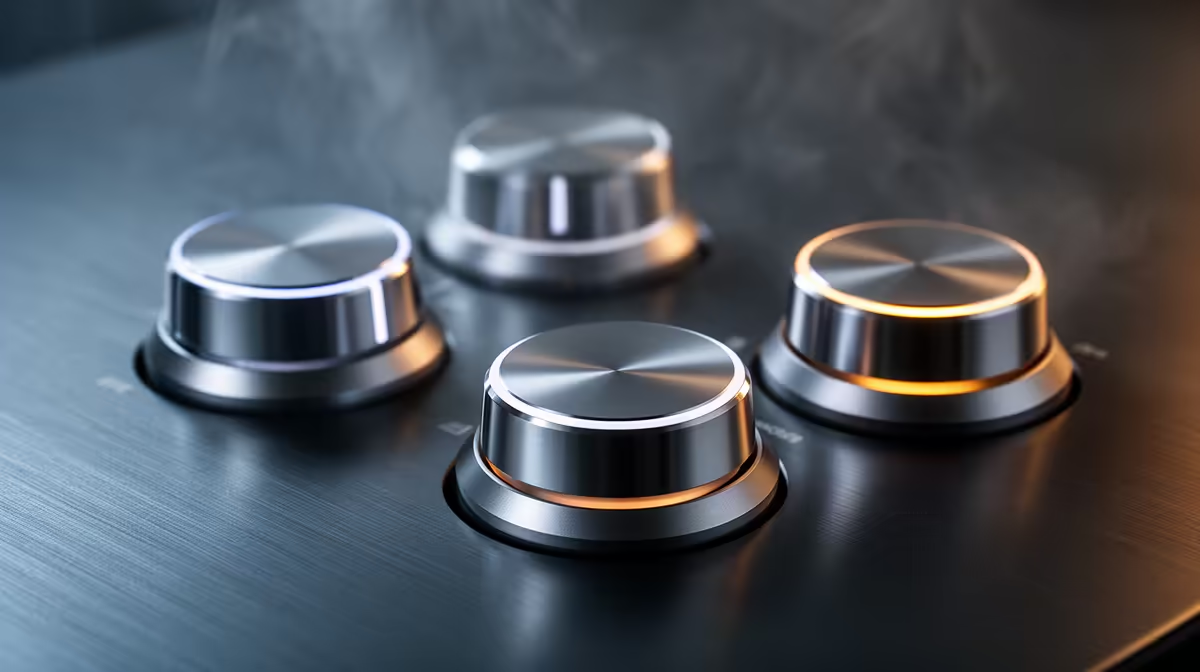
A 4-in-1 knob packs gain, headphone monitor volume, mic-to-PC mix balance, and instant mute into one dial. Press to cycle through functions, turn to adjust whichever is active.
Set gain first. Speak at your normal level and raise the dial slowly while watching the LED ring. Green peaks near -12 dB are the target. A ring pushing into solid red means the input is clipping and distortion is being recorded, so reduce the level before going live.
The mix function balances how much of your live mic feed you hear against desktop audio in the headphones. Lean toward your voice for self-monitoring during quiet segments; lean toward PC audio when game sound needs to be prominent.
Mute cuts output instantly. Most knobs hold the LED ring solid red on mute, giving you a visible status check before any unguarded comment goes out.
Pro Tip ⚡
Record a 15-second test clip at your intended gain level, then zoom into the waveform in any free audio editor. Flat-topped peaks confirm clipping even when the ring did not appear fully red. One test clip before a session tells you exactly where to set the dial.
⚡ Reading the LED Ring as a Gain Meter
The LED ring around a hardware knob is a real-time peak meter. Green or white segments in the middle of the ring indicate a healthy signal, roughly -18 dB to -6 dB on peaks. A single amber segment at the top is acceptable for the very loudest moments. Solid red or frequent clipping means the input is too hot and needs to be reduced.
The ring doubles as a live mute indicator on most models. When the ring holds red, you are silenced. When it returns to metering, you are live. Checking the ring before every take removes both common recording mistakes: clipped input and broadcasting while supposedly muted.
Frequently Asked Questions
What four functions does a 4-in-1 knob control?
Hardware gain, headphone monitor volume, mic-to-PC audio mix balance, and instant mute. Each press of the knob steps to the next function, and turning it adjusts the active one. All four controls stay accessible without opening a software panel or switching focus away from the game or recording in progress.
Why set gain in hardware instead of boosting in software?
Hardware gain works on the analogue signal before conversion, so the digital file starts with a strong, clean input. Software boosting raises the noise floor alongside the voice, adding hiss that is difficult to remove cleanly in post. It is the most effective single adjustment for improving recording quality without extra hardware.
How do I know my gain is set correctly?
Speak at your loudest normal level and watch the LED ring. Green peaks in the middle segments are healthy. A brief amber at the top is acceptable. Solid red or regular clipping means you need to reduce the gain before recording. For streaming and broadcast content, targeting peaks around -12 dB leaves useful headroom for louder moments.
Can the knob give zero-latency monitoring?
Yes. The mix function routes the mic signal directly to the headphone jack through an internal analogue path, bypassing the PC. You hear your voice as it enters the capsule with no detectable delay, unlike software monitoring which adds several milliseconds through the operating system.
Should beginners leave gain at maximum?
No. Maximum gain fills the input with noise and clips loud sounds almost immediately. Start around 50 percent, speak normally, watch the LED ring, and raise slowly until peaks sit in the green zone. A modest correctly-set gain produces a cleaner recording than an aggressive one, with headroom remaining for unexpected volume increases.
Ready to record cleaner audio without the guesswork? Explore the microphone range at Evetech with onboard hardware gain control and find the model that puts a distortion-free signal at your fingertips from the first take.