


Quick Answer
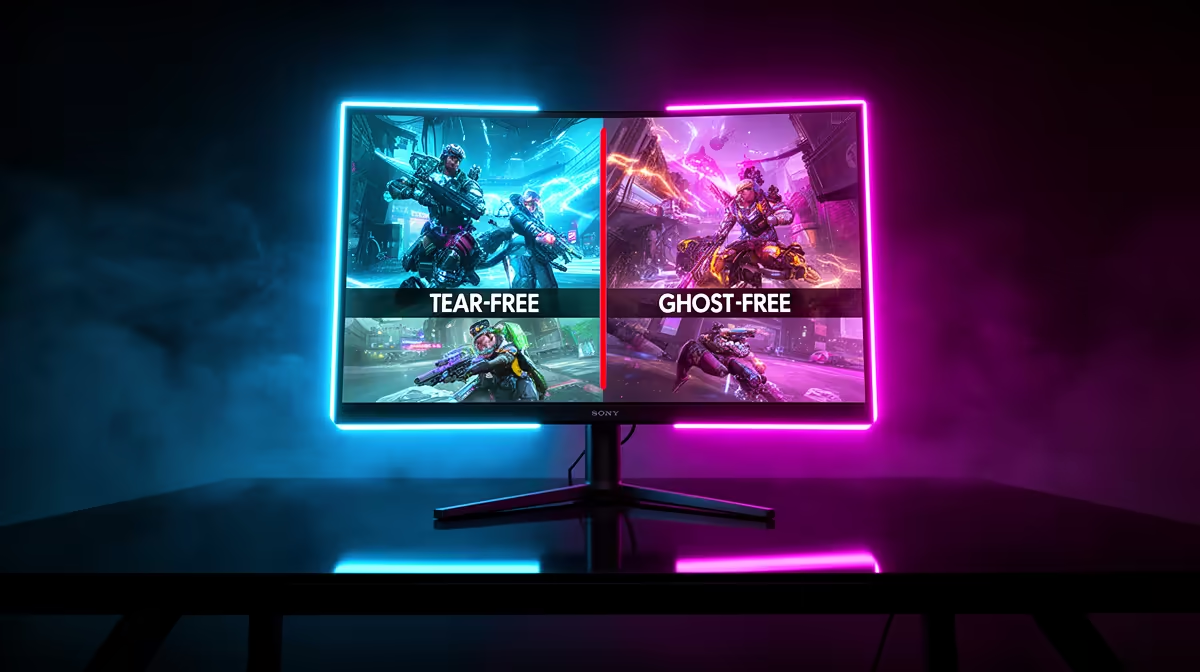
FreeSync Premium eliminates screen tearing by synchronising the monitor's refresh rate to the GPU's output frame rate in real time. ELMB Sync (Extended Low Motion Blur) reduces ghosting by strobing the backlight in sync with the refresh cycle. Used together on compatible monitors, they tackle both problems simultaneously without the trade-offs that existed when the two technologies were mutually exclusive.
How FreeSync Premium Stops Tearing 🔧
Screen tearing happens when the GPU outputs a new frame mid-refresh: the top half of the screen shows one frame and the bottom half shows the next. FreeSync Premium uses AMD's Adaptive Sync standard (built into the DisplayPort and HDMI specifications) to instruct the monitor to delay its next refresh cycle until the GPU has finished rendering a complete frame. The monitor's refresh rate stretches or compresses dynamically, always staying in sync with GPU output.
How ELMB Sync Eliminates Ghosting 🖥️
Ghosting appears as a trailing smear behind fast-moving objects, caused by pixels taking time to fully transition from one colour to another. ELMB (Extended Low Motion Blur Sync) addresses this with backlight strobing: instead of the backlight illuminating the panel continuously, it flashes in brief pulses timed to each refresh cycle. During the dark intervals between pulses, your eyes receive no light from transitioning pixels, effectively hiding the blur. The result is that fast-moving objects appear sharper and more distinct. Older implementations required choosing between adaptive sync and backlight strobing.
Practical Impact for SA Gamers 🎮
For SA gamers on Fibre connections through Vumatel or Frogfoot playing online titles like Valorant, CS2, or Warzone, frame rate variability is common, particularly during busy network moments where CPU usage spikes. Without FreeSync Premium, these frame rate dips produce visible tearing that breaks tracking. With FreeSync Premium and LFC active, the monitor adapts to frame rate variance transparently. ELMB Sync additionally sharpens the moving images during the frame rate swings, so gunfights that used to appear as smeared blobs become visually clean tracking targets. Monitors with both technologies currently sit between R4,500 and R8,000 in SA, representing strong value for competitive players.
Keep FreeSync Active in the AMD Driver Panel ⚡
FreeSync Premium must be enabled both in the monitor OSD and in AMD Radeon Software (or Windows display settings for DisplayPort connections). If the in-game frame rate suddenly looks choppy despite having a FreeSync monitor, open AMD Radeon Software and confirm the FreeSync toggle is on for your connected display. This setting occasionally resets after driver updates.
FAQ
Does FreeSync Premium work with NVIDIA GPUs?
Yes. NVIDIA's G-Sync Compatible certification accepts most FreeSync monitors, and NVIDIA enables adaptive sync through drivers for DisplayPort connections. Performance is nearly identical to native G-Sync for most games. Enable it in NVIDIA Control Panel under Display, then Set Up G-Sync.
Can I use ELMB Sync without FreeSync active?
On monitors that support ELMB Sync, you can run ELMB independently in fixed-refresh mode if you prefer the motion clarity without adaptive sync. This was the original ELMB mode before the Sync version was introduced. It suits users with a GPU that consistently outputs above the monitor's maximum refresh rate.
Does ELMB Sync reduce brightness noticeably?
Yes. Backlight strobing reduces average backlight output by 30 to 50% because the light is off for a portion of each cycle. In a dark room this is fine; in a brightly lit lounge or bedroom in Cape Town afternoon sun, you may need to increase brightness compensation or disable ELMB for non-competitive viewing.
Looking for a monitor that handles both tearing and ghosting at the same time? Evetech stocks FreeSync Premium gaming monitors with ELMB Sync and advanced motion handling. Browse current availability to find the right panel for your GPU and gaming needs.










