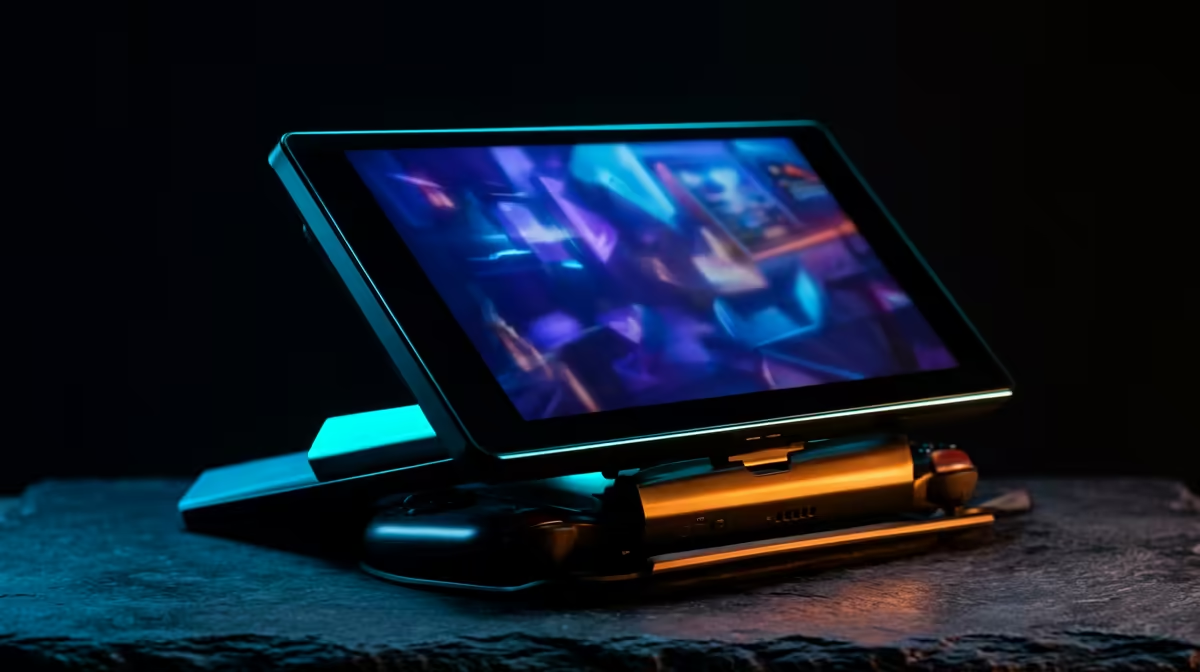
You plug a portable monitor into your Steam Deck, expect a second screen, and get nothing. No image, no flicker, just the Deck carrying on as if the cable were not there. The cause is almost never a broken monitor or a faulty Deck. It is usually power and cable: the Deck's single USB-C port cannot always push enough wattage to run a display while gaming, and a cheap charge-only cable carries no video at all.
Quick Answer
Fix a portable monitor not detected on a Steam Deck by using a full-feature USB-C cable that carries video, and by powering the monitor from its own source rather than the Deck. Most detection failures clear once the monitor has separate power, ideally through a powered USB-C dock or hub, because the Deck's lone port struggles to supply both video and enough wattage at once.
The Two Causes Behind Almost Every Failure
A portable monitor over USB-C needs two things from the connection: a video signal and enough power. The Steam Deck has one USB-C port, and when you are gaming the system is already drawing hard on that port for charging and the chip's own demands. Asking it to also feed a power-hungry screen is often a step too far. Layer a charge-only cable on top, one that physically lacks the wires for video, and detection becomes impossible. Sort both and the screen usually springs to life.
If you are still picking the right second screen for handheld use, the portable monitor range at Evetech lists the panels and their power requirements so you can match one to the Deck before you buy.
Fix It Step by Step
Work through these in order, because the first two solve the majority of cases.
1. Swap to a Video-Capable USB-C Cable
Many cables that ship with chargers and power banks carry power only. They will charge the Deck happily but transmit no picture. Use a cable explicitly rated for video, often labelled for DisplayPort Alt Mode or supplied with the monitor itself. This single swap fixes a large share of "not detected" reports.
2. Give the Monitor Its Own Power
Plug the monitor into its own charger or a power bank rather than relying on the Deck. Once the screen is not begging the Deck for wattage, the Deck has spare capacity for the video signal, and detection becomes far more reliable, especially mid-game when the system is already working hard.
3. Use a Powered USB-C Dock or Hub
The cleanest long-term fix is a powered dock. It splits one Deck port into charging in, video out and USB accessories, all fed from a wall supply. This removes the power bottleneck entirely and lets you charge the Deck and run the monitor at the same time.
4. Check Resolution and Refresh Rate
If the screen connects but stays blank, the monitor may be asking for a mode the Deck will not output. In the Deck's display settings, confirm the external resolution and refresh rate are within the panel's supported range, then step them down if needed to force a stable signal.
Why Gaming Makes It Worse
Many users find the monitor works on the desktop but cuts out the moment a game loads. That is the power story in action: launching a demanding title spikes the Deck's draw, leaving less for the display, so a setup that looked fine on the menu collapses under load. Separate power for the monitor is what keeps the picture stable through heavy scenes. For desk use, a properly powered second screen transforms the Deck, and the best-selling monitors show what local buyers reach for when they want a fixed display alongside the handheld.
Frequently Asked Questions
Why does my Steam Deck ignore my portable monitor completely?
Usually a charge-only cable or insufficient power. Switch to a video-capable USB-C cable and power the monitor separately, and the Deck should detect it. If it still fails, a powered dock removes the power limit entirely.
Does the monitor need its own power supply?
In most cases, yes. The Deck's single port struggles to run a display and stay charged at once, so giving the monitor its own charger or power bank is the simplest reliable fix.
Will any USB-C cable carry video to the monitor?
No. Plenty of cables are wired for power only and carry no picture. Use one rated for video output, often the cable that came with the monitor, to be sure the signal can travel.
Why does the screen work on desktop but cut out in games?
Launching a game raises the Deck's power draw sharply, leaving less for the display. Powering the monitor independently, or using a powered dock, keeps the image stable even under a heavy gaming load.
Want a second screen that pairs cleanly with your Steam Deck? Browse the portable monitor range at Evetech and pick a panel with power and connection requirements that suit handheld use.