A Quest headset that refuses to see your PC over a Link cable is almost always a connection problem, not a broken headset. Nine times out of ten the Quest Link cable is not being detected because it is plugged into a USB 2 port, or the cable itself cannot carry the data rate wired PCVR needs. Sort the port and the cable and the headset usually springs to life.
Quick Answer
Reseat the cable into a confirmed USB 3.0 port (the blue one, or one marked SS), then reboot both the headset and the PC. That single fix resolves most cases. If it still fails, the cable likely lacks the bandwidth for Link and needs replacing with a proper high-speed USB 3 cable.
Start with the port, not the headset
Wired Link streams a heavy compressed video feed from your PC to the headset, and that needs the bandwidth of USB 3.0 or better. A USB 2 port simply cannot move enough data, so the PC software may not register the headset as a valid Link device at all.
Find a USB 3 port. On most desktops these are the blue-tinted ones, often labelled SS or USB 3. On the back of a desktop they connect directly to the motherboard, which is more reliable than the front-panel ports. Avoid USB hubs entirely for Link: route the cable straight from the headset into the PC, with nothing in between.
The cable itself is the usual culprit
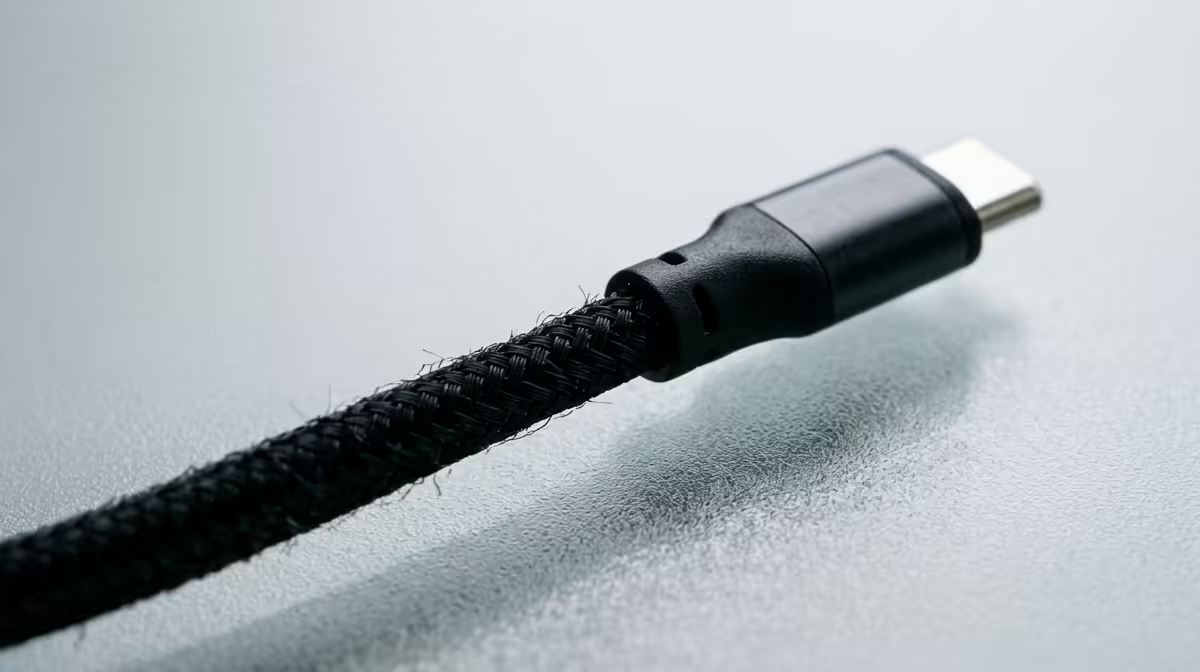
The cable that ships in the box is meant for charging, not for sustained high-bandwidth streaming. Many detection failures come down to a cable that physically fits but cannot carry the data rate Link demands. A purpose-built Link cable, or a certified high-speed USB 3 cable of the right length, fixes a large share of these cases.
Run through this quickly:
- Confirm the cable is a USB 3 data cable, not a charge-only lead.
- Reseat both ends firmly. A slightly loose connector drops the link.
- Try a different USB 3 port, ideally a rear motherboard one.
- Reboot the PC and the headset, then reopen the PC app before reconnecting.
If a known-good USB 3 cable in a rear port suddenly works, the original cable was the problem. Spare cables and wired VR accessories sit within the broader VR and AR accessories range at Evetech if you need a replacement that is rated for the job.
Software and driver checks
If the hardware side is clean and detection still fails, work through the software:
- Make sure the PC companion app is installed, updated and running before you plug in.
- Enable USB connection and the Link feature in the app's settings.
- Update your GPU drivers, since an outdated driver can break the video stream.
- Accept the "Allow access" prompt that appears inside the headset when you first connect.
Change one thing at a time and retest, so you know which step actually fixed it. Once you have a working setup, the rest of the wired and wireless gear that pairs with it shows up across the accessories best sellers at Evetech.
Frequently Asked Questions
Why does my PC not detect the Link cable at all?
Most often the cable is plugged into a USB 2 port or is a charge-only cable without the data bandwidth Link needs. Move to a confirmed USB 3.0 port with a proper data cable and reboot both devices.
Can I use the cable that came in the box?
For charging, yes, but it is often not rated for sustained Link streaming. If detection keeps failing, swap to a dedicated high-speed USB 3 Link cable.
Do USB hubs work with Quest Link?
No, avoid them. Plug the cable straight from the headset into a USB 3 port on the PC, ideally a rear motherboard port, with no hub in the chain.
I plugged in but nothing happens, what next?
Check that the PC companion app is open and updated, then look inside the headset for the access prompt and accept it. Updating your GPU drivers resolves many remaining cases.
Still wrestling with a flaky wired connection? Browse Evetech's VR accessories for a properly rated high-speed Link cable and get back to smooth wired PCVR.