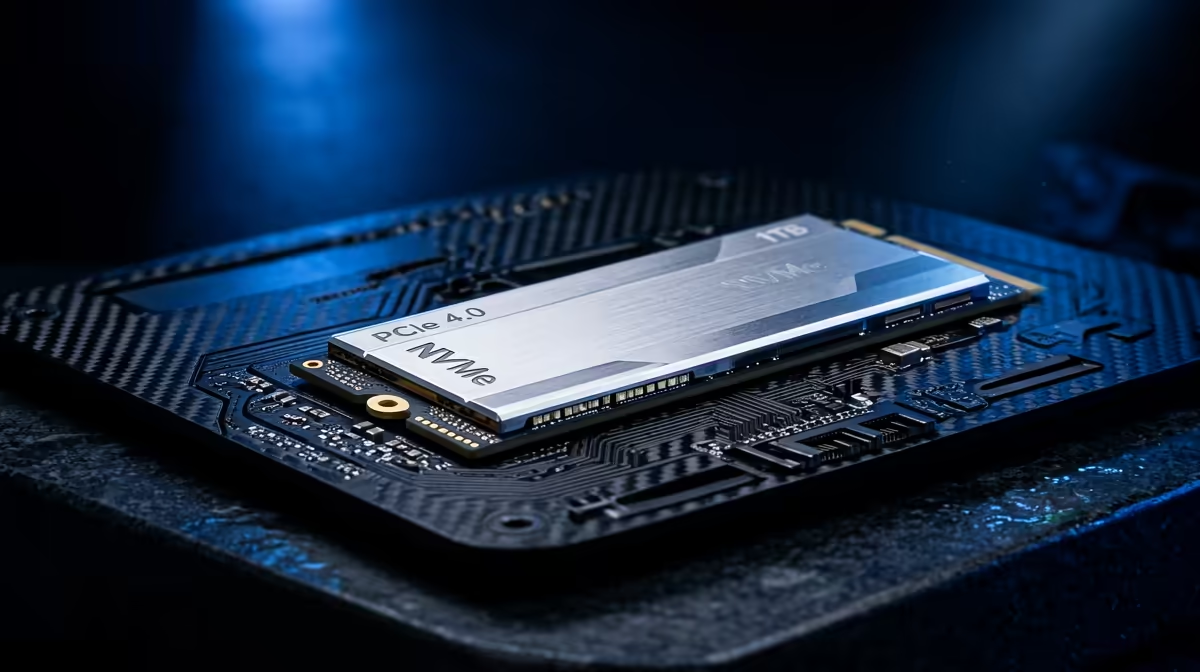
You bolt a shiny NVMe drive onto your Pi 5's M.2 HAT, boot up expecting fast storage, and lsblk shows nothing. The drive is fine. The problem is that the Raspberry Pi 5 does not scan its PCIe bus by default, so the drive is physically connected but never enumerated. One line in the firmware config wakes the bus up and the SSD appears as /dev/nvme0.
Quick Answer
The Pi 5's firmware skips PCIe bus probing out of the box, so an NVMe SSD on the M.2 HAT+ never shows up. The fix is to add PCIE_PROBE=1 to the EEPROM config and dtparam=pciex1 to /boot/firmware/config.txt, then reboot. That forces PCIe enumeration and exposes the drive. It is a two-line change that resolves the large majority of cases.
Apply the core fix first
Two settings do almost all the work here. Edit the EEPROM configuration:
sudo rpi-eeprom-config -e
Add this line:
PCIE_PROBE=1
Then open /boot/firmware/config.txt and add to the bottom:
dtparam=pciex1
The alias dtparam=nvme does the same thing if you prefer it. Reboot, then check with lsblk or ls /dev/nvme*. In most cases the drive now appears. The PCIE_PROBE=1 setting tells the firmware to scan the bus it otherwise ignores, and the dtparam line enables the single-lane PCIe connection the HAT uses.
When the HAT+ should self-enable
There is a nuance worth knowing. If you are using a genuinely HAT+-compliant adapter, such as Raspberry Pi's own NVMe HAT, the external PCIe port is meant to enable automatically without you touching anything. In practice, plenty of users still find they need to set the parameters above manually before the drive is recognised, so do not assume the automatic path will work. If the drive is missing, apply the config changes regardless of which HAT you have.
If it still will not appear
A few less obvious causes catch people out. First, check the drive type. Only M.2 NVMe Key-M SSDs are supported on these HATs, not M.2 SATA Key-B drives, so confirm you bought the right form factor before assuming a fault. Second, certain specific drive models are known troublemakers on the Pi 5, with several Western Digital models in particular reported to cause detection problems, so a drive swap is worth trying if everything else checks out. The best-selling SSDs at Evetech are a good place to find a known-good NVMe drive if yours is on the awkward list.
If the drive shows up but you see PCIe errors in dmesg or slow boots, you can experiment with dtparam=pciex1_gen3 to force Gen 3 speeds. Be aware the Pi 5 is not officially certified for Gen 3, so the connection may be unstable, and Gen 2 is the safe default if reliability matters more than peak throughput.
Once the drive is recognised, you can set it as a boot device for far faster performance than an SD card. If you need a compact machine to pair with fast NVMe storage, the best-selling PCs at Evetech shows popular ready-to-run options, and the mini PC range covers the smaller form factors if you decide a Pi is not quite enough for the project.
Frequently Asked Questions
Why does the Pi 5 not detect NVMe by default?
The firmware skips PCIe bus scanning to save time at boot, so the drive is connected but never enumerated. Adding PCIE_PROBE=1 forces the firmware to scan the bus and find the drive.
Where exactly do the two settings go?
PCIE_PROBE=1 goes in the EEPROM config via sudo rpi-eeprom-config -e, and dtparam=pciex1 goes at the bottom of /boot/firmware/config.txt. Reboot after both for the drive to appear.
My drive still is not showing. What now?
Confirm it is an M.2 NVMe Key-M drive, not a SATA Key-B one, since only NVMe is supported. Some specific drive models are also known to misbehave on the Pi 5, so trying a different known-good SSD is a sensible next step.
Can I run the drive at Gen 3 speeds?
You can force it with dtparam=pciex1_gen3, but the Pi 5 is not certified for Gen 3, so the link may be unstable. Stick with the default Gen 2 if you value reliability over maximum speed.
A missing NVMe drive on the Pi 5 is almost always a config line, not a dead SSD. If you do need a replacement drive that plays nicely, browse the best-selling SSDs at Evetech and get your Pi booting from fast storage.