


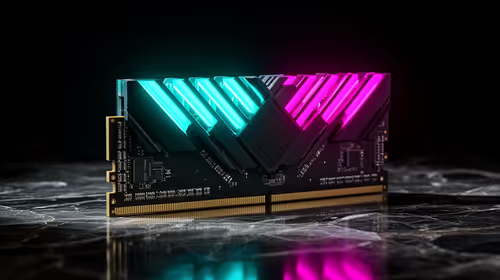
FPS Drops Troubleshooting for DDR5 build
DDR5 build FPS drops needs a methodical troubleshooting pass. Review drivers, thermals, power settings, background apps, cables and game settings before replacing parts in an SA gaming setup.
Read moreFix DaVinci Resolve reporting GPU memory is full by lowering the timeline proxy resolution, disabling GPU-heavy noise reduction nodes and setting a VRAM usage limit under System Preferences > Memory.
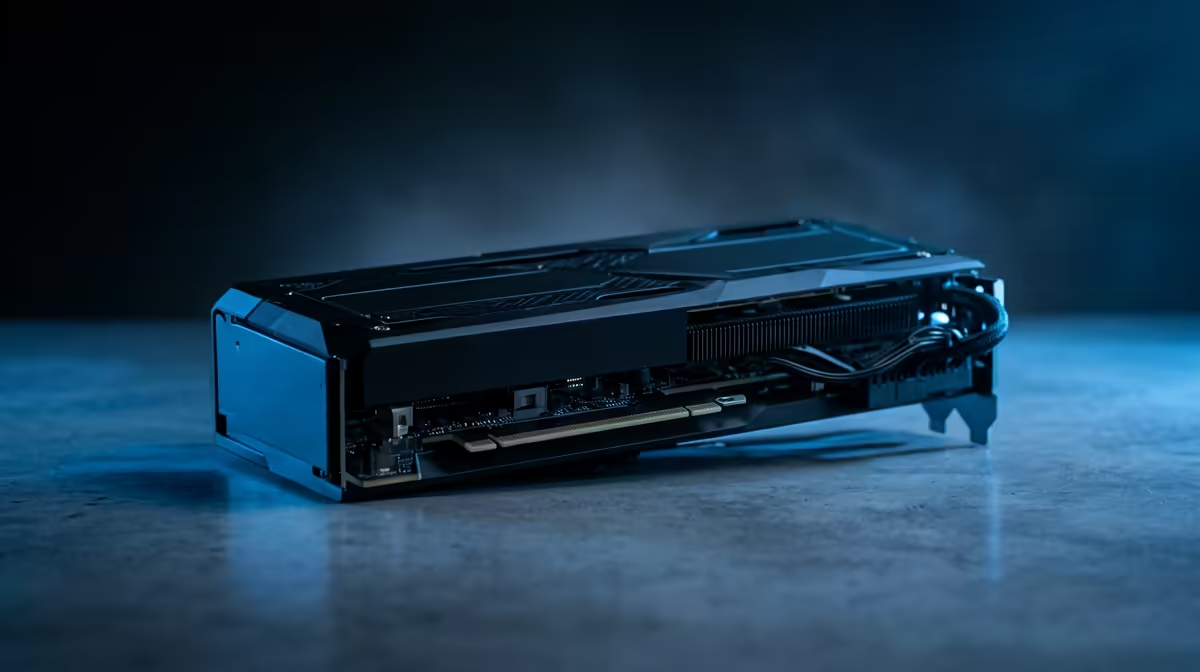
Few editing errors kill momentum like DaVinci Resolve stopping a render to tell you GPU memory is full. The good news is that this is almost always a settings problem, not a sign your graphics card has failed. A handful of changes to how Resolve uses VRAM clears it without buying new hardware.
Fix the GPU memory full error by lowering the timeline proxy resolution, disabling or reducing GPU-heavy noise reduction nodes, and setting a VRAM usage limit under Preferences then Memory and GPU. Together these cut the load on your card's memory so the render completes.
Open Preferences, then the Memory and GPU section. Resolve lets you cap how much VRAM it tries to use. Counterintuitively, leaving headroom rather than letting Resolve grab everything often stops the crash, because the operating system and display also need VRAM. Set the limit slightly below your card's total and apply it. This is the single fastest fix and worth trying before anything else.
While you are in Preferences, confirm Resolve is using your dedicated GPU and not falling back to integrated graphics, which has far less memory to work with.
Temporal and spatial noise reduction are among the most VRAM-hungry tools in Resolve. If a clip has noise reduction applied across many nodes, the memory cost stacks fast. Disable noise reduction on clips that do not strictly need it, or lower its strength. Other GPU-heavy effects, such as optical flow and certain blurs, add to the pile too.
A practical approach is to switch problem nodes off, confirm the render completes, then reintroduce them selectively. That tells you exactly which effect is tipping you over the edge rather than guessing.
For sustained heavy grading and noise reduction work, a card with more onboard memory is the durable fix, and the workstation graphics card range lists options built for memory-intensive creative workloads.
You do not have to edit at full resolution the whole time. Drop the timeline proxy resolution to half or quarter while you work, then return to full for the final render. This dramatically reduces VRAM demand during editing and grading. If even the final render fails, render in segments or lower the bit depth of the timeline so each frame consumes less memory.
Optimised media and proxies achieve the same goal: Resolve processes smaller files during editing and only conforms back to full quality at export. Generating optimised media for the heaviest clips often clears recurring memory warnings entirely.
If you have applied all of the above and still hit the ceiling on demanding 4K or higher projects with heavy grading, the card simply lacks the VRAM the project needs. That is a real limit, not a bug. More onboard memory is the answer, and you can see how others size their editing rigs in the most popular desktop builds.
The error is about VRAM capacity for the current project, not card age. Heavy noise reduction, full-resolution timelines and a high VRAM allocation can exhaust memory even on capable cards, which is why the settings fixes usually resolve it.
Set a VRAM usage limit under Preferences, then Memory and GPU, leaving some headroom below your card's total. This stops Resolve from starving the system and the display of memory and clears the error in many cases.
Yes. Temporal and spatial noise reduction are among the most memory-intensive tools in Resolve. Disabling it on clips that do not need it, or lowering its strength, frees up significant VRAM immediately.
No. The proxy or timeline resolution only affects what you see while editing. You raise it back to full for the final render, so the exported file keeps its full quality.
If you have set a VRAM limit, reduced noise reduction and lowered timeline resolution but still hit the ceiling on demanding projects, the card lacks the memory the work needs. A GPU with more VRAM is then the lasting solution.
If your edits keep outgrowing your card's memory, step up to a GPU built for it. Compare memory-rich options in the workstation graphics card range at https://www.evetech.co.za/PC-Components/workstation-graphics-cards-307 and match the VRAM to the projects you actually grade.
The error is about VRAM capacity for the current project, not card age. Heavy noise reduction, full-resolution timelines and a high VRAM allocation can exhaust memory even on capable cards, which is why the settings fixes usually resolve it.
Set a VRAM usage limit under Preferences, then Memory and GPU, leaving some headroom below your card's total. This stops Resolve from starving the system and the display of memory and clears the error in many cases.
Yes. Temporal and spatial noise reduction are among the most memory-intensive tools in Resolve. Disabling it on clips that do not need it, or lowering its strength, frees up significant VRAM immediately.
No. The proxy or timeline resolution only affects what you see while editing. You raise it back to full for the final render, so the exported file keeps its full quality.
If you have set a VRAM limit, reduced noise reduction and lowered timeline resolution but still hit the ceiling on demanding projects, the card lacks the memory the work needs. A GPU with more VRAM is then the lasting solution.
DDR5 build FPS drops needs a methodical troubleshooting pass. Review drivers, thermals, power settings, background apps, cables and game settings before replacing parts in an SA gaming setup.
Read more
Fps drops on ddr5 build in south africa usually needs a settings, driver, thermal, or power check first. Work through safe SA troubleshooting steps before replacing parts or assuming a full upgrade.
Read more
X870E motherboard frame pacing issues needs a step-by-step check before replacing parts. Review drivers, settings, thermals, power, background apps, display limits, cables, and game options before changing hardware.
Read more
4K monitors cost more as sharp panels raise the bar. See why 4k monitors still expensive for gamers in cape town before choosing screen specs, GPU targets, and value trade-offs.
Read more
4K monitors still feel expensive for Gqeberha gamers because panel quality, higher refresh rates, and GPU demands raise total setup cost. Compare 1440p, screen size, ports, and refresh rate before paying more for 4K.
Read more
ARGB cases explain mid-tier SA build appeal with visible style, airflow room, and cable control. For SA buyers, the smarter choice is a case where lighting, fan layout, and GPU clearance work together instead of just looking bright.
Read more
The Epomaker RT75 is a tri-mode 75% keyboard with a removable TFT screen. Local screen-equipped compact boards started at R1,199 in our snapshot.
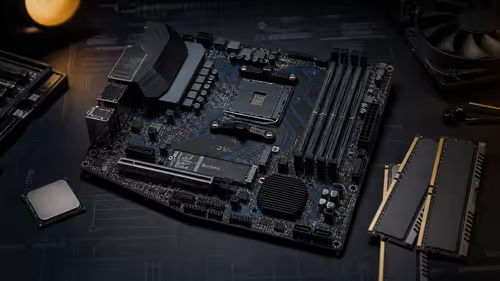
Gigabyte has launched two B450M D3HP boards for Ryzen 3000 to 5000 CPUs. The exact models had no confirmed Evetech listing on 15 August.

Attackers are exploiting a patched Mac screen-sharing flaw to gain root access. Update macOS and remove public port 5900 exposure immediately.

An auto-clamping phone holder offers seamless, one-handed convenience for your vehicle. Discover how it compares to manual cradle mounts to see which keeps your device secure during your daily drive. 🚗📱

A 10,000-hour test found similar image retention across older and newer OLED TVs, while newer panels were brighter and more efficient. Local OLED monitors started at R9,999.

Canonical expects Ubuntu on WSL users to outnumber native Ubuntu desktop users before the end of 2026. The software is open source and runs inside supported Windows PCs.

Telkom's daily bundles pair WhatsApp access with 10 all-network voice minutes. The R15 option includes 300MB, while the R17 option uses a fair-use threshold.
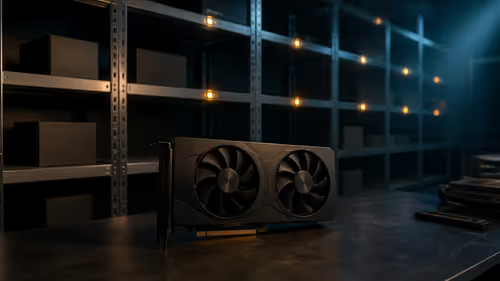
PC Partner expects entry-level graphics-card shortages to worsen in the second half of 2026. Current Evetech GPU listings started at R4,399 in our snapshot.
DDR5 build FPS drops needs a methodical troubleshooting pass. Review drivers, thermals, power settings, background apps, cables and game settings before replacing parts in an SA gaming setup.

Wi-Fi 6E vs Wi-Fi 6 depends on AAA single-player gaming needs, platform limits, and budget fit. Compare compatibility, latency, upgrade path, and real setup constraints before choosing for an SA build.
Fps drops on ddr5 build in south africa usually needs a settings, driver, thermal, or power check first. Work through safe SA troubleshooting steps before replacing parts or assuming a full upgrade.
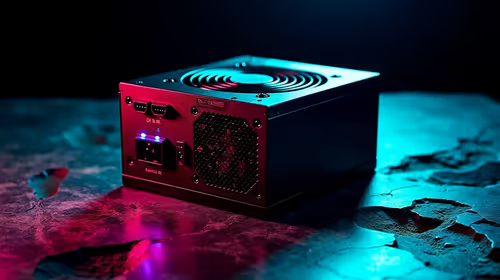
ATX 3.1 vs ATX 3.0 for cinematic story games Difference explained is mostly about compatibility, budget, upgrade path, and setup fit. SA buyers should check device support and real needs before expecting a clear win from either option.