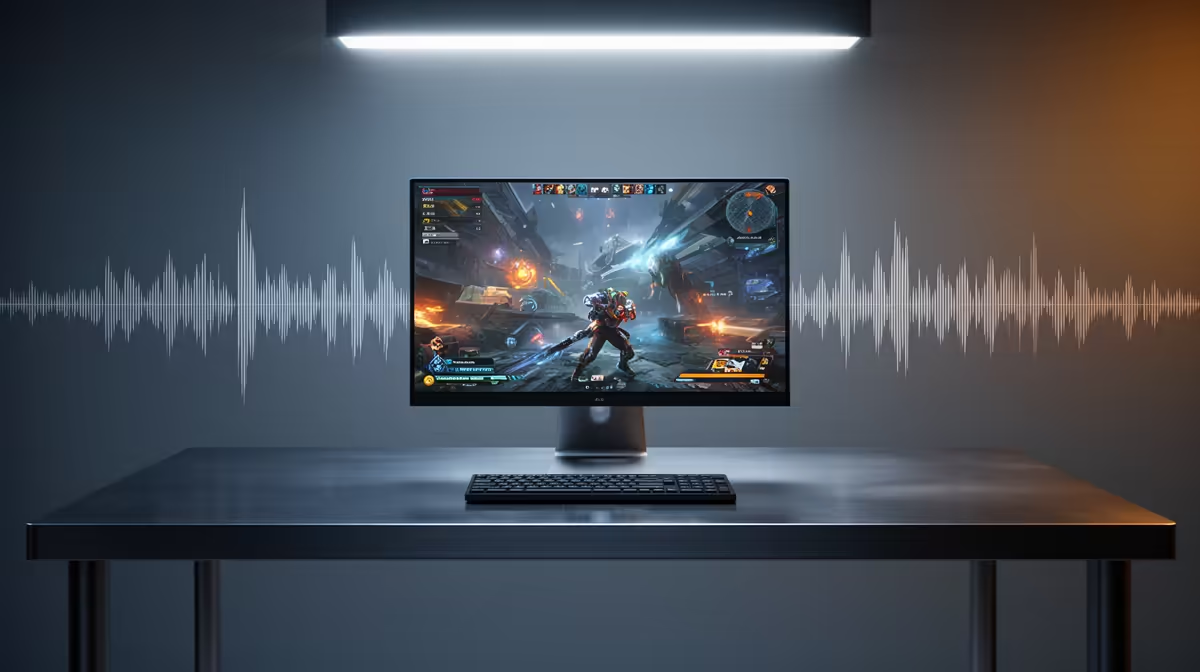
A game launches under Proton on Linux, the picture is perfect, and there is no sound at all. In the vast majority of cases this is not a broken game or a missing driver, it is Proton sending the audio to the wrong output device, and the fix takes about thirty seconds in your system sound mixer.
Quick Answer
While the silent game is running, open your system sound mixer and look for the game's audio stream. Proton often routes it to a virtual or inactive output sink instead of your speakers or headset. Switch that stream to the correct PipeWire output and the sound returns immediately, no restart needed.
Why Proton sends audio to the wrong place
Proton runs Windows games through a compatibility layer, and part of that layer translates the game's audio calls to your Linux sound system, usually PipeWire on modern distributions. During that handoff, the game's audio stream can be assigned to the wrong sink, a virtual device, a monitor output, or an HDMI port you are not using, rather than the speakers or headset you actually listen through. The game thinks it is playing sound correctly, your hardware just never receives it.
The fix, step by step
- Launch the game and leave it running, since the audio stream only appears in the mixer once the game is actively producing sound. Alt-tab or switch to your desktop.
- Open your system sound mixer. On most distributions this is the Sound settings panel, or a tool like pavucontrol, which gives you per-application control over audio streams.
- Go to the Playback or Applications tab. You should see the running game listed as an audio stream, often under the Proton or Wine process name rather than the game's title.
- Check the output device assigned to that stream. If it points to anything other than your active speakers or headset, change it. Use the dropdown next to the game's stream and select the correct PipeWire output sink, the device you normally hear sound through.
- The audio should return instantly. If it does not, confirm that your default output device in the main sound settings is also set to the right hardware, then play a test sound to verify the sink itself is working.
If the stream does not appear at all
Sometimes the game's audio stream never shows up in the mixer, which points to a different cause. Make sure the game is genuinely trying to play sound, some titles mute in the background or when unfocused. Check that the title is using a current Proton version in your launcher's per-game compatibility settings, since older Proton builds handle audio less reliably. As a last resort, fully close the game and your Steam client, then relaunch, which forces Proton to rebuild the audio connection from scratch.
Stopping it from happening again
If the misroute keeps recurring, set your preferred speakers or headset as the system default output in your sound settings, so new streams attach to it automatically. Keeping PipeWire and your Proton versions current also helps, since audio routing has improved steadily across releases. This kind of per-app audio control is one of the things that makes Linux gaming, including on handheld devices, far more manageable than it used to be. If you are gaming on a portable Linux device, the handheld gaming console range at Evetech covers the machines most likely to hit this exact Proton quirk. For a sense of what SA gamers are currently building and buying, the pre-built PC listing at Evetech offers a practical starting point.
Frequently Asked Questions
Why does my Proton game have no sound when video works fine?
Because audio and video are handled separately. The game renders correctly, but Proton has routed the audio stream to the wrong output sink, so your speakers or headset never receive it even though everything else looks normal.
Where is the sound mixer on Linux?
It is in your Sound settings panel, or in a per-application tool such as pavucontrol. The key is the Playback or Applications view, which lets you see and reassign each running program's audio stream individually.
Do I need to restart the game after switching the output?
No. Changing the output sink in the mixer takes effect immediately while the game is running, so the sound returns without closing or relaunching the title.
The game stream is not showing in the mixer, what now?
Confirm the game is actually producing sound and is not muted or backgrounded, then check it is using a recent Proton version in your per-game settings. If it still does not appear, fully close and relaunch the game and your client.
Does this affect handheld Linux gaming devices too?
Yes. Handhelds running a Linux-based OS use the same Proton and PipeWire stack, so the same misroute and the same mixer fix apply when sound goes missing.
Gaming on Linux and chasing quirks like this? Explore the handheld gaming range at Evetech for portable devices built to run your Proton library out of the box.