A render that crashes with an out-of-memory message minutes before it finishes is one of the most demoralising things in 3D work. The good news is that out-of-VRAM errors in Blender are almost always fixable without buying a new card, by trimming what the scene asks your GPU to hold and letting Cycles spill the rest into system RAM.
Quick Answer
Fix out-of-VRAM errors in Blender by reducing texture resolution to 2K or 4K, enabling texture compression, and turning on Cycles' out-of-core tile rendering so the scene overflows into system RAM instead of crashing the GPU. These three changes resolve the majority of memory failures.
Why Cycles Runs Out of VRAM
Cycles loads the entire scene into your GPU's video memory before it renders: every texture, mesh, and light. When that data exceeds your card's VRAM, the render fails rather than slows down. The fix is to either shrink the data or let some of it live in slower system RAM.
The biggest memory consumers are almost always textures, followed by dense geometry. Knowing that tells you where to look first, because halving a few oversized textures often frees more memory than any other single change.
Trim Your Textures First
A single 8K texture can swallow a large slice of VRAM on its own, and most scenes do not need that resolution for objects that sit far from the camera. Reduce hero textures to 4K and background textures to 2K, and the saving adds up fast.
Enable texture compression in the render settings so Cycles stores textures more efficiently in memory. The visual cost is usually invisible at final render, while the memory saving can be the difference between a crash and a clean finish.
Turn On Out-of-Core Rendering
Cycles can render scenes larger than your VRAM by spilling overflow data into system RAM. This out-of-core behaviour trades some speed for the ability to render at all, which is exactly the trade you want when the alternative is a failed render.
Enable it in the Cycles device settings, and make sure your system has enough RAM to act as the overflow buffer. The render runs slower, but it completes. For heavy scenes, this single setting often rescues a project on its own.
Reduce Geometry and Manage Instances
Dense meshes eat VRAM too. Apply subdivision modifiers at a sensible level rather than the maximum, and decimate background objects the camera will never inspect closely. Where you have many copies of the same object, use linked instances or geometry instancing so Blender stores one copy in memory rather than hundreds.
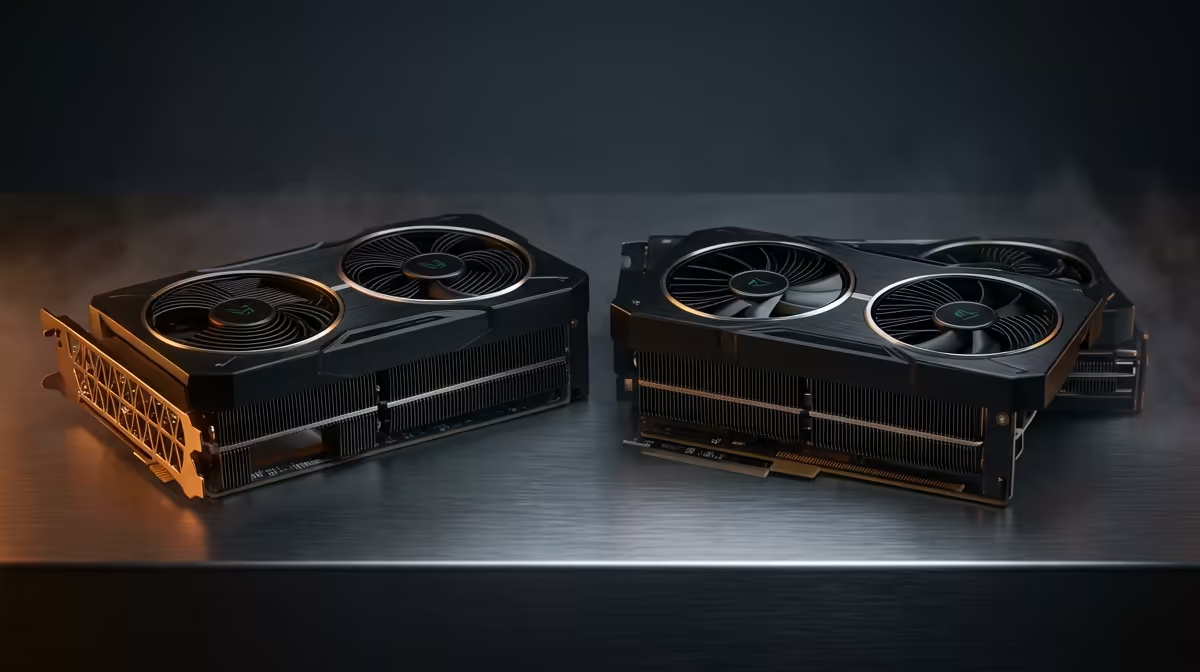
If you do this kind of work regularly, the longer-term answer is more headroom. Professional workloads benefit from cards with larger memory pools, and the workstation graphics card range at Evetech covers the higher-VRAM options built for rendering rather than gaming. For a complete system tuned for 3D work, the PC best sellers at Evetech are worth reviewing before you decide on components alone.
Last-Resort Settings
If the scene still will not fit, drop the render to CPU, which uses system RAM directly and ignores the VRAM limit entirely, at the cost of speed. You can also split the render into render layers and composite them afterwards, so the GPU never holds the whole scene at once. These are slower paths, but they always finish.
Frequently Asked Questions
What causes out-of-VRAM errors in Blender?
Cycles loads the full scene, including all textures and geometry, into GPU memory before rendering. When that data exceeds your card's VRAM, the render fails. Oversized textures are the most common culprit.
How do I reduce texture memory in Blender?
Lower texture resolution to 4K for hero assets and 2K for background objects, then enable texture compression in the render settings. This usually frees the most memory for the least visible quality loss.
What is out-of-core rendering?
It is a Cycles feature that lets a scene larger than your VRAM render by spilling overflow data into system RAM. The render is slower but completes instead of crashing, provided you have enough system memory.
Will rendering on CPU avoid VRAM errors?
Yes. CPU rendering uses system RAM directly and is not bound by the GPU's VRAM limit, so it can render very large scenes. The trade-off is significantly slower render times.
How much VRAM do I need for Blender?
It depends on scene complexity, but heavy scenes with high-resolution textures benefit from cards with larger memory pools. Workstation GPUs designed for rendering typically offer far more VRAM than gaming cards at the same tier.
Tired of fighting the VRAM ceiling on heavy renders? Explore the workstation graphics card range at Evetech and give Cycles the memory headroom your scenes need.