Why Your PC Shows the RAM Blue Screen and How to Fix It ⚡
Nothing grinds your gaming or workflow to a halt like a RAM blue screen popping up on your rig. If you're in South Africa and boot up only to see that dreaded blue screen of death (BSOD), it’s often memory-related. Faulty or incompatible RAM can cause system crashes, random restarts, or frozen apps. Stick around—this guide will help you troubleshoot and fix RAM blue screen issues, so you can get back to smooth gaming or working.
Understanding RAM’s Role in Blue Screen Errors
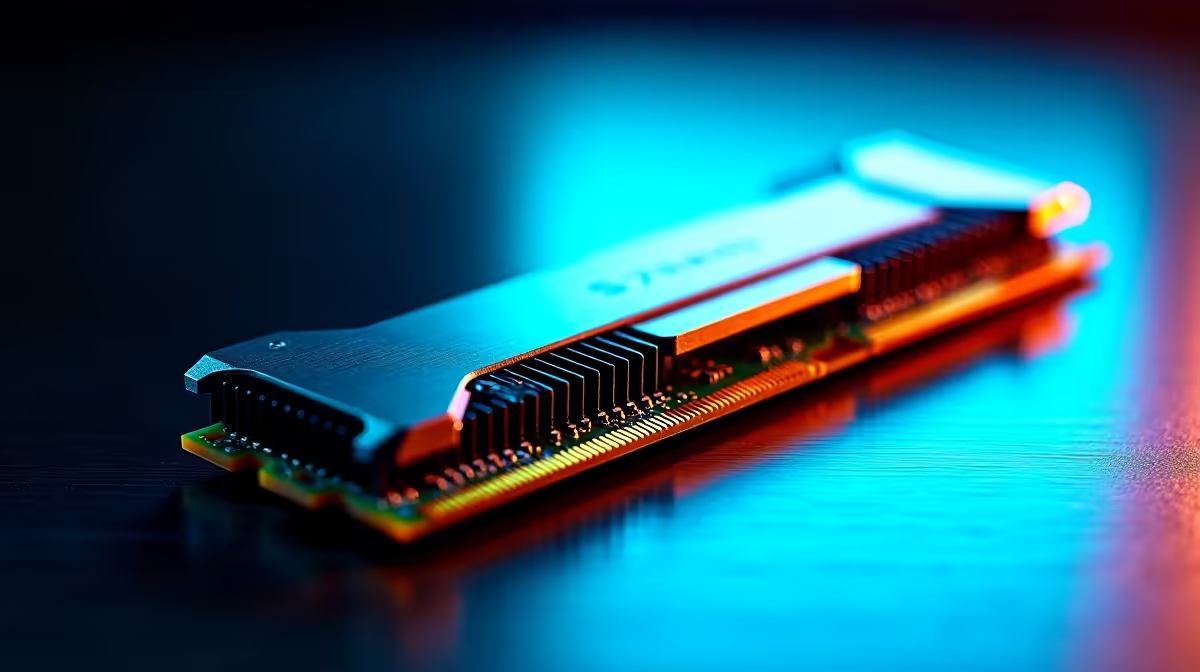
RAM, or Random Access Memory, lets your PC handle multiple tasks quickly. When it fails, Windows flags it with a blue screen, hinting at memory errors or hardware issues. Common causes include:
- Overclocked or unstable RAM settings
- Dust or poor contact in the RAM slots
- Outdated or corrupt drivers
- Defective or mismatched RAM modules
For South African gamers building new systems or upgrading, checking your RAM specs is key. Evetech offers top-notch memory modules compatible with local systems — ranging from budget sticks to premium gaming RAM.
How to Diagnose and Fix RAM Blue Screen Problems 🔧
Step 1: Test Your RAM for Errors
Windows’ built-in Memory Diagnostic tool is a good start. Restart your PC, run the tool, and let it scan for memory issues. Alternatively, MemTest86 is a trusted third-party tester you can boot from a USB.
Step 2: Check RAM Seating & Compatibility
Turn off your PC, unplug it, and remove your RAM sticks. Clean the contacts gently with a soft cloth and reseat them firmly. Mixing different brands or speeds can lead to instability; stick with uniform modules for best results. Looking to upgrade? Zap your blues by browsing Evetech’s latest pre-built PC deals — fully tested to eliminate hardware conflicts.
Step 3: Update Drivers and BIOS
Old or corrupt motherboard drivers cause conflicts with RAM. Head to your motherboard manufacturer’s site and download the latest updates. If you use a laptop, check Evetech’s selection of notebooks for sale in South Africa, often shipped with updated firmware to avoid such issues.
Step 4: Adjust Overclocking Settings or XMP Profiles
If you’ve tweaked RAM timings or enabled aggressive XMP profiles, lower these settings in BIOS. Stable, factory-verified speeds usually prevent blue screens. Keep your rig’s cooling efficient to complement this adjustment.
Check Your RAM Channels
Dual-channel RAM setups boost performance and help stability. Ensure you install RAM sticks in the correct motherboard slots as per the manual.
Preventing Blue Screens with Smart Hardware Choices 🚀
Besides getting quality RAM, your overall system health impacts stability. Use reliable power supplies, cool efficiently, and avoid mixing old and new hardware. Keep an eye on local specials at Evetech — discounted components can offer great value and peace of mind for your build.
If frequent blue screens persist after these steps, consider consulting tech support or exploring a fresh build with Evetech’s gaming PC deals tailored for South African gamers. Optimised rigs mean less troubleshooting and more play.
Level Up Your RAM and Performance
Don’t let RAM blues hold you back. Shop now at Evetech for top-quality memory and gear that keeps your gaming smooth and stable.