

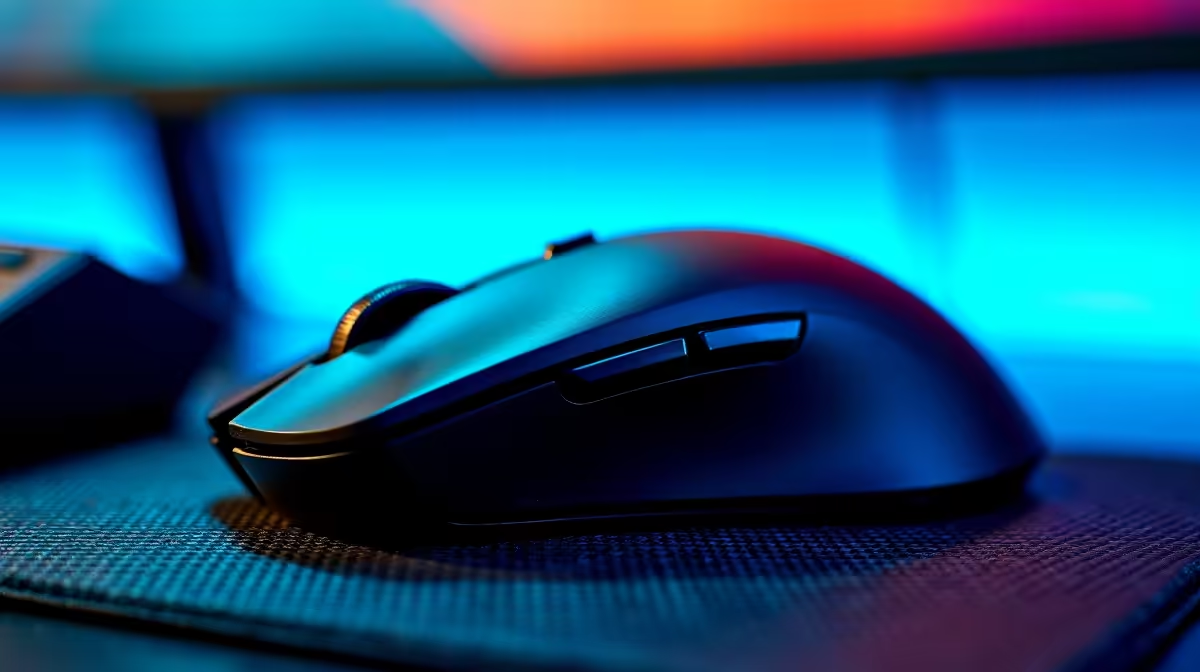
You are holding the angle in Valorant. The enemy peeks. You click... nothing happens. Before you blame loadshedding or smash your desk, take a breath. Unresponsive peripherals are incredibly frustrating. Often, the culprit is not a broken sensor or a flat battery. You just need to know how to fix wireless mouse driver issues in Windows 11. Let us get you back into the game fast.
Update Your Drivers via Device Manager 🔧
Windows 11 is a brilliant operating system. However, it sometimes gets confused by background peripheral updates. If your pointer is lagging across the screen, your first stop is Device Manager.
Right-click your Start button and select Device Manager from the list. Expand the "Mice and other pointing devices" section. Find your specific peripheral, right-click it, and select "Update driver". Choose the automatic search option. If Windows finds a newer version, it will install it instantly. This simple step resolves the majority of tracking issues.
Reinstalling the Troublesome Driver
Sometimes a standard update is not enough to fix wireless mouse driver issues in Windows 11. You might need a completely clean slate to clear out corrupted files.
Head back to Device Manager. Right-click your device and hit "Uninstall device". Do not panic when your cursor disappears... this is completely normal. Simply use your keyboard to restart your machine. Whether you are gaming on one of our best gaming PC deals or working from a coffee shop, Windows will automatically download and reinstall a fresh, basic driver upon reboot.
Manufacturer Software and Firmware 🚀
Generic Windows drivers are perfectly fine for basic office work. However, if you invested in a high-end premium gaming mouse, you absolutely need the official manufacturer software.
Brands like Logitech, Razer, and SteelSeries have dedicated control applications. Download the latest version directly from their official website. These applications push vital firmware updates that standard Windows Update often misses. They also let you customise your DPI settings and RGB lighting to match your setup perfectly.
Connectivity Pro Tip ⚡
USB 3.0 ports can sometimes cause wireless interference with 2.4GHz receivers. If your mouse stutters, try moving the dongle to an older USB 2.0 port. Alternatively, use the extension cable that came in the box to keep the receiver right next to your mousepad.
Is It Time for an Upgrade? ✨
If you have tried absolutely everything and the stuttering continues, your hardware might actually be failing. Mice take a serious physical beating over the years. Switches wear out and sensors accumulate dust. Upgrading your setup does not have to drain your wallet. We constantly update our tech specials so you can save those hard-earned Rands while getting top-tier gear.
Sometimes the issue runs deeper than a simple peripheral glitch. If your entire system is lagging or freezing randomly, it might be time to look at our pre-built PC deals for a complete system refresh. A fresh rig eliminates software bottlenecks entirely. Prefer gaming and working on the go? Browse our massive range of laptops for sale to find a portable powerhouse that handles Windows 11 and all your peripherals flawlessly.
Ready to Upgrade Your Setup? Fixing driver issues is great, but nothing beats the feeling of unboxing fresh hardware. Whether you need a flawless wireless mouse or a complete rig upgrade, Evetech offers the best value in South Africa. Explore our latest peripheral specials and find the perfect gear to conquer your matches.











