

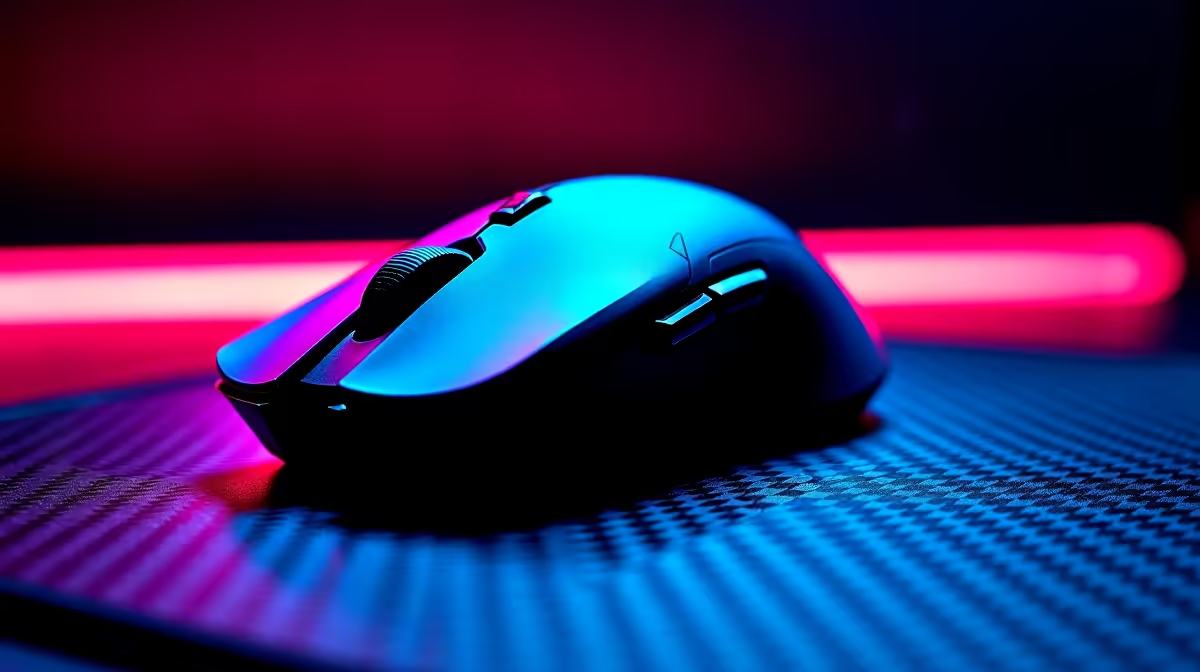
Every millisecond counts when you are holding an angle in Counter-Strike 2. Tired of cable drag ruining your clutch moments? Cutting the cord provides ultimate freedom for South African gamers. Learning how to install wireless gaming mouse hardware is incredibly easy. Say goodbye to desktop clutter and annoying wire snags. Let us get you set up and flick-shotting in minutes.
Getting Started with Your New Hardware
Before we dive into the setup, make sure your rig is fully prepared. Whether you are upgrading an older system or currently browsing the best gaming PC deals for a complete overhaul, a cord-free pointer is essential. The installation process is surprisingly simple. It requires no advanced tech degrees... just a few basic steps to connect your device and get back into the lobby.
The Installation Process Step-by-Step 🔧
Step 1: Charge It Up
First things first. Plug your new device in using the included cable. Even top-tier tech needs juice straight out of the box. You want a full battery before your first marathon gaming session.
Step 2: Connect the Receiver
Most modern models use a 2.4GHz USB dongle for ultra-fast performance. Plug this tiny receiver directly into the back of your motherboard. If you are gaming on the go, simply slot it into one of your laptops available USB ports. Avoid using cheap USB hubs if possible... they can sometimes introduce frustrating input lag.
Step 3: Switch It On
Flip the power switch located on the underside of your device. Your PC should recognise the new hardware almost instantly. Windows will automatically install the basic drivers to get you moving.
Step 4: Download the Official Software
To truly optimise your experience, you must download the manufacturer software. Brands like Logitech, Razer, and Corsair have dedicated apps. This software lets you adjust DPI settings, customise your RGB colour profiles, and map your side buttons. Creating specific profiles for different titles ensures you always have the upper hand. You can even sync the lighting with your other peripherals.
Step 5: Troubleshooting Connection Drops
Sometimes things do not work perfectly right away. If your cursor stutters, check for physical obstructions between the device and the receiver. A quick driver update usually fixes any lingering bugs.
Signal Pro Tip ⚡
Keep your USB receiver close to your mouse pad using the included extension adapter. This prevents interference from your router or other wireless devices, ensuring your connection stays flawless during intense competitive matches.
Maximise Your Unplugged Experience 🚀
Now that you understand how to install wireless gaming mouse devices, the real fun begins. You can finally enjoy a completely clutter-free desk space. This clean aesthetic is especially satisfying if you recently snagged one of our incredible pre-built PC deals. A tidy battle station simply looks more premium.
Remember to keep a close eye on your battery levels through the software. Modern optical sensors are incredibly power-efficient, but nobody wants their battery dying mid-match. If you are still hunting for the perfect peripheral to complete your desktop setup, check out our massive gaming mouse catalogue for top-tier options.
Looking to upgrade other parts of your rig while keeping your budget intact? South African gamers know the true value of a good bargain. You can easily stretch your hard-earned ZAR much further by keeping a close eye on our weekly specials.
Ready to Complete Your Dream Setup? Now that your aim is untethered, it is time to make sure the rest of your rig can keep up. Explore our massive range of PC hardware and find the perfect components to conquer your world.











