Why Replacing MacBook Thermal Paste Matters for South African Users
If your MacBook feels hotter than Afrika’s summer sun or the fans sound like a gale-force wind, old thermal paste could be the culprit. South African gamers and tech buyers often overlook this small fix that can drastically cool down your device and boost performance. Understanding how to replace MacBook thermal paste yourself can save you hundreds on repairs and keep your laptop running smooth for the latest titles or creative work.
What Is Thermal Paste and Why Should You Care?
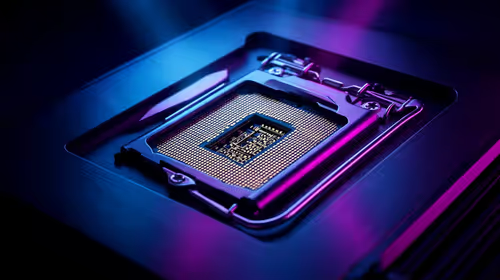
Thermal paste acts like a heat-transfer bridge between your MacBook’s CPU and its heat sink. Over time, it dries out, hampering heat transfer and causing higher temps and throttling. Replacing thermal paste renews this crucial interface, helping your MacBook cool faster under pressure. That means better sustained performance and longer hardware lifespan—especially important for gaming or video editing enthusiasts here in South Africa, where every rand counts.
When to Replace Thermal Paste on Your MacBook
Look out for these signs:
- Loud, constant fan noise even during light use
- Your MacBook feels uncomfortably warm to touch
- Sudden performance drops or unexpected shutdowns
If you spot any, it’s time for a thermal paste refresh. This maintenance step is more affordable than you’d think, especially compared to new laptops. But is the DIY route worth it? Let’s dive in. 🔧
Should You DIY Your MacBook Thermal Paste Replacement?
Opening a MacBook requires care. If you’re confident with delicate components and a bit of patience, replacing thermal paste can be rewarding. Here’s why:
- You get hands-on control and can use high-quality paste options instead of generic service shop brands.
- It’s a satisfying skill that extends your MacBook's life.
- Saves you money over official servicing or buying a new device.
However, if any part of the process feels daunting, it’s better to consult a pro. Accurate tools and anti-static precautions are a must to avoid damage. Need a fresh MacBook instead? Browse the latest notebooks for sale in South Africa for competitive prices.
Step-by-Step Guide to Replacing MacBook Thermal Paste
- Gather your tools and paste – Precision screwdrivers, isopropyl alcohol, lint-free cloth, and quality thermal paste from Evetech’s trusted CPU coolers and thermal pastes range.
- Shut down and unplug your MacBook – Safety first!
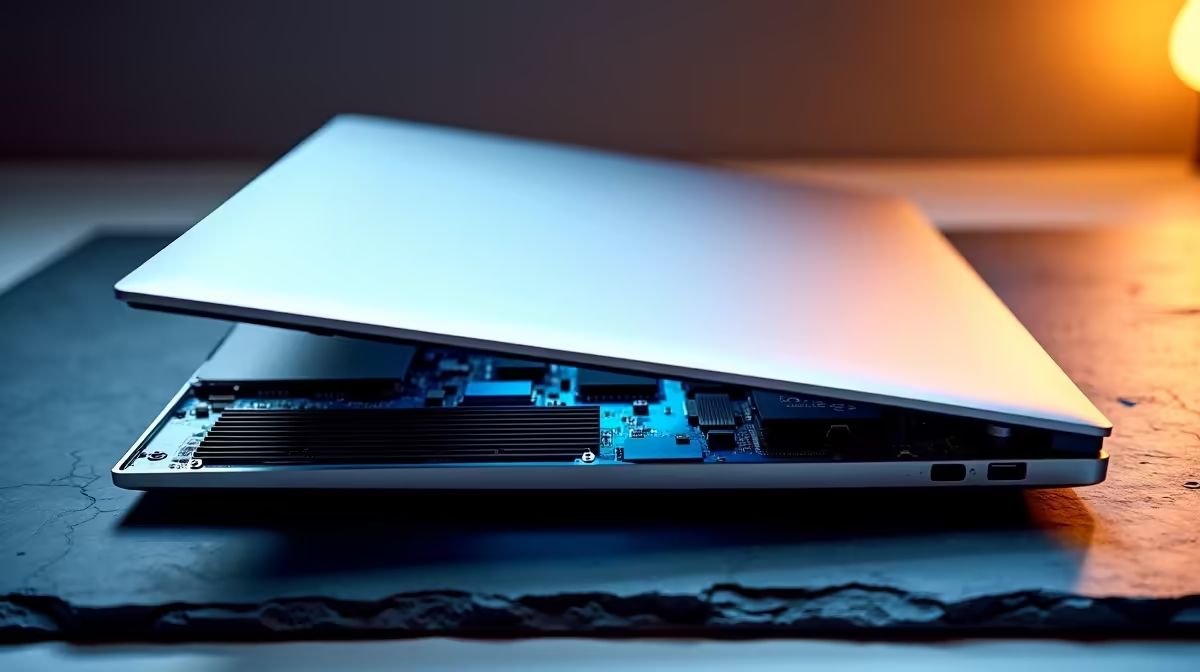
- Carefully remove the back cover – Keep screws organised.
- Locate the CPU and old thermal paste – Clean off old paste thoroughly with alcohol.
- Apply a thin layer of new thermal paste – Use a pea-sized drop and spread evenly or let the pressure distribute it naturally.
- Reassemble and test – Reattach cover and monitor temperature and fan noise during use.
Handle With Care
Always disconnect the battery connector before replacing the paste. This avoids accidental shorts and protects your MacBook’s delicate internals.
Beyond Paste: Keep Your MacBook Cool Year-Round
Thermal paste isn’t a silver bullet. Complement this fix with regular dust cleaning and consider external cooling pads if you game or edit video for hours. If you want maximum performance, check out the best gaming PC deals or pre-built PC deals at Evetech—they offer powerful alternatives if your MacBook no longer fits your needs.
Also, keep an eye on specials for great deals on cooling upgrades and components to complement your setup.
Keep Your Tech Cool and Ready
Whether you choose to DIY or upgrade, don’t let overheating slow you down. Shop now at Evetech for quality parts and unbeatable prices to keep your gear running cool and fast.