So, you’ve just unboxed a brand-new smartwatch for your child. High fives all around! It’s a brilliant piece of tech for peace of mind. But before they dash off to show their friends, taking a few minutes to configure the right kids smartwatch settings is crucial. This isn’t just about cool watch faces; it’s about creating a safe, controlled digital environment that works for both of you. Let's get it dialled in. 🚀
Essential Safety Settings to Prioritise 🛡️
First things first: safety. The primary reason most South African parents invest in a kids smartwatch is to stay connected and ensure their child is safe. Proper customisation of these core features is non-negotiable.
GPS Tracking and Geo-Fencing
This is likely the feature you bought it for. Dive into the companion app on your phone and activate real-time GPS tracking. But don't stop there. The real magic is in geo-fencing. You can set up "safe zones" like home, school, or a grandparent's house. The app will then send you an instant alert if your child enters or leaves one of these designated areas. It’s a simple setting that provides enormous peace of mind.
SOS Button and Approved Contacts
Every kids smartwatch has an SOS feature, usually a physical button held down for a few seconds. In the settings, you need to designate which numbers this button calls. Add your number, your partner's, and perhaps another trusted family member.
Equally important is the contact whitelist. This is your approved list of who can call the watch and who your child can call. No spam, no unknown numbers... just the people you trust. Getting these kids smartwatch settings right ensures the device is a tool for safety, not a distraction.
Managing Communication and School Time 🏫
A smartwatch shouldn't be a nuisance, especially during school hours. Smart settings can transform it from a potential distraction into a useful tool.
Most modern smart watches come with a "School Mode" or "Do Not Disturb" function. When you schedule this feature to be active during school hours, it effectively turns the device into a simple watch. It will disable games, calls, and notifications, but usually keeps the SOS button active for emergencies. This ensures your child can focus on their learning without temptation.
Data Saving Tip ⚡
Many kids smartwatches can connect to Wi-Fi. In the settings, prioritise Wi-Fi connections when at home or in other trusted locations. This will save a significant amount of mobile data, especially during software updates or when syncing activity data, helping you manage that prepaid SIM card budget.
Customizing for Fun and Function
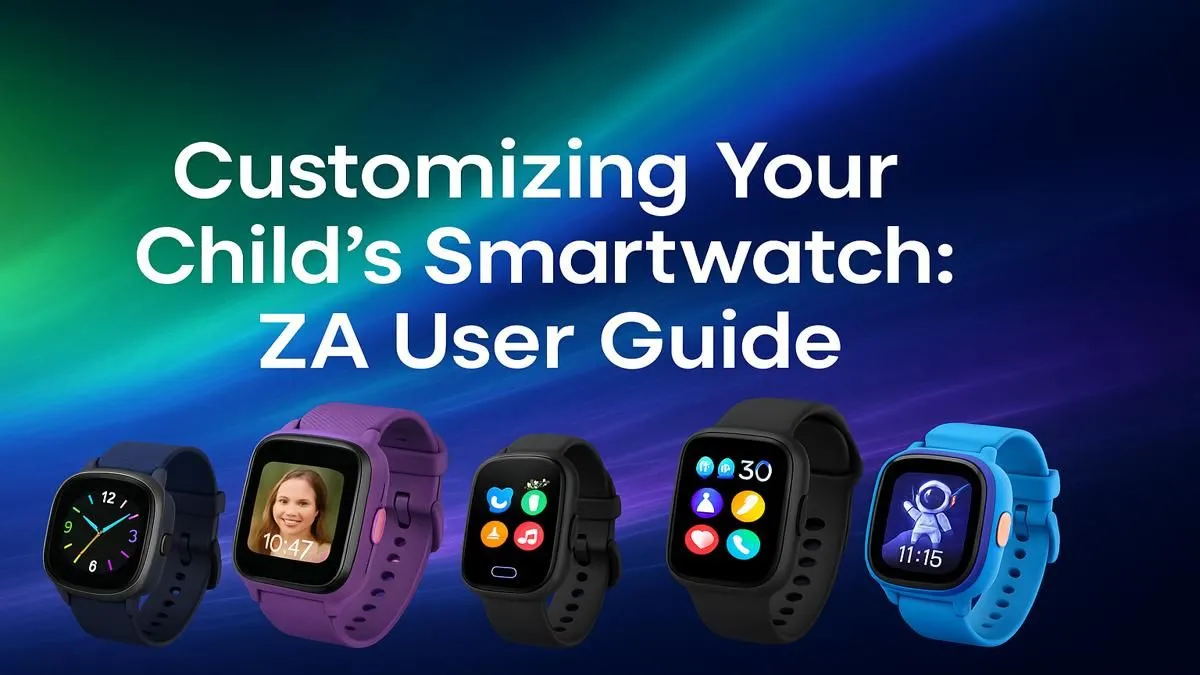
Once the serious stuff is sorted, you can explore the fun side of customisation. This is where you can involve your child and help them make the watch their own. Many brands, like the colourful options from Promate, offer a variety of watch faces, from analogue clocks to digital displays with their favourite characters or colours.
Beyond looks, you can also set practical alarms and reminders. Use it to remind them about homework, chores, or brushing their teeth. It’s a great way to help them build responsibility. You don’t need to spend a fortune either; there are plenty of fantastic kids' smartwatches available for under R1000 that offer all these features.
Optimising your kids smartwatch settings is a quick process that pays off big time. It balances their independence with your need for security, creating a safe and fun tech experience for everyone.
Ready to Find The Perfect Smartwatch?
From safety-focused first watches to feature-packed options for older kids, getting the right device is key. Explore our massive range of smartwatch deals and find the perfect fit for your child and your budget.