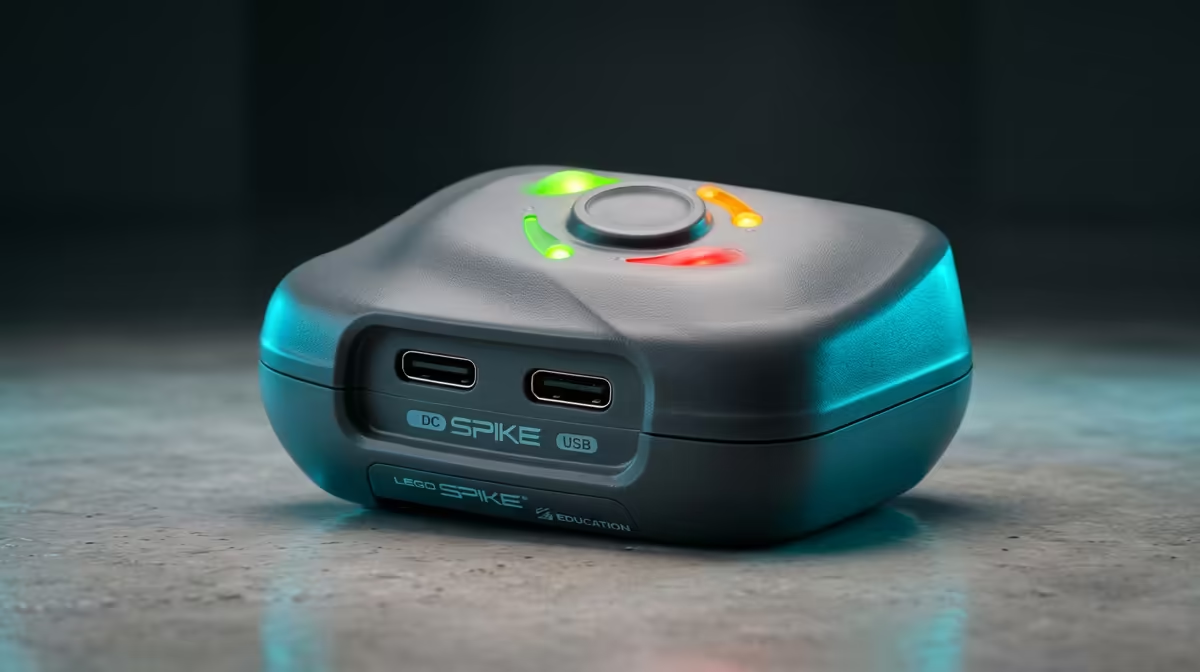
A dead Bluetooth link between the LEGO SPIKE app and the hub is one of the most frustrating walls in a classroom or at home, because the app looks ready, the hub looks on, and nothing pairs. The cause is almost never the app itself. The single most overlooked culprit is a hub OS update that left the hub in a state where it quietly refuses every connection until it is properly restarted.
Quick Answer
If the SPIKE app will not connect to the hub, hold the centre button for 20 seconds to force a hard restart, especially right after a hub OS update. Skipping that restart after an update leaves the hub blocking all Bluetooth connections, and a normal power cycle is not enough to clear it.
The fix almost everyone misses
When the hub firmware updates, it needs a full restart to finish applying and to reset its Bluetooth stack. A quick tap of the power button does not do this. Press and hold the centre button for a full 20 seconds until the hub powers down completely, then release and switch it back on. This forces the hub out of the stuck state and lets it advertise for pairing again. In the large majority of stubborn connection failures, this one step is the whole fix.
If the hard restart did not do it
When a clean 20-second restart still leaves you unpaired, work through these in order, testing the connection after each.
Check the basics first
Confirm Bluetooth is on for the device running the app, and that the hub has charge. A nearly flat hub will power on but drop the link almost immediately. Charge it for a few minutes and try again.
Remove a stale pairing
If the hub was previously paired to another tablet or laptop, that old bond can block a new one. Forget the hub in your device's Bluetooth settings, then pair fresh from inside the SPIKE app rather than the system Bluetooth menu.
Switch the connection method
The app connects over Bluetooth or by USB cable. If Bluetooth keeps failing, plug in with the cable to confirm the hub and app are otherwise healthy. A working USB link points the problem squarely at Bluetooth, not the hub or the app install.
Update or reinstall the app
An out-of-date app can mismatch a freshly updated hub. Make sure the SPIKE app is current, and if it still refuses, reinstall it to clear any corrupted settings. Pair again after the reinstall.
For replacement cables, chargers and other classroom robotics bits, the smart home and appliances range is a good place to look, and useful spares often turn up among the best-selling accessories.
Frequently Asked Questions
Why won't my LEGO SPIKE app connect to the hub?
The most common reason is a hub OS update that did not finish applying. The hub then blocks Bluetooth until it is hard-restarted by holding the centre button for 20 seconds.
How do I hard restart a SPIKE hub?
Press and hold the centre button for a full 20 seconds until the hub powers off completely, then turn it back on. This is stronger than a normal power cycle and clears stuck states.
Should I pair from the app or from Bluetooth settings?
Pair from inside the SPIKE app. Pairing through the device's system Bluetooth menu can create a stale bond that the app then cannot use, so forget any old pairing first.
Does connecting by USB cable help?
Yes. If a USB connection works while Bluetooth fails, you know the hub and app are fine and the issue is the Bluetooth link, which the 20-second restart usually fixes.
Could a low battery cause connection drops?
Absolutely. A nearly flat hub powers on but cannot hold a stable link. Charge it for a few minutes and retry before assuming a deeper fault.