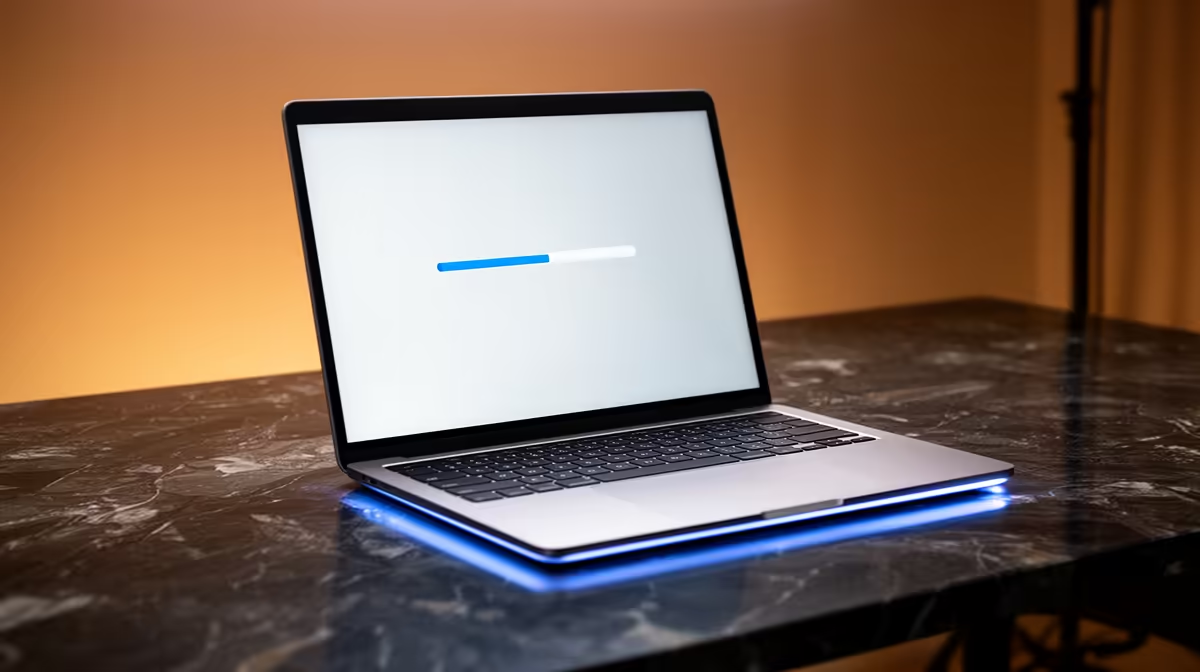
Your Mac feels sluggish and the fan keeps spinning for days after a big update, and the worry creeps in that something broke. It almost never has. A Mac running slow for days after updating is overwhelmingly a sign that macOS is quietly re-indexing in the background, not a fault that needs repairing.
Quick Answer
After a major macOS update, your Mac rebuilds its Spotlight, Photos, and Mail indexes from scratch. That background work pushes the CPU hard and can cause slowdowns and fan noise for up to 72 hours before it settles. No repair is needed; you just wait it out.
What macOS Is Actually Doing
When you install a major update, macOS treats large parts of the system as new. Spotlight re-scans your drive to rebuild its search database, Photos re-analyses your library for faces and scenes, and Mail re-indexes messages so search works again. All of this happens silently, and all of it is CPU-heavy.
On a fast Mac with a small library this finishes quickly. On a machine packed with photos, mail, and files, it can grind for two to three days. The slowness is real, but it is temporary and entirely expected.
How to Confirm It's Just Re-Indexing
You can check rather than guess. Open Activity Monitor (Applications, then Utilities) and look at the CPU tab. If you see processes like mds, mds_stores, mdworker, photoanalysisd, or corespotlightd using significant CPU, that is the indexing work in progress. Spotlight searches returning incomplete results is another tell.
Leave the Mac on and, ideally, plugged in and awake overnight. Indexing pauses when the machine sleeps, so a Mac that only gets a few minutes of use at a time can take far longer to finish. If you want to see the current MacBook lineup for comparison, the MacBook range at Evetech lays out the current models side by side.
What You Should Not Do
Resist the urge to "fix" it. Reinstalling macOS, resetting settings, or running cleanup tools just restarts the indexing you were waiting on and wastes hours. Force-quitting the indexing processes only delays the inevitable, since they relaunch.
The one productive thing you can do is plug in, keep the lid open, and let it run. If genuine slowness persists well past three or four days of normal use, then it is worth investigating further, but that is the exception, not the rule.
When It Might Be Something Else
Re-indexing is the usual culprit, but not the only one. If performance is still poor a week later, check that your storage is not nearly full, that no single app is stuck consuming CPU, and that you are not low on free RAM with too many heavy apps open. For older machines that struggle after every update, it may simply be time to look at newer hardware; the laptop best sellers are a useful snapshot of what current performance feels like.
Frequently Asked Questions
How long does macOS re-indexing take after an update?
Usually a few hours on a fast Mac with a modest library, but up to 72 hours on a machine with large Photos and Mail libraries. Keeping the Mac awake and plugged in speeds it along.
How do I know it's indexing and not a real problem?
Open Activity Monitor and check the CPU tab for processes like mds_stores, mdworker, or photoanalysisd using heavy CPU. If they are busy, it is indexing, and it will settle on its own.
Should I restart my Mac to fix the slowness?
A restart will not help and can reset some indexing progress. The better move is to leave the Mac on, plugged in, and awake so the background work can finish.
My Mac is still slow after a week, now what?
If it has been well past three or four days of normal use, check free storage, RAM pressure, and any single app stuck at high CPU. Persistent slowness beyond that points to something other than indexing.
If your Mac is past its prime and every update drags for days, it may be time for an upgrade. Browse the MacBook range at Evetech (https://www.evetech.co.za/macbooks/l/3284) to see how a current model handles the load.