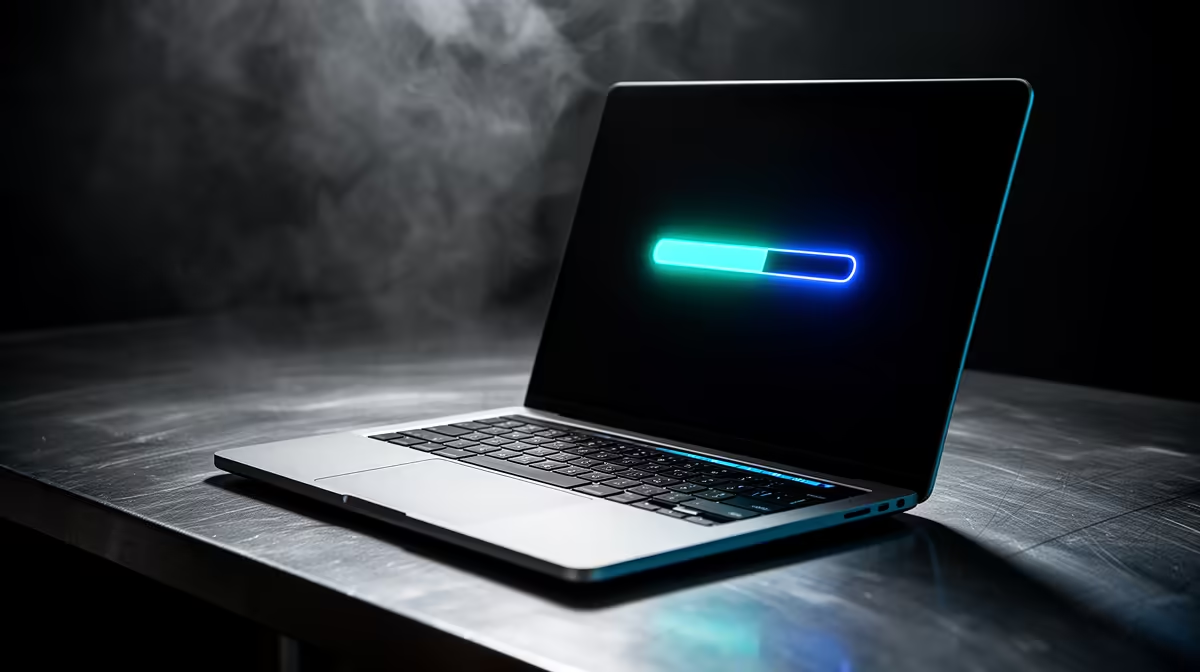
Watching a macOS Tahoe update stuck on the progress bar for twenty minutes is enough to make anyone fear they have bricked their Mac. In almost every case you have not. The progress bar simply stalled, and the fix is a deliberate forced reboot that takes about ten seconds to perform. Once the Mac restarts, the installer usually picks the job back up on its own.
Quick Answer
If a macOS Tahoe update is frozen on the progress bar, hold the power button down for 10 to 15 seconds until the Mac shuts off completely, then press it once to power back on. Most stalls happen between 30% and 70% and resolve on the first forced restart, with the install resuming automatically.
How to force the reboot safely
The single hardware action you need is a long press of the power button.
- Confirm it is actually frozen. A progress bar that has not moved at all for 30 to 45 minutes, with no flicker and no fan change, is stalled. Updates can legitimately sit on one percentage for several minutes, so give it a real wait before acting.
- Press and hold the power button for 10 to 15 seconds. On a MacBook this is the Touch ID button at the top right of the keyboard. The screen will go black and the Mac will shut down fully.
- Wait about 10 seconds with the machine off so it powers down cleanly.
- Press the power button once to start it again. The Apple logo and progress bar should reappear, and the installer typically continues from where it stalled rather than starting over.
This is safe because a stalled installer has usually finished writing the risky parts and is simply hung on a verification or cleanup step. A forced restart at that point rarely causes data loss.
If it stalls again after the reboot
Most Macs resume normally on the first try. If yours stalls a second time, the safe escalation is to boot into recovery. Restart the Mac and hold the power button until the startup options screen appears on Apple silicon, then choose Options to reach recovery. From there you can run Disk Utility's First Aid to check the drive, or reinstall macOS, which repairs the installer without wiping your files. If you are weighing a newer machine while you are at it, the current MacBook lineup shows what is available locally.
Before any repeat attempt, make sure the Mac is on power and has a stable connection, since updates that lose network mid-download are a common cause of a stall.
Why this happens
Update freezes usually come down to one of a few things: a momentary network drop during a download stage, low free storage that leaves no room to unpack files, or a verification step that simply takes longer than the progress bar suggests. None of these mean the hardware has failed, which is why a clean restart fixes the large majority of cases.
Frequently Asked Questions
Will forcing a restart during a macOS update damage my Mac?
In nearly all cases, no. A stalled installer has usually completed the sensitive writing stages and is hung on cleanup or verification. A forced restart at that point lets the install resume and rarely causes data loss.
How long should I wait before deciding it is frozen?
Give it 30 to 45 minutes of zero movement before acting. Updates can sit on a single percentage for several minutes during verification, so a short pause does not mean it has stalled.
The install restarted from the beginning. Is that normal?
Sometimes. If the freeze happened early, the installer may restart the stage rather than resume mid-point. That is expected behaviour and the update will still complete, it just takes a little longer.
What if it stalls again after the forced reboot?
Boot into recovery by holding the power button until startup options appear, then run Disk Utility First Aid or reinstall macOS from recovery. Reinstalling over the top repairs the installer without erasing your files.
A frozen update is almost always a quick fix, not a dead machine. If your MacBook is ageing and update headaches are piling up, see the latest models in the MacBook range at Evetech.