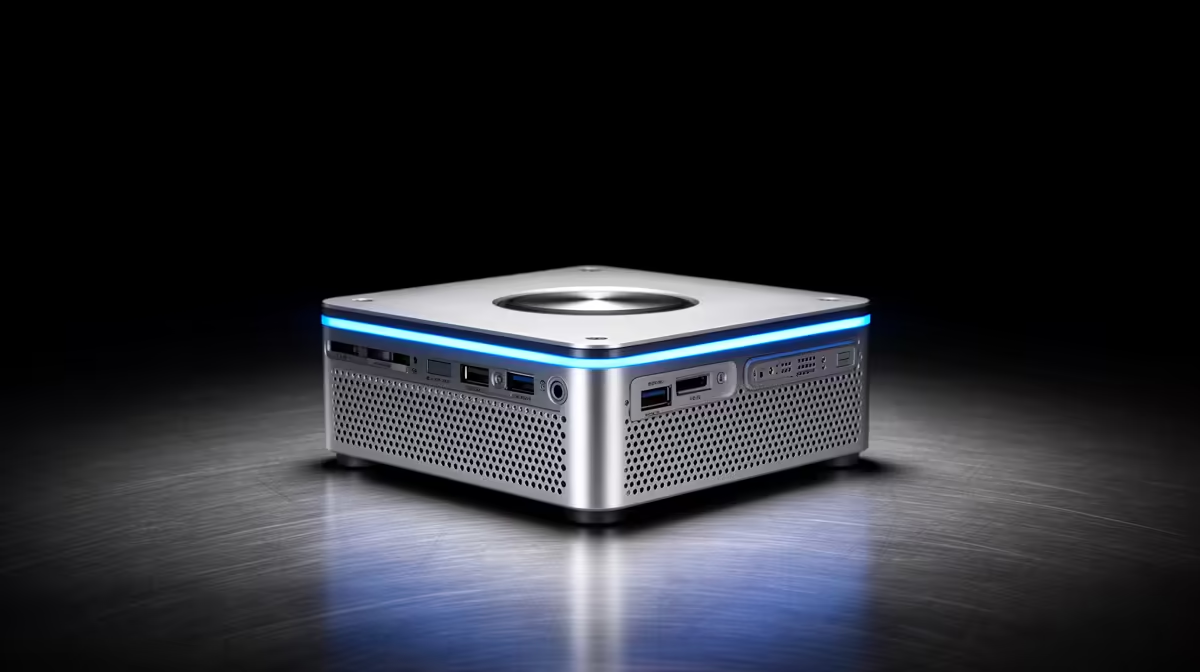
You upgraded the memory in your mini PC, booted it up, and the new stick either shows the wrong total or stops the machine posting altogether. Mini PC RAM not recognised after an upgrade is almost always one of three things, and none of them mean the module is dead. The fix is a short checklist, worked through in order, before you start suspecting the hardware.
Quick Answer
A mini PC not recognising new RAM usually means the SO-DIMM is not fully seated, the module is larger than the platform's maximum supported capacity, or its speed or voltage falls outside what the chipset accepts. Reseat first, then verify the spec limits. Reseating fixes the majority of cases.
Reseat The SO-DIMM Properly
Bad seating is the single most common cause, and it is easy to get wrong because SO-DIMM slots do not insert straight down. Power off and unplug the mini PC, open it, and release the new stick. Line up the notch in the module's contacts with the key in the slot, push it in at roughly a 30 to 45 degree angle until it is firmly home, then press the top edge down flat until the retention clips on both sides snap closed with a click. If only one clip engages, the stick is not seated. Repeat for any second module.
While the stick is out, check the gold contacts. If they look dusty or smudged, wipe them gently with a lint-free cloth or a cotton swab lightly dampened with high-strength isopropyl alcohol, let it dry, then reseat. Dirty contacts can stop a perfectly good module from being detected.
Check You Are Within The Platform Limits
If reseating does not solve it, the problem is likely the spec. Every mini PC has a maximum supported memory capacity set by its chipset, and fitting a module larger than that limit can cause it to be ignored or stop the system posting. A platform capped at 16GB will not happily accept a single 32GB stick, even though the stick itself is fine. Look up your exact model's maximum before assuming the module is faulty.
Memory type and speed matter just as much. DDR5 and DDR4 are physically keyed differently and will not interchange, so confirm you bought the right generation. Even within the right type, a module rated faster than the chipset supports, or running at a voltage outside its range, can fail to be recognised. The system normally clocks RAM down to a supported speed, but a mismatch outside its tolerance can leave the stick undetected.
When It Still Will Not Show
If the capacity and type are correct and reseating did nothing, narrow down whether the fault follows the stick or the slot. Test the new module on its own in each slot in turn. If it works in one slot but not another, the slot is the issue; if it fails in both, suspect the module. It is also worth loading BIOS or UEFI defaults and disabling any fast-boot or memory-tuning options, then retesting, since an aggressive saved setting can prevent a new module from being trained correctly.
Work through these in order and most mini PC memory upgrades come right without replacing anything. If you do need a known-compatible module, the laptop and mini PC SO-DIMM options in the mini PCs range at Evetech are matched to small-form systems, and the PC best sellers list at Evetech is handy if you decide a small desktop with more headroom is the better long-term move.
Frequently Asked Questions
Why does my mini PC show less RAM than I installed?
Usually a stick is not fully seated, or one module exceeds the per-slot or total capacity the chipset supports. Reseat both modules first, then confirm each one is within your model's maximum supported capacity.
Can I put any RAM in a mini PC?
No. It must match the generation, DDR4 or DDR5, fit within the platform's maximum capacity, and run at a supported speed and voltage. Check your model's specification before buying rather than after.
My mini PC will not post at all after the upgrade. What now?
Remove the new RAM and confirm it boots on the original module, then reseat the new stick carefully at the correct angle. If it still will not post, the module likely exceeds the supported capacity or is the wrong type.
How do I know if it is the stick or the slot?
Test the new module alone in each slot. If it works in one but not the other, the slot is at fault. If it fails in every slot, the module or its compatibility is the problem.
Most memory upgrades come right with a careful reseat and a quick spec check. If you need a module that is guaranteed to fit, browse compatible small-form systems and parts in the mini PCs range at Evetech.