


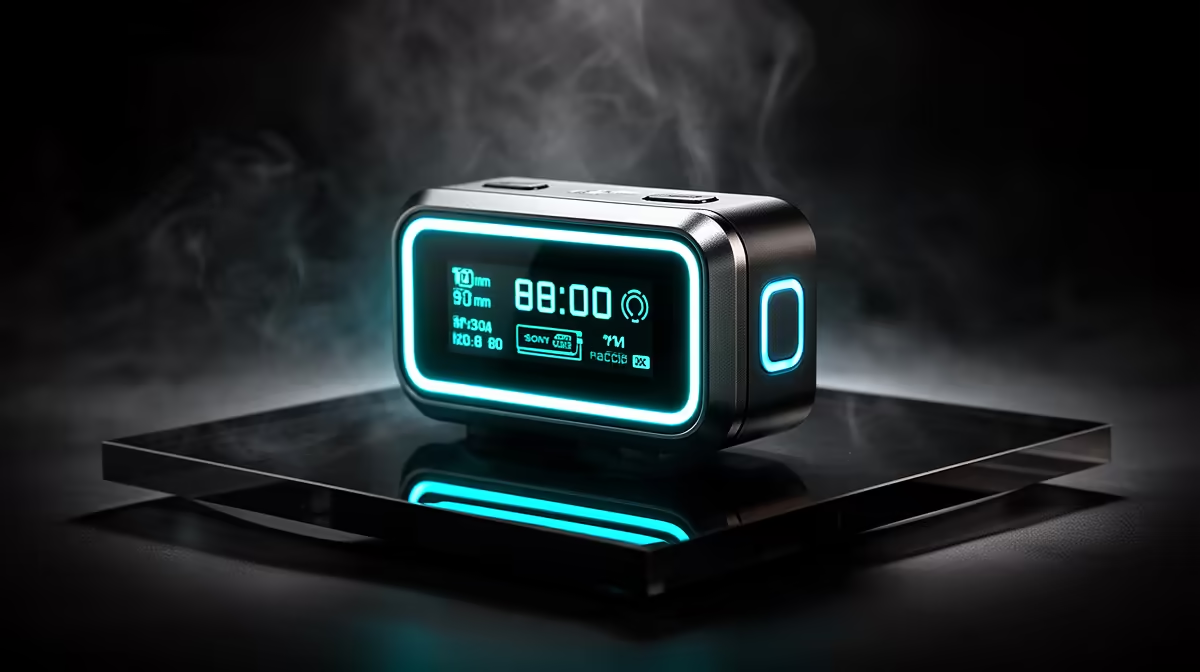
Clipping is the one audio problem that cannot be fixed in post. Once a waveform flattens against the 0dBFS ceiling the distorted samples are gone, and no amount of processing recovers them. The good news is that preventing audio clipping before recording is entirely manageable when your wireless kit includes a live LCD monitoring display, because the level bars give you a real-time view of where your gain is sitting before you press record.
Quick Answer
During soundcheck, speak or shout at your loudest anticipated volume and watch the level bars. Trim gain until the highest peaks rest between -12dBFS and -6dBFS. That band keeps normal speech comfortable while leaving headroom for the sudden shouts and laughs that arrive mid-take.
🎚️ Reading the LCD Display During Soundcheck
The level meters on an LCD wireless monitor are at their most useful before recording starts, not after. A five-second soundcheck phrase, delivered at the full energy of your loudest anticipated moment, reveals exactly where your peaks land.
The target window is -12dBFS to -6dBFS for conversational or moderate-energy content. The bars should reach into that range on louder syllables and pull back to around -18dBFS on quieter passages. If every phrase is hitting -3dBFS and grazing the top, you are one excited comment away from a clip. Drop the gain until the peaks breathe comfortably below the ceiling.
What many creators miss is that a calm voice is not a reliable test signal. A relaxed soundcheck at normal volume shows a comfortable -14dBFS, then the subject laughs and spikes 8 to 10dB higher. That spike clips. The soundcheck must include your loudest moment, not just the average level.
⚡ The Clip Indicator and What It Tells You
Most LCD-equipped wireless kits include a peak hold or clip indicator that lights up when the signal has touched 0dBFS. On a colour panel this is typically a red bar; on monochrome units it is a dedicated symbol or a flashing segment at the top of the scale.
If you finish a soundcheck phrase and that indicator is showing, gain is too high. Drop it in 3dB steps, repeat the phrase, and watch for the indicator to stay dark on the peak. That is your safe starting point.
One important distinction: the clip indicator tells you that the signal has already hit the ceiling. It is a post-event warning, not a prediction. This is why the full-energy soundcheck matters. You want to provoke the clip indicator during setup when you can adjust, not discover it has been lighting up silently during takes you cannot re-record.
🔧 Setting Different Levels for Different Subjects
A single gain setting rarely works across every subject on the same shoot. An energetic presenter who gestures and projects while speaking will hit the top of the range at a gain where a soft-spoken interviewee sounds thin and distant.
The practical approach is to set gain subject by subject during individual soundchecks. For a high-energy speaker, target peaks no higher than -8dBFS during the test phrase. For a quieter subject, -6dBFS on a firm phrase is fine. The extra 2 to 4dB of headroom on the louder subject acts as a buffer against moments of peak energy you did not hear in soundcheck.
If two subjects will share the same kit at different points in a shoot, note the gain dB value used for each. The LCD readout gives you an exact number to record on your shot list rather than a vague knob position.
Frequently Asked Questions
How do I set gain correctly before recording begins?
Speak or project at the loudest energy level you expect during the actual take, then adjust gain until the highest peaks on the LCD level bars settle between -12dBFS and -6dBFS. That range keeps the signal well clear of the ceiling while remaining hot enough to record with usable resolution.
Why does the soundcheck need to cover peak moments, not just normal speech?
An enthusiastic voice spikes 8 to 10dB above baseline on a shout or laugh. A soundcheck at normal volume misses that completely, so gain set for conversational tone will clip on the loud moment. The only reliable test is performing at the actual peak energy the subject will reach.
What does the clip indicator on the LCD actually mean?
It shows that the audio signal reached or exceeded 0dBFS at that instant. Distortion has already occurred. The indicator is a prompt to lower gain before the next take, not a warning that can be acted on mid-recording.
Can audio processing fix a clipped recording?
No. Noise reduction tools target unwanted background sounds, not distortion. A clipped sample is missing its peak information permanently. Recovering the take requires re-recording with corrected gain, which is why preventing clipping before pressing record matters more than any post tool.
Should I set headroom differently for unpredictable guests?
Yes. Leave an additional 3 to 6dB of headroom for a subject whose vocal energy is unknown or variable. Setting a guest's peak target at -12dBFS rather than -8dBFS costs nothing and insures against the sudden burst of volume that surprises every recording session eventually.
Ready to record without the clipping risk? Browse the wireless microphone range with built-in LCD monitoring and set your levels with confidence before every take.










