Proton lets many Windows games run on SteamOS without a native Linux build. It combines Wine with components that map Windows APIs to Linux equivalents, including DirectX-to-Vulkan paths such as DXVK and VKD3D-Proton. Compatibility is broad, but anti-cheat, launchers, codecs and DRM can still stop a title.
Quick Answer
Check the game's current Deck Compatibility rating and launch it with Steam's default Proton choice first. Change versions only when a known issue calls for it. Try Proton Experimental for a recent fix, then return to default if performance or launch behaviour worsens.
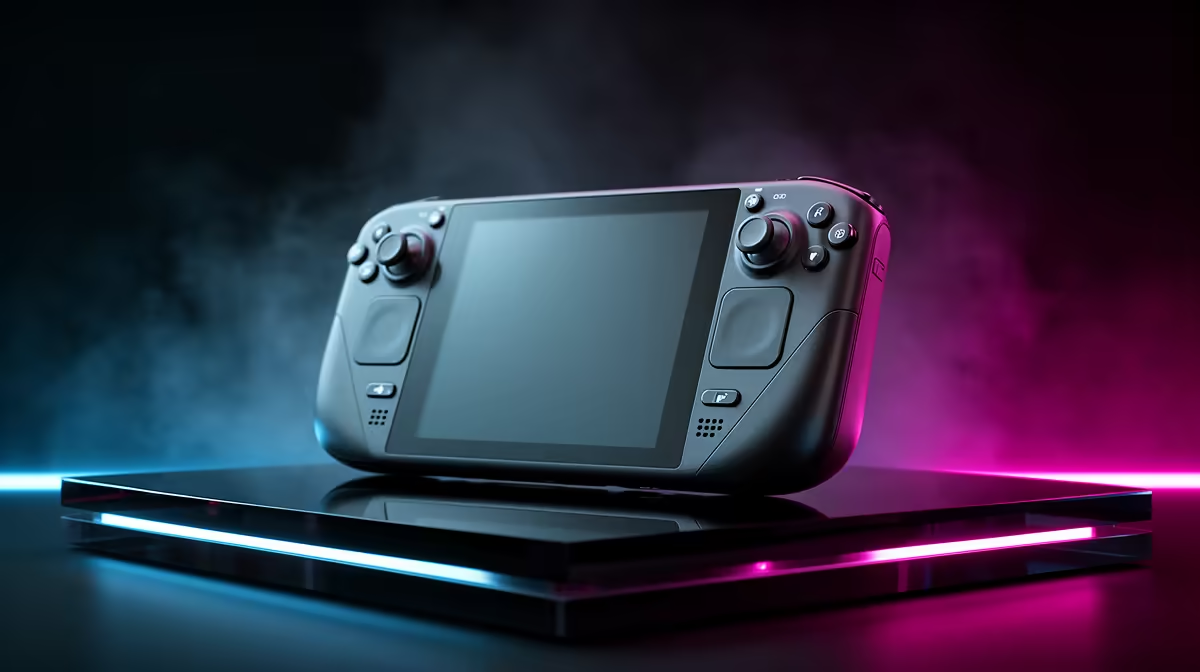
Use Evetech's handheld console catalogue to compare SteamOS and Windows devices, then view the popular PC range when native Windows compatibility is central. The same game can behave differently across operating systems even on similar AMD hardware.
What Proton Translates
Windows games call graphics, audio, input, file and system APIs. Proton provides compatible implementations and translates selected graphics calls into Vulkan. It also manages a per-game Windows-style prefix containing registry and file structures.
This is more than a DirectX converter. Media playback, launchers, redistributables and controller behaviour all sit in the path. A game can render well and fail at a login screen.
Start With Valve's Default
Steam selects a tested or current Proton version for supported titles. Leave Force the use of a specific Steam Play compatibility tool off for the first launch. Let shader processing and redistributable setup finish.
If a patch breaks the game, open Properties, Compatibility and test one appropriate version. Proton Experimental receives newer fixes. Proton Hotfix can be assigned for targeted Valve repairs. Community builds can help selected games but add another trust and update decision.
Do not delete the Proton prefix as routine maintenance. It can contain local saves and launcher data. Back it up before a reset.
Understand the Hard Blocks
Kernel anti-cheat and unsupported middleware can keep multiplayer games from running. The developer has to enable or support selected Linux and Proton paths. Deck Verified can change after game updates, so read the current detail page.
DRM activation limits can count different Proton prefixes as new machines. Repeated version switching or prefix deletion can trigger them. Online launchers can also fail in Offline Mode.
Check Performance Separately
A game launching does not prove it runs well. Watch frame time, shader stutter, video playback and suspend-resume. Valve's shader cache can improve later sessions, while a Proton change can force new processing.
Use the same save and graphics settings when comparing versions. If Experimental fixes a cutscene but lowers performance, document the tradeoff and test the next stable update. Do not add launch commands copied from another GPU until the plain path has been measured.
For a non-Steam game, each shortcut can create its own prefix. Changing the shortcut target or name may separate it from saves and launcher data, so back up before reorganising.
FAQ
Does Proton make every Windows game work?
No. Anti-cheat, DRM, launchers and missing media support can block or weaken compatibility.
Should I force Proton Experimental for every game?
No. Use the default first and switch only for a specific fix or test.
Is a Proton prefix safe to delete?
It may contain local saves and launcher data. Back it up and understand the reset consequence first.
Launch with Valve's default Proton path, change one version for a documented issue and protect prefix saves before any compatibility reset.