When Your RAM Is Not Detected by the System: A Quick Start Guide
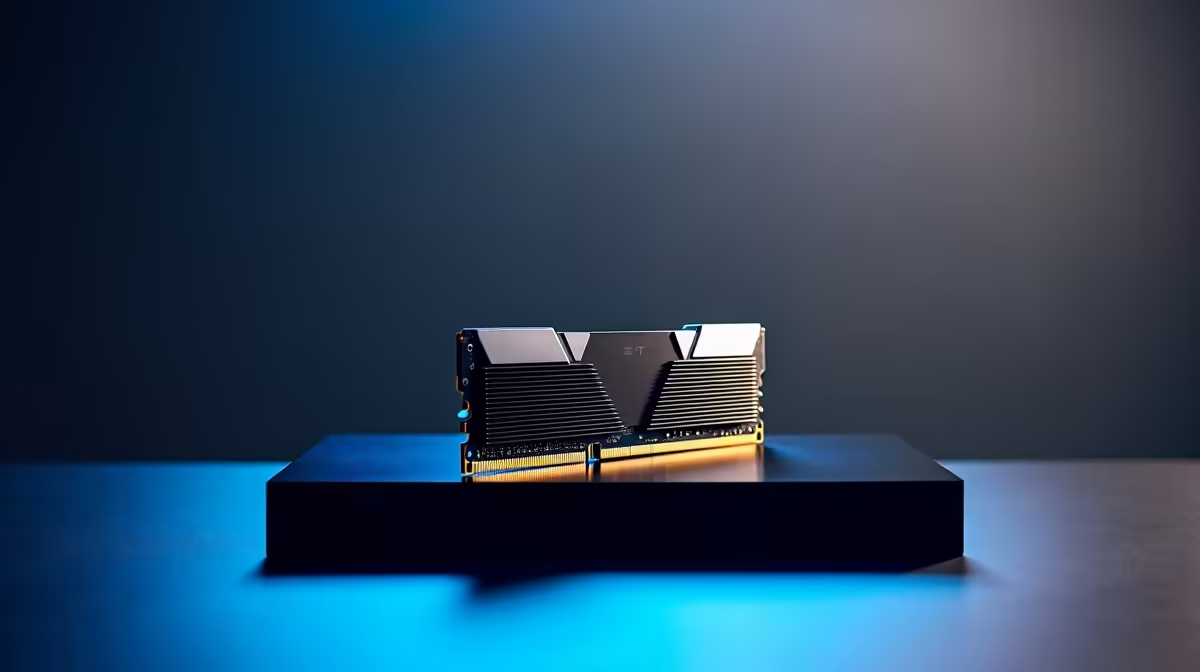
There’s nothing more frustrating than booting up your rig only to realise your system doesn’t detect your RAM. Whether you’re upgrading your gaming PC or troubleshooting a sudden error, missing RAM can grind your gameplay — and productivity — to a halt. Let’s dive into common causes of RAM not detected by system issues, plus tips to fix it fast and get you back to smashing those FPS records ⚡.
Common Reasons for RAM Not Detected by System Errors
Loose or Faulty RAM Modules
The most frequent culprit is a poorly seated RAM stick. Over time, vibrations or slight knocks can shift the module, breaking the contact with your motherboard. Faulty or incompatible RAM can cause similar detection problems. Carefully re-seat your RAM sticks by removing and firmly reinserting them.
BIOS Configuration Issues
Sometimes the BIOS doesn’t recognise newly installed memory until it’s reset or updated. Older BIOS versions might not support newer RAM specs fully. Check your motherboard’s BIOS version and update it from the official site if needed. Resetting BIOS settings to default can also help your system detect installed RAM again.
Incompatible or Mismatched RAM
Installing RAM sticks with different speeds, voltages, or brands can cause your motherboard to reject one or more modules. It’s best to use matched sets or consult your motherboard manual for supported memory types to avoid conflicts.
Pro Tip for RAM Troubleshooting
If your system won’t detect RAM even after re-seating, try testing one module at a time in different slots. This helps spot faulty RAM or malfunctioning DIMM slots efficiently.
How to Fix RAM Not Detected By System Issues 🔧
Step 1: Power Down and Check Physical Installation
Make sure your PC is completely off and unplugged. Open your case and gently clean the RAM slots and modules from dust using compressed air. Then, firmly reinsert the RAM sticks — you should hear a click when they lock in.
Step 2: Reset BIOS Settings
Enter BIOS by pressing the designated key at boot (usually F2, DEL, or F10). Find the option to load default or optimized settings, save and exit. This often solves RAM recognition problems.
Step 3: Update BIOS Firmware
Visit your motherboard manufacturer’s website and download the latest BIOS update. Follow their instructions carefully. Updated BIOS can improve memory compatibility and system stability.
Step 4: Test RAM with Diagnostic Tools
If problems persist, use tools like MemTest86 to scan for bad RAM. Faulty modules should be replaced to prevent system crashes and data loss.
Upgrade or Replace RAM with Confidence in South Africa
If your RAM still isn’t detected or you’re ready to upgrade, explore Evetech’s extensive range of quality memory modules. Whether you want the latest DDR4 or blazing-fast DDR5 sticks, we’ve got options to suit every build and budget.
Upgrading your rig? Check out current best gaming PC deals to pair your new RAM with powerful processors and GPUs for next-level gaming. For pre-built convenience, browse ready-to-go PC deals that come with performance-tested specs.
If mobility is key, find excellent notebooks for sale in South Africa combining memory upgrades with portability. Or catch some smart savings in the Evetech Specials section to keep your wallet happy.
Don’t let RAM detection issues slow you down — a quick check or upgrade can restore your system’s punch and stability.
Get Back to Gaming Without Delay
Avoid downtime and keep your performance peak with the right memory. Shop now at Evetech for quality RAM that your rig will recognise every time.