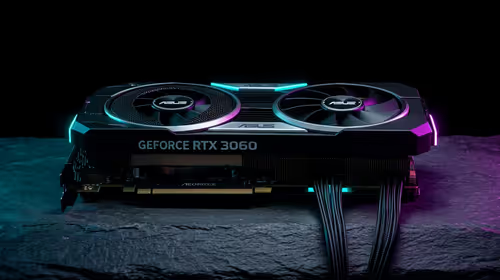
You just dropped a serious stack of Rands on Nvidia's latest flagship. You boot up your favourite game, expecting glorious 4K frame rates and vivid colours... and then your screen goes black.
If your RTX 5080 drivers keep crashing, you are definitely not alone. Early adoption often comes with software hiccups. Fortunately, you do not need to return your hardware just yet. Let us get your rig stable.
Why Do RTX 5080 Drivers Keep Crashing? 🚀
When a new GPU architecture drops, the software takes time to catch up. Most crashes happen because of leftover files from your old setup.
Even if you are simply upgrading your graphics card from an older RTX model, conflicting registry files can cause massive instability. Sometimes the issue is not even the GPU itself. It might be your older power supply. Older units struggle to handle the massive transient power spikes that modern cards generate.
The Ultimate Fix: Use DDU in Safe Mode 🔧
The most common reason RTX 5080 drivers keep crashing is a messy installation. You need to wipe the slate clean.
Download Display Driver Uninstaller (DDU) and boot your PC into Safe Mode. Run the software to completely remove all existing Nvidia files, folders, and registry keys. Once your system restarts, install the latest GeForce Game Ready drivers. Download these fresh from the official website. This single step fixes the black screen issue for most gamers.
Are you tired of endless troubleshooting? You just want a rig that works flawlessly out of the box. Browsing the best gaming PC deals might be tempting right now... but stick with the fix first!
Quick Stability Pro Tip ⚡
If your browser or Discord crashes while gaming, disable Hardware Acceleration in their respective settings. This stops background apps from fighting your RTX 5080 for resources, giving you a much smoother experience.
Check Your Power Delivery and Cables ✨
The RTX 5080 draws serious wattage. If you used a daisy-chained PCIe cable instead of a dedicated 12VHPWR connector, your card will starve for power. It will crash under heavy load.
Ensure your power supply is rated for at least 850W. If your PSU is outdated, it might be time for an upgrade. Alternatively, if you want a guaranteed balanced system, our pre-built PC deals take the guesswork out of power requirements.
Update Your BIOS and Windows
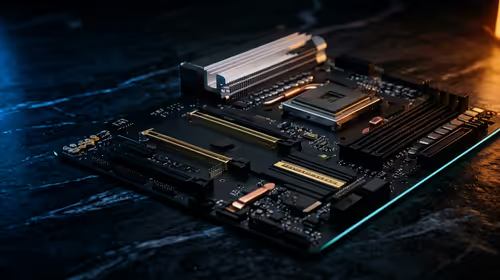
Sometimes your motherboard simply does not know how to correctly talk to the new GPU. Check your motherboard manufacturer's official website for the latest BIOS update. A quick flash can dramatically improve PCIe compatibility. It will also help optimise overall system stability.
You should also ensure Windows 11 is fully updated. Microsoft frequently pushes out background patches to support brand-new hardware architectures.
If you are actually a mobile gamer dealing with driver timeouts, the troubleshooting steps are similar. Keep your manufacturer control centre fully updated. Need high-end portability instead of a desktop? Check out our massive range of premium gaming laptops.
Finally, always keep an eye on our daily tech specials for component upgrades that can help stabilise your ultimate dream build.
Ready to Find Your Perfect Match?
Troubleshooting can be a headache, but finding the right hardware shouldn't be. For maximum power, choice, and value in South Africa, Evetech is hard to beat. Explore our massive range of custom PCs and find the perfect machine to conquer your world.