

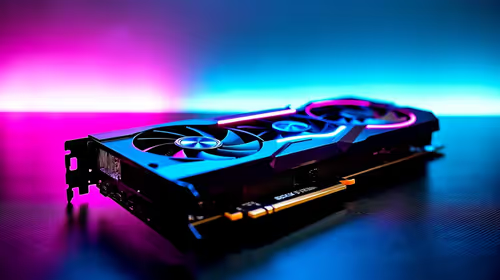
How to Optimize RTX 5080 for Fortnite
Optimize RTX 5080 for Fortnite. Step-by-step instructions with SA-specific tips, common pitfalls to avoid & expert recommendations.
Read moreRX 7800 XT Not Detected: Fix & Troubleshoot. Step-by-step instructions with SA-specific tips, common pitfalls to avoid & expert recommendations.

You just dropped a serious chunk of ZAR on a shiny new GPU. You slot it in, boot up your rig... and nothing. A blank screen stares back at you. If your RX 7800 XT is not detected by your motherboard or Windows, do not panic. This is a surprisingly common issue in 2026. Let us walk through the exact steps to get your beastly card running perfectly.
First, check the physical basics. This card is heavy and incredibly power-hungry. Ensure it is seated perfectly in the top PCIe slot. You should hear a satisfying click when it locks into place. Next, inspect the power cables. You need dedicated 8-pin PCIe cables coming directly from your power supply. Do not use daisy-chained cables under any circumstances.
The card requires a robust power supply, usually 700W or higher. If your PSU is older, it might struggle to deliver clean power. It might be time to browse the latest graphics cards and power supplies to ensure full compatibility. Sometimes, upgrading your core components is much easier when looking at the best gaming PCs that come pre-configured and stress-tested by professionals.
If the hardware is secure, the issue is likely software related. An outdated motherboard BIOS can easily cause an RX 7800 XT not detected error. Boot using your integrated graphics or an older GPU. Head to your motherboard manufacturer website and download the latest BIOS version. Flash the BIOS carefully using a USB drive. A power outage during this process can brick your board.
While you are at it, use Display Driver Uninstaller to wipe old drivers clean. Boot into Windows Safe Mode before running it. This prevents Windows from automatically installing incorrect generic drivers. If troubleshooting desktop components feels too stressful, many gamers in South Africa are switching to high-performance gaming laptops for a simple plug-and-play experience.
Always ground yourself before touching internal PC parts. A simple static shock can fry a motherboard. Touch a bare metal part of your case first or wear an anti-static wristband to keep your precious ZAR investment totally safe.
Sometimes Windows is just being stubborn. Open Device Manager and look under Display Adapters. Do you see a basic display adapter or a yellow warning triangle? Right-click and hit update to optimise your system.
Additionally, jump into your BIOS and manually set the PCIe slot to Gen 4 instead of Auto. This simple tweak fixes detection issues instantly for many users. Riser cables are also notorious for causing connection drops. A faulty riser cable will restrict bandwidth and prevent the system from recognising your hardware. If you vertically mount your GPU, plug it directly into the motherboard first to test it.
If your motherboard is simply too old to support these speeds, check out our pre-built PC deals for a modern foundation. You can also keep an eye on our weekly specials to upgrade your rig affordably.
Ready for a Hassle-Free Upgrade? Troubleshooting hardware can be frustrating. If you want maximum power without the headache, let our experts build your dream rig. Explore our massive range of gaming PC specials and conquer your favourite titles in glorious 4K.
RX 7800 XT Not Detected: How to Fix & Tr available at Evetech.co.za with local warranty and fast delivery.
RX 7800 XT Not Detected: How to Fix & Tr - check Evetech for latest stock and SA pricing.
Depends on your use case. RX 7800 XT Not Detected: How t offers good value at current Rand pricing.
Optimize RTX 5080 for Fortnite. Step-by-step instructions with SA-specific tips, common pitfalls to avoid & expert recommendations.
Read more
How Long Will RTX 4060 Stay Relevant for Gaming in SA Detailed answer with SA data, expert analysis & practical recommendations for local buyers.
Read more
RTX 5060 Not Detected: Fix & Troubleshoot. Step-by-step instructions with SA-specific tips, common pitfalls to avoid & expert recommendations.
Read more
Can the RTX 4070 Handle 1080p at 60fps?. Performance testing verdict with real data & practical recommendations for SA buyers.
Read more
Can the RTX 5080 Run Elden Ring at 60fps. Real-world benchmark data, FPS numbers & performance analysis. What SA gamers can actually expect.
Read more
RTX 5080 Drivers Keep Crashing: Fix. Step-by-step instructions with SA-specific tips, common pitfalls to avoid & expert recommendations.
Read more
When Will the RTX 6090 Launch in South Africa Detailed answer with SA data, expert analysis & practical recommendations for local buyers.

Top Valorant Settings for RTX 5070: FPS Optimisation picks evaluated on performance, value & SA availability with current Rand pricing from Evetech.

RDNA 3.5 Graphics in Ryzen AI 400? Can You Game. Plain-English explanation of what it means, why it matters & how it affects your buying decisions in SA.

GPU Price Index : December Report. Current stock data & price tracking for SA buyers. See what is available and where prices are heading.

Core i5-14600K + B760 + RTX 5060 Build Under. Full parts list, Rand pricing & expected performance. Build confidently with SA-available components.

RX 7600 Apex Legends at 4K: FPS Benchmark. Real-world benchmark data, FPS numbers & performance analysis. What SA gamers can actually expect.

RX 7900 XTX GTA 6 at 4K: FPS Benchmark & Optimal. Real-world benchmark data, FPS numbers & performance analysis. What SA gamers can actually expect.

Head-to-head comparison of RTX 5070 vs RX 9070 XT: Gaming Performance for SA gamers. Performance benchmarks, Rand pricing & which delivers better value.
Top Laptop with Ryzen 5 + RTX 4090 Laptop: Picks picks evaluated on performance, value & SA availability with current Rand pricing from Evetech.
Top Budget GPU for Marvel Rivals picks evaluated on performance, value & SA availability with current Rand pricing from Evetech.
Valorant Settings on RTX 5070: Performance. Real-world benchmark data, FPS numbers & performance analysis. What SA gamers can actually expect.
Top Budget GPU for Assassins Creed Shadows picks evaluated on performance, value & SA availability with current Rand pricing from Evetech.