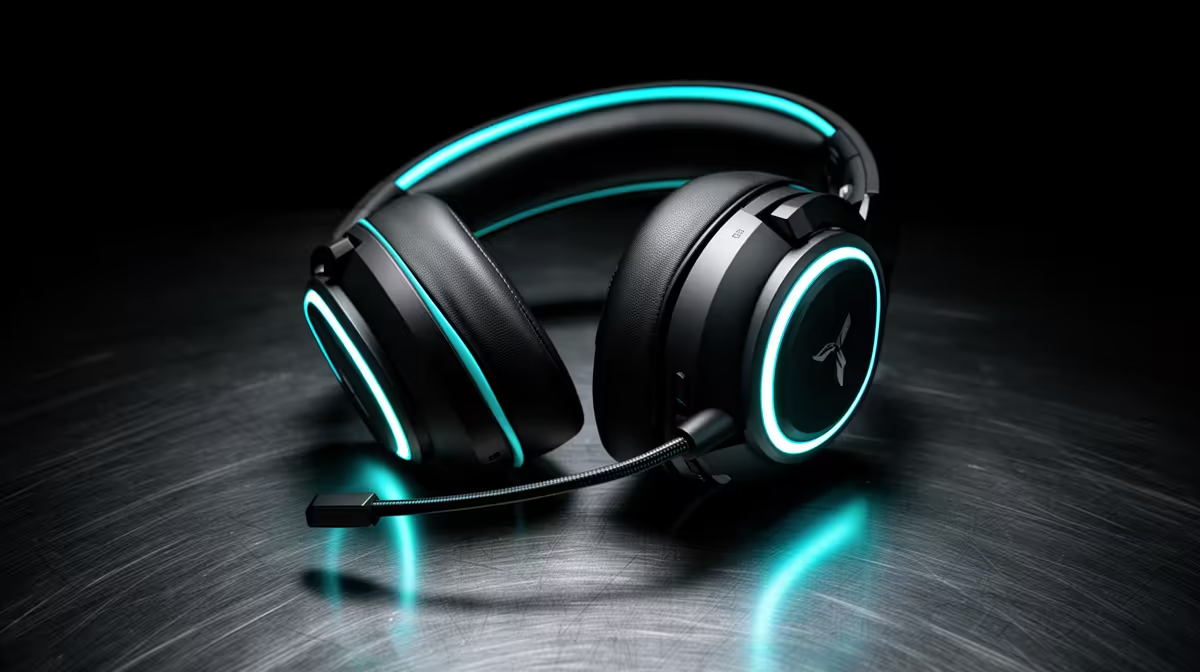
Closed earcups can make your own voice feel distant enough that you raise it without noticing. Headset sidetone restores a controlled mic feed to your ears, helping you speak naturally when its level and delay are right.
Quick Answer
Sidetone feeds a controlled version of your microphone signal back into your headphones, helping you judge voice level while the earcups block room sound. Set it just high enough to speak naturally. Too much becomes distracting or exposes keyboard and breathing noise. Headset hardware monitoring can feel immediate, while software monitoring may add delay according to the audio path.
Compare headset and audio features through the peripheral best-seller collection. The gaming accessories range gives you another set of named products. Check whether sidetone works over your intended USB, wireless or analog connection.
Set the microphone first
Place the mic at the maker's recommended distance and angle, usually beside the mouth rather than directly in front of breath. Adjust input gain until your usual voice stays clear and leaves headroom for louder moments.
Then enable sidetone at a low level. Speak during a real game and raise it until you stop forcing your voice. Do not use sidetone to compensate for a microphone that is too far away.
Hardware and software paths differ
Some USB or wireless headsets route sidetone inside the device. An audio interface can provide direct monitoring. Recording or streaming software may send the signal through the PC, creating noticeable latency.
Use one monitor path. Two active paths can create an echo or comb-filtered voice in your ears. Close the extra monitor rather than lowering both.
Analog headsets depend on the sound device for sidetone. A product description for the headset alone may not guarantee the feature.
Check the control that the software calls sidetone, mic monitoring or direct monitor. A microphone level slider can change what your team hears, while a separate monitor slider changes only what reaches your own cups. Learn which one you are moving before you chase a level problem around several apps.
Tune for the room
Closed earcups and strong isolation can make people raise their voices. Sidetone restores some self-awareness. In a shared room, keep enough level to speak quietly without feeding every fan and keyboard click back into the cups.
Streamers can use sidetone for speaking comfort while monitoring the final mix separately. Do not turn the whole delayed stream monitor up just to hear yourself.
Wireless monitoring can use a little battery according to the design. Measure your headset rather than assigning a fixed penalty.
Record a short voice sample after tuning. Sidetone can make your delivery feel right even while chat gain clips for everyone else, so the recording gives you an outside check. Repeat it with the game running because fan speed and key presses may change once the PC is under load.
If you share the room, ask the other person whether your speaking level improved. The aim is a steady conversational voice, not the loudest monitor feed you can tolerate. Save the working settings or take a screenshot so a driver update does not leave you rebuilding the setup from memory.
FAQ
Is sidetone the same as software monitoring?
Both let you hear the mic, but the signal path and delay can differ. Hardware or interface direct monitoring is often quicker.
How loud should it be?
Only loud enough for natural speech. If it distracts or highlights breathing, lower it or improve mic position.
Does every headset have it?
No. Check the exact headset, connection mode and companion software.
Position and gain the mic first, enable one low-delay sidetone path, and raise it only until your normal speaking voice returns.