A USB-C to HDMI adapter is worth buying for Blender when the laptop supports video output on that port and an external display improves modelling or reference work. It does not speed rendering. Confirm the host capability, monitor input, native resolution and refresh target before choosing the adapter.
Map the verified connection parts
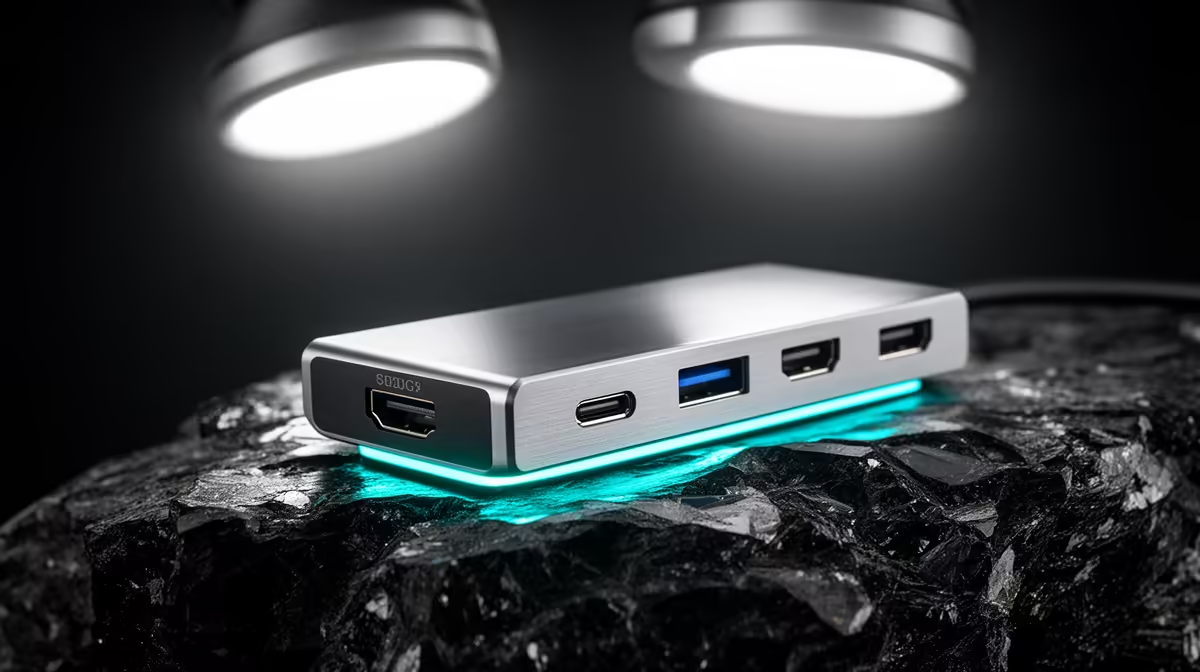
The verified Promate TransHub-Lite costs R305 and can provide a hub route after its current HDMI modes, host requirements and power-delivery details are checked. The verified GIZZU HDMI 2.0 cable costs R47, but it cannot convert USB-C by itself. No simple USB-C-to-HDMI adapter appears in the available verified products.
Test a real Blender workspace
Connect the intended screen at native resolution. Open a representative scene, move through the viewport and run a test render while checking display flicker, scaling and heat at the adapter. If storage and Ethernet share the hub, load them at the same time. High-resolution output may use graphics resources even though the adapter performs no rendering. Keep a direct laptop-screen layout for travel or adapter failure.
Label the proven USB-C port because an identical-looking socket may carry data and charging without video.
Save the working resolution and scaling settings so Blender presentations return after a display or driver update.
Test the display after laptop sleep.
Adding a Blender display? > Compare Evetech USB-C hubs and HDMI cables against the laptop port and target mode.