


Quick Answer
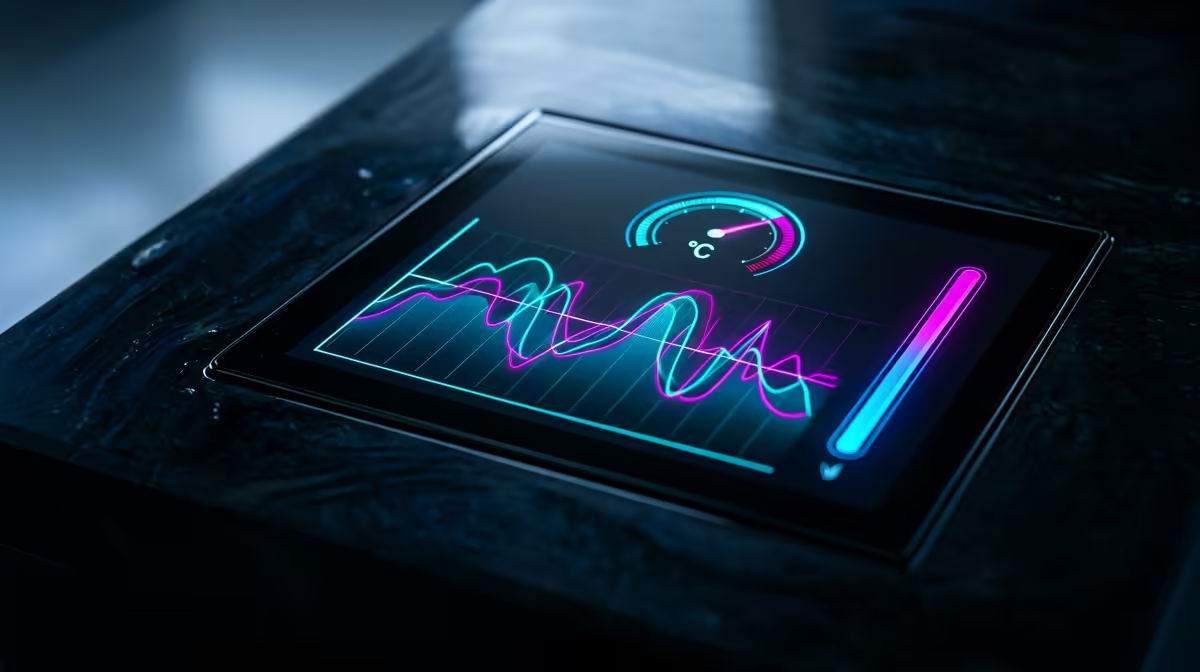
An illuminated system meter on a liquid CPU cooler is a small display or LED indicator on the pump head that shows real-time data such as CPU temperature, coolant temperature, fan RPM, CPU load percentage, or a custom image, depending on the cooler's software and firmware.
What the Display Actually Renders 🖥️
Modern AIO pump heads from brands like Corsair, ASUS ROG, and Lian Li feature either a colour LCD screen or a segmented LED matrix on the pump head. An LCD screen, typically 2.1 to 2.8 inches diagonal, can display multiple data points simultaneously: CPU temperature in degrees Celsius, coolant loop temperature, fan speeds in RPM, and CPU utilisation as a percentage. Some units, like the Corsair iCUE ELITE series or the ASUS ROG Ryujin II, allow users to display custom GIFs, static images, or system alerts directly on the pump head, turning a functional component into a status panel you can see through a tempered glass side panel without opening monitoring software. The display connects to the motherboard through a USB 2.0 internal header and is controlled through proprietary software.
Reading the Thermal Indicators Correctly 🌡️
Coolant temperature and CPU temperature are related but different readings. CPU temperature reflects the on-die sensor and will spike rapidly during burst loads, sometimes jumping 20 degrees Celsius in under a second when a game engine activates. Coolant temperature rises and falls more slowly, typically lagging 60 to 90 seconds behind CPU activity, and serves as a better long-term indicator of loop health. A coolant temperature consistently above 40 degrees Celsius at idle suggests inadequate case exhaust airflow or a room ambient temperature above 28 degrees Celsius.
Setting Up Software Alerts and Custom Displays 💡
Corsair iCUE, ASUS Armoury Crate, and NZXT CAM each allow users to configure what the pump head meter shows. You can set temperature thresholds that trigger a colour change on the display, such as the ring LEDs shifting from blue to red when the CPU exceeds 85 degrees Celsius, giving an immediate visual warning without glancing at a secondary monitor. Custom image display is a popular feature in the SA modding community; many builders load team logos or custom animations that match their build's colour scheme. Configuration takes under 10 minutes through the respective software suite and does not require any hardware adjustment.
Use Coolant Temp as Your Stability Benchmark ⚡
Rather than panicking every time your CPU temperature spikes during gaming, monitor the coolant temperature shown on your pump head display as a steadier reference. If coolant stays below 35 degrees Celsius during a two-hour session, your loop is healthy regardless of short CPU temperature peaks.
FAQ
Does the illuminated display affect CPU cooling performance?
No, the display draws power from a USB header and does not interfere with the cooling loop or pump operation. The thermal performance of the cooler is unchanged whether the display is running a custom animation or showing plain temperature data.
Can I turn off the display if I prefer a clean look?
Yes. Most AIO software suites allow you to switch the display off completely or set it to blank during sleep. The iCUE and Armoury Crate applications both include a hardware lighting off option that persists across reboots once saved to the device's onboard memory.
Is the temperature shown on the display accurate enough to trust?
Yes, for practical monitoring purposes. The onboard sensor reads within 1 to 2 degrees Celsius of software monitoring tools like HWiNFO64. For competitive overclocking where exact sensor accuracy matters, cross-reference with HWiNFO readings rather than relying solely on the pump head display.
Want a cooler with a built-in system status display? Check the AIO liquid cooler range at Evetech to find models with illuminated pump head displays and real-time monitoring.










