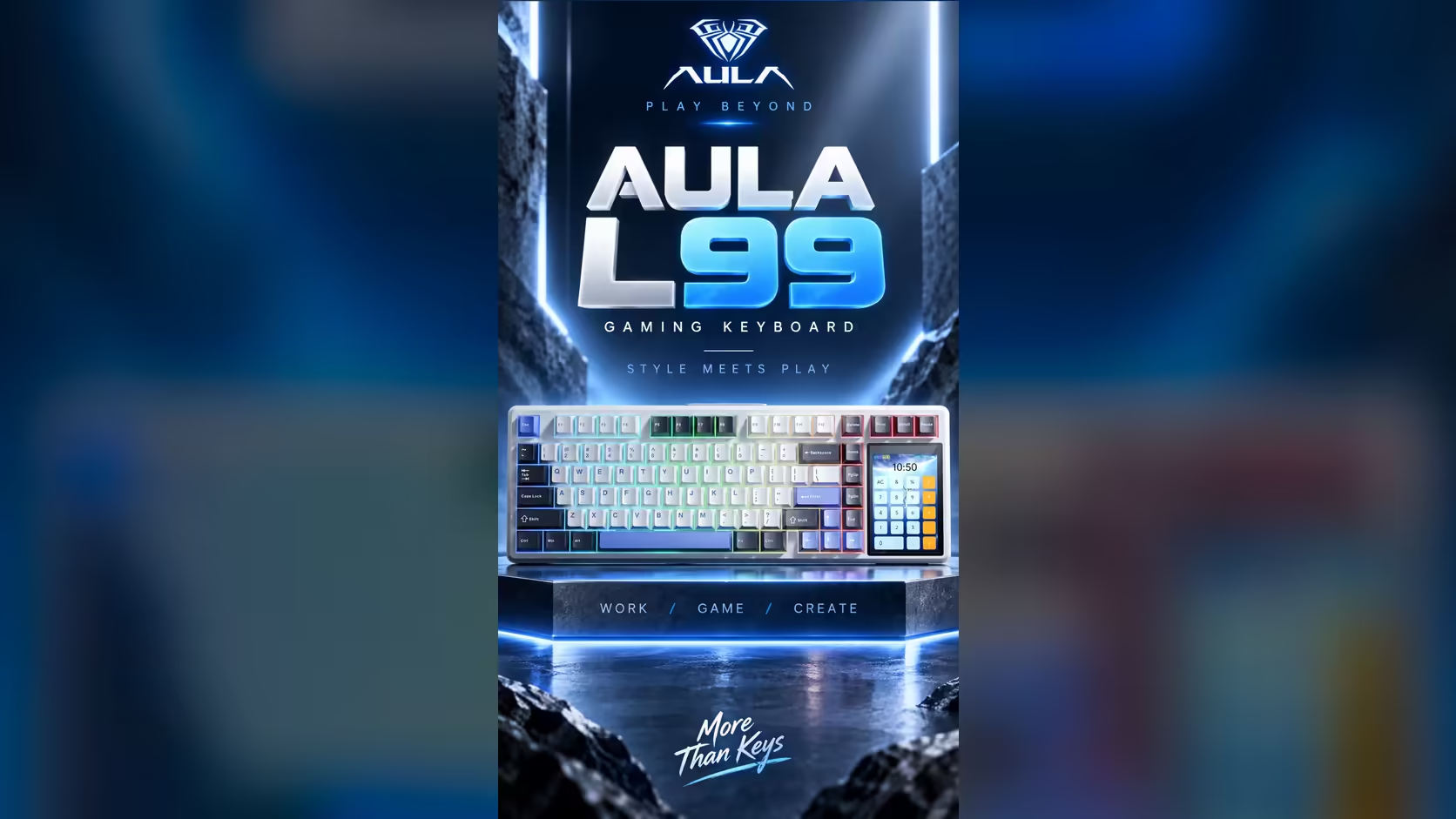
Most RGB keyboards hide their lighting behind a desktop app you install, update and occasionally fight with. The AULA L99 moves those controls onto the board. Its 3.98-inch touchscreen includes a lighting menu, so keyboard lighting without software is the normal way to use it: tap the panel, pick an effect, pick a colour, and carry on typing.
Quick Answer
Open the lighting options on the L99's touchscreen to change effects, colours and board settings directly on the keyboard. Per-key RGB offers about 16 million colours across 20 preset modes, and any effect you build can be exported, imported or passed to other L99 owners. Both colourways, Grey/White/Blue and Red/Black, reach you from Evetech for R1,099 with a 1 Year Local Warranty.
🎨 Setting up your lighting from the panel
Start with the presets
Twenty preset modes give you a quick tour of what the per-key RGB can do. Cycle through them on the touchscreen with the board in front of you, rather than reading descriptions, because effects look very different in a lit room and a dark one. Note two or three you like: one calm effect for work, one livelier one for gaming, and perhaps a single solid colour.
Then set the colour
With about 16 million colours available, you can match a room, a case or a team badge closely. Solid colours are easiest on the eyes for long typing sessions, while animated effects suit a gaming corner. The Red/Black L99 has semi-transparent red and black keycaps, so its lighting reads differently from the Grey/White/Blue board's grey, white and blue caps; judge colours on your own keyboard.
Adjust settings while you are there
The same panel handles the board's settings, so it is a good moment to check anything else you want changed, and to look at the battery level it displays.
💼 Why on-board control matters
Locked-down work laptops
Many work machines do not let you install drivers or companion apps. A board whose lighting and settings live on its own screen sidesteps that completely. Plug it in, or pair it over Bluetooth, and change what you need on the keyboard.
Several devices, one set of controls
The L99 talks to computers by cable, by dongle and by Bluetooth, the last of which remembers three devices. It also has Windows and Mac modes. Because the lighting controls sit on the keyboard, the way you change an effect is the same whichever computer is on the other end.
Fewer background apps
Lighting utilities often run all the time in the system tray. Taking lighting out of software means one less program starting with your PC.
🔁 Sharing and saving effects
AULA lists import, export and sharing for lighting effects. In practice that lets you keep a scheme you have built, restore it later, or pass it to a friend with the same board so their L99 matches yours. It is a small feature that saves a lot of fiddling if you build something detailed.
The panel can also show your own GIF or JPG files, which pairs naturally with lighting. A matching colour theme across the keys and the screen makes the board look deliberate rather than busy.
🔋 Lighting and the battery
Wireless use runs on the L99's 8000mAh battery, and bright, fast effects draw more power than dim, static ones. AULA does not publish battery hours, so there is no exact figure to plan around. A sensible habit is to keep a lower-brightness static effect for unplugged work, save the full show for when the USB-C cable is connected, and watch the battery level on the touchscreen.
To compare the L99 with other RGB boards, browse the gaming keyboards range, or look at what is proving popular on the keyboard best sellers page at Evetech.
Frequently Asked Questions
How many lighting presets does the L99 offer?
Twenty preset modes, with per-key RGB covering about 16 million colours.
Why does on-board lighting matter on a work laptop?
Work machines often block software installs. With the controls on the keyboard's own screen, nothing needs installing to change the lighting.
Can I give my lighting effect to a friend?
Yes. AULA lists import, export and sharing of lighting effects, so another L99 owner can load the same scheme.
Does bright lighting shorten wireless use?
Brighter and busier effects use more power. AULA gives no hour rating, so use dimmer effects unplugged and watch the battery reading.
Will the controls work the same with a Mac?
The L99 has Windows and Mac modes, and because lighting is changed on the board itself, the process does not depend on the computer.
How do custom GIFs relate to the lighting?
They are separate features on the same panel. Pairing a GIF's colours with your lighting gives the board one consistent look.
Ready to set your lighting straight from the keyboard?
Browse Evetech's gaming keyboards and see how the L99's on-board controls compare with software-driven boards.