Changing Windows taskbar notification badges can make the desktop less distracting without rearranging your open applications. The small indicators are a visibility choice, while the unread content belongs to the app itself. Decide how you will check important messages before removing the reminder that currently prompts you to open them.
Quick Answer
Windows taskbar notification badges can be shown or hidden through Taskbar behaviours. The preference changes the small app indicators and does not delete messages. It costs R0 to adjust; a Dahua LM24-A221Y monitor was R1,699 and in stock on 8 October as a separate screen reference, not a fix for notification settings.
🖥️ Separate the indicator from the content
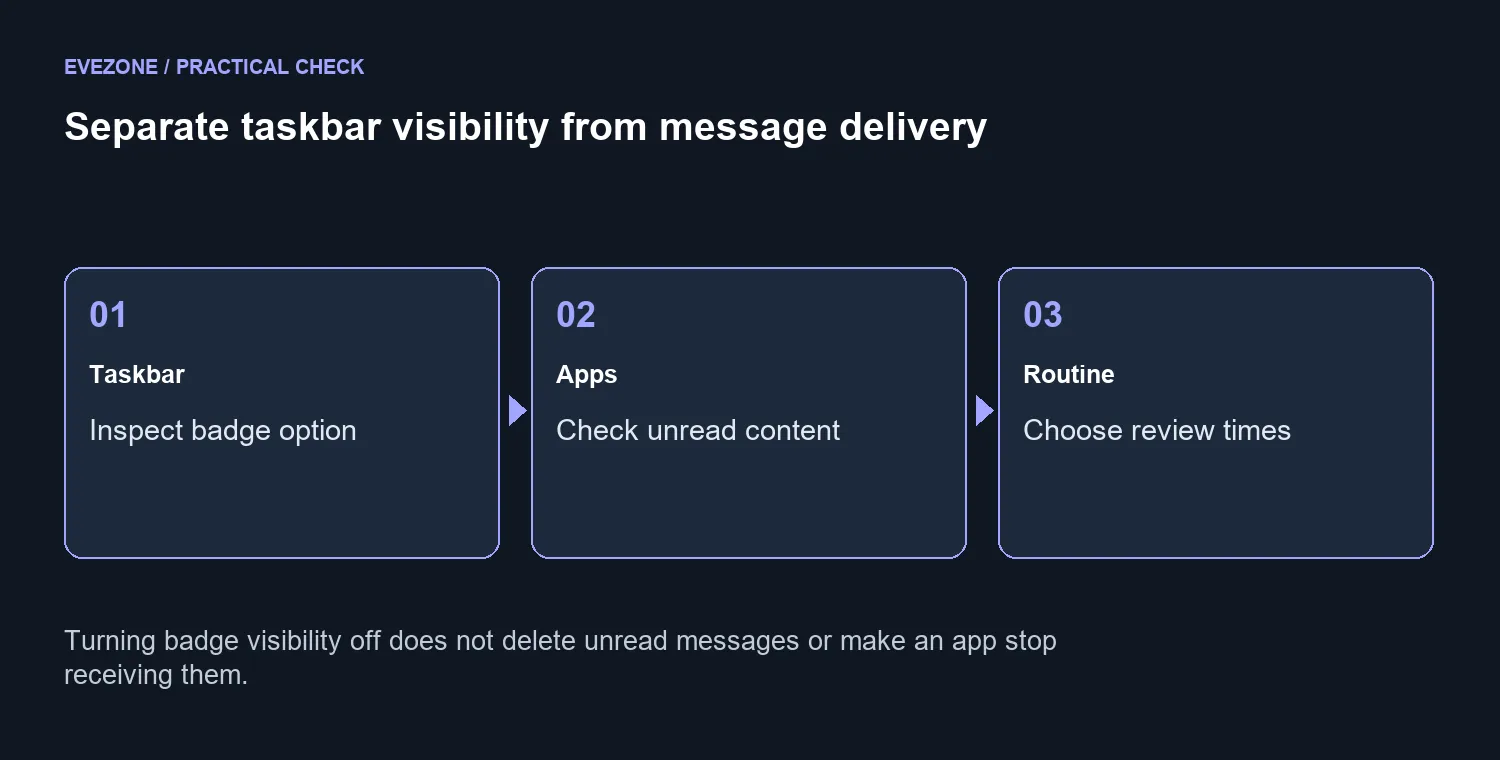
Open an application whose unread content you can check directly. Compare that content with its taskbar icon, then decide whether the badge is a useful reminder or unwanted visual noise. Application behaviour varies, so use the app that matters to your working day.
Hiding an indicator does not mean that messages have been cleared. It also should not be confused with muting all notification delivery. Treat the taskbar display, notification preferences and the application's unread state as separate things to review.
⚙️ Set the taskbar behaviour you want
Open Taskbar settings, expand Taskbar behaviours and inspect Show badges on taskbar apps. Note the initial state, change the preference and compare the same app icon. Leave the setting in the position that suits your concentration and checking routine.
If the expected result does not appear for one application, check that application's behaviour before assuming the Windows option is broken. Do not make several notification changes at once and then try to infer which one removed the distraction. A small controlled comparison is easier to reverse and understand.
📬 Give essential messages a checking routine
A calmer taskbar works best with a deliberate way to open important conversations. Choose a routine that fits your work, study or gaming session, and keep any essential alerts you rely on. Removing a visual cue is useful only if it does not leave you guessing about the messages you still need to read.
If your separate problem is an uncomfortable screen, compare gaming monitors and monitors on special for that equipment need. The dated R1,699 Dahua listing is a local display reference. A new monitor will not choose your notification preferences; settle the free desktop setting before adding a hardware purchase to the plan.
Frequently Asked Questions
Where can I change badges?
Open Taskbar settings, expand Taskbar behaviours and choose Show badges on taskbar apps.
Does hiding a badge delete a message?
No. It changes the taskbar indicator. Open the application to see the actual unread content.
Is this the same as muting all notifications?
No. Badge visibility and notification delivery are separate controls. Review each according to how you use the PC.
Will every app display an indicator?
Application behaviour varies. Test with the app that matters to you rather than assuming every icon uses badges.
How can I avoid missing important conversations?
Keep a deliberate time to open essential apps. A calmer taskbar works best with a clear checking routine.
Does changing a screen solve it?
A monitor purchase does not change taskbar preferences. Dahua LM24-A221Y was R1,699 on 8 October as a separate display reference.
Set the desktop reminders you need, then compare screens for comfort.