



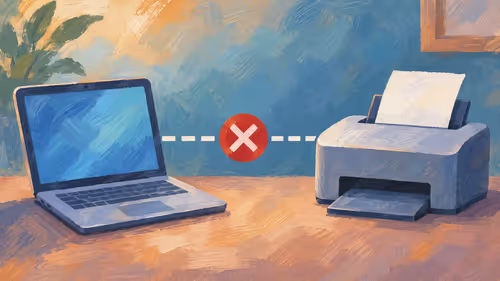
Windows printer offline: Check the connection and queue first
Windows printer offline: Cancel a queued document only after confirming it is safe to discard.
Read moreWhy some apps are not working on my iPhone: Deleting an app can remove data stored inside it.
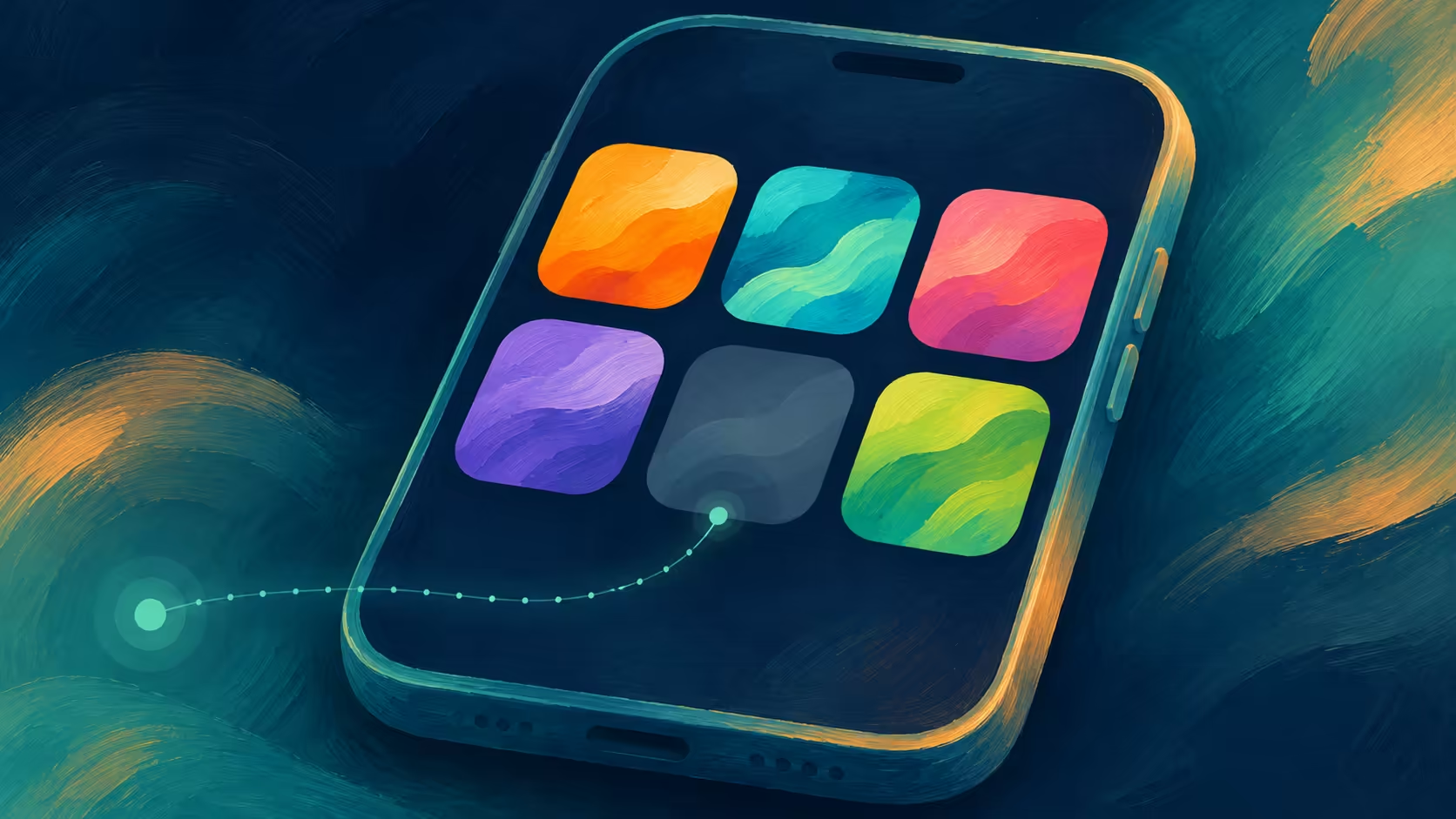
If you are asking Why some apps are not working on my iPhone, start by identifying whether one app fails or several unrelated apps are affected. A frozen app, a service connection and a Screen Time limit need different checks. Protect any information stored only inside an app before deleting it.
For Why some apps are not working on my iPhone, reopen one affected app, restart the iPhone and check for app and iOS updates. Also review Screen Time if an app is dimmed or a time limit appears. Apple warns that deleting an app can remove its locally stored data, so check that data is safe before reinstalling.
Write down which app is affected and what happens when you open it. Does it close immediately, remain frozen, show a connection message or appear dimmed with a time-limit indicator? Try another app you normally use. If several unrelated apps fail in the same way, note whether they depend on the same connection or account.
A single failing app can point to its own update or service, but that observation does not prove the developer is responsible. Avoid changing many settings at once. Record the error and perform one check at a time so that you can tell which action changed the result.
Apple's guidance for an app that stops responding or will not open starts with closing and reopening the app, then restarting the device. Check the App Store for an update to the affected app and check the iPhone's software update settings. Allow a required restart to complete before retesting the same app.
If the problem remains, Apple says you can contact the app developer for an app obtained through the App Store. Include the app name, device model, software version and the exact behaviour. A useful report distinguishes a crash at launch from a login or network error inside an otherwise working app.
Screen Time can schedule downtime or apply app limits. During blocked downtime, restricted apps can appear dimmed and cannot be opened until the permitted time or an authorised change. On a family-managed device, the person responsible for those settings should review them. Do not assume every dim icon is a software defect.
Deleting and downloading an app again is a later option in Apple's guidance, with a significant caveat: data stored in the app may be lost. Confirm that the information is backed up or available through the service and that you can sign back in before removing it. Never promise that a reinstall will restore locally stored work.
If you are comparing accessories for a phone, the local bluetooth headset and wireless headset categories are separate from this software check. A new headset does not repair a failing app. The sensible first spend for this diagnosis is R0: identify the affected apps and use their supported update and help routes.
An individual app can have its own update, account or service issue; the symptom alone does not prove the cause.
Close and reopen the app, restart the phone and check for updates.
Yes. A configured limit or blocked downtime can restrict selected apps.
No. Apple warns that data stored in the app might be lost.
The person authorised to manage the family's Screen Time settings.
Provide the app and iPhone model, software version, error and steps that reproduce it.
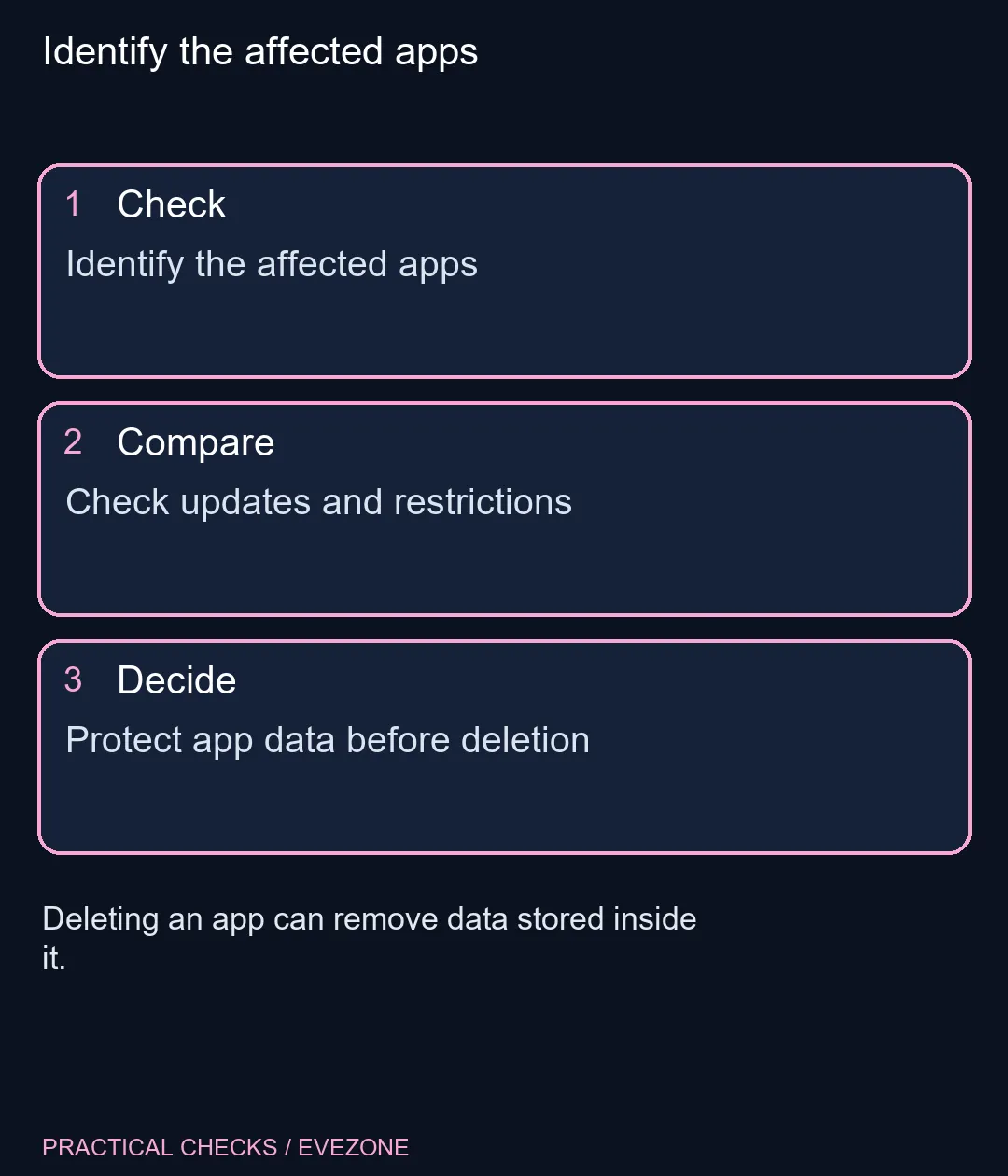
Identify the affected apps Deleting an app can remove data stored inside it.
An individual app can have its own update, account or service issue; the symptom alone does not prove the cause.
Close and reopen the app, restart the phone and check for updates.
Yes. A configured limit or blocked downtime can restrict selected apps.
No. Apple warns that data stored in the app might be lost.
The person authorised to manage the family's Screen Time settings.
Provide the app and iPhone model, software version, error and steps that reproduce it.
Windows printer offline: Cancel a queued document only after confirming it is safe to discard.
Read more
Outlook notifications not working: A notification problem does not necessarily mean that mail is missing.
Read more
Windows screen saver not working: A screen saver and display sleep are separate idle behaviours.
Read more
Windows File Explorer tabs not showing: Tabs depend on the Windows version and installed feature updates.
Read more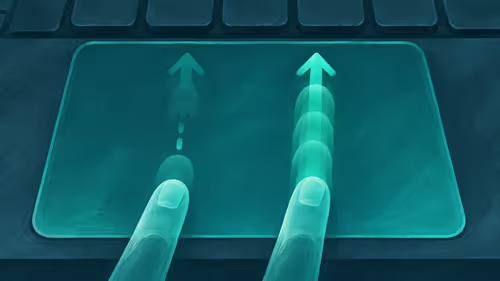
Windows touchpad scroll not working: A settings or driver issue is not proof that the touchpad has failed.
Read more
Windows screen brightness not working: An external monitor may use its own physical brightness controls.
Read more
Chrome secure DNS: Encrypted DNS is not a VPN and does not guarantee a working connection. Check browser DNS mode.

AMD Adrenalin 26.11.1: A fixed-issue entry is not proof that every system has the same cause. Record GPU and driver version.

Montech KING 95 3D: Standard and PRO are different packages; fan positions are not included fans. Identify standard or PRO.

Chrome Safety Check reviews browser warnings for updates, saved passwords, extensions and permissions. Act on the precise finding while keeping connection security separate from claims about a website being trustworthy.
Chrome secure DNS: Encrypted DNS is not a VPN and does not guarantee a working connection. Check browser DNS mode.
Chrome Safety Check reviews browser warnings for updates, saved passwords, extensions and permissions. Act on the precise finding while keeping connection security separate from claims about a website being trustworthy.
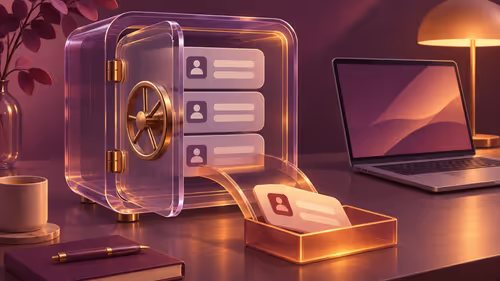
Chrome delete saved passwords removes a stored login through Google Password Manager. Match the site and username, confirm another working sign-in method and use the individual action instead of deleting every saved credential.
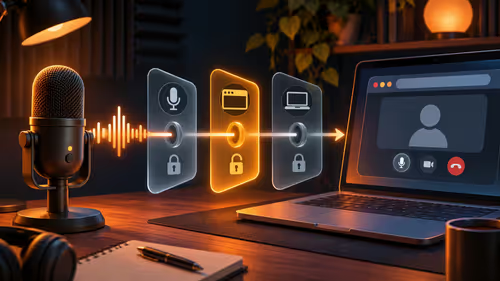
Chrome microphone not working needs separate checks for the selected input, site permission and operating system access. Test the trusted call site after one change before replacing a microphone or granting broader recording permissions.

A dynamic mic uses a moving coil and needs no power, while an electret is a condenser type with a built-in polarised element and a small preamp. Dynamics handle loud sources and noisy rooms. Electrets are small, cheap and common in headsets and laptops.

A Shure MV7 needs a stand or arm that fits its yoke thread and carries its weight. Match the thread, then pick a low-profile arm if you want the mic above a monitor. Check Shure's manual for the exact thread before you buy.
To go live on TikTok, tap the plus button, swipe to LIVE and start, once your account is eligible. TikTok sets its own follower and age rules. A phone mount and mic help most, and a PC needs TikTok's LIVE Studio.

If Windows cannot see a USB microphone, try another port and cable, check Settings, Privacy and security, Microphone, then open Sound settings and make sure it is enabled as the input. A Blue Yeti should appear without extra drivers. Avoid unpowered hubs.