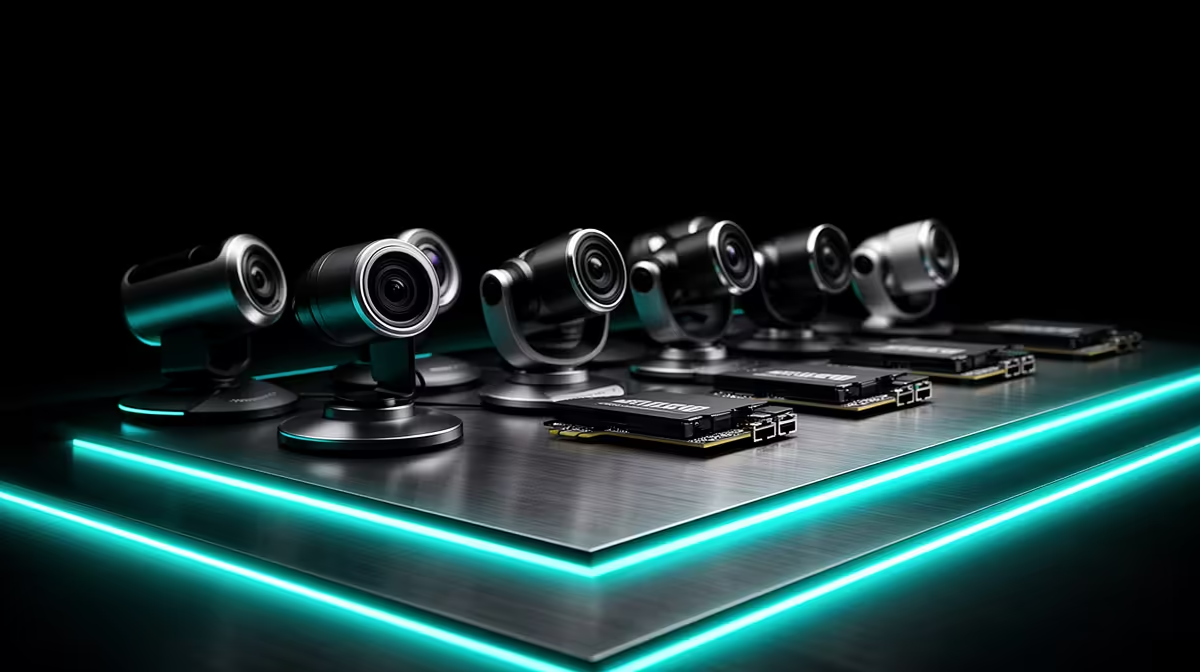
A single camera makes streaming simple. Two cameras make it interesting. Three cameras, properly switched, make it look produced. The gap between a raw single-angle broadcast and a multi-cam streaming setup is not as wide as the equipment list might suggest, but the planning has to happen before you start cabling things together, not after.
Quick Answer
Feed each camera into a hardware or software switcher via HDMI or RTSP, match white balance across all angles, assign cut hotkeys, and plan power and network for every camera independently. Three well-matched angles running on a single switched output look significantly more polished than one camera at higher resolution.
🔧 Planning the Camera-to-Switcher Architecture
Before any cable is run, decide how each camera will reach the switcher. The two practical options for most local setups are HDMI and RTSP over a network.
HDMI is the simplest path. Each camera plugs into a capture device or directly into a hardware switcher's input, the signal is clean and low-latency, and the whole chain is straightforward to troubleshoot. The limitation is distance: HDMI cable runs degrade past about five metres without an active repeater, so HDMI works best when cameras are close to the switching position.
RTSP over a wired or wireless network removes the cable-length constraint. Each camera serves its stream at a local address, the switcher or OBS pulls each feed independently, and cameras can be placed anywhere the network reaches. The trade-off is that network-sourced feeds introduce a small, consistent delay across all angles, which is fine as long as every feed has the same latency so cuts stay clean. On a dedicated 5GHz access point away from venue congestion, three 1080p feeds at around 5Mbps each stay stable throughout a long broadcast.
A hardware switcher with physical HDMI inputs is the faster option for live cutting. Software switching inside OBS is more flexible and costs nothing extra, but demands more from the computer handling encoding at the same time.
✨ Colour-Matching Angles Before You Go Live
The most immediately visible problem in a multi-camera broadcast is colour inconsistency. If one camera renders skin tones slightly warm and another slightly cool, every cut between them draws the eye in the wrong direction. The audience registers it as something being off even if they cannot identify what.
White balance is the primary control. Set every camera to a fixed colour temperature value rather than leaving any on automatic. A figure around 5600K suits most indoor environments with mixed LED and natural light. Automatic white balance can drift as lighting conditions shift, so a fixed value guarantees the cameras all read the same scene the same way.
Exposure also needs to be locked. Matching the aperture and gain settings across cameras so that the overall brightness is consistent means cuts feel like a deliberate choice rather than a technical error. Take a single reference frame from the hero camera and adjust the secondary cameras to match it before the broadcast starts.
Pro Tip ⚡
Set up all cameras pointing at the same part of the room, ideally at a face or a white card, and lock white balance and exposure together. Take a screenshot from each camera side by side and compare them before a single viewer connects. Fixing a colour mismatch on screen takes two minutes; fixing it during a live broadcast takes the rest of your focus.
🔌 Power and Network Per Camera
Each camera needs its own power plan. This is not optional. A broadcast that loses one angle mid-show because a battery ran out is a multi-camera broadcast in name only.
For cameras close to wall sockets, mains power through USB-C is the cleanest answer. No battery management, no drain tracking, no mid-show interruption. For cameras positioned away from power, an 8-hour cell matched to the expected broadcast length, or a power bank that supplements the internal battery, keeps the angle alive for the full run.
Network planning follows the same camera-by-camera logic. If one camera is wireless and two are wired, each needs its connection confirmed before the show starts. A dedicated access point for the wireless cameras, kept separate from general venue traffic, prevents competing devices from degrading the feed at the worst moment. Test throughput at the camera's intended position before committing to that spot for the broadcast.
🎯 Switching Angles Without Breaking the Show
The operational skill in multi-camera broadcasting is cutting at the right moment with minimal mechanical effort. Assigning each camera a keyboard shortcut in the switcher, whether hardware or software, means the operator can move between a wide establishing shot, a tight subject angle, and a detail view with one keypress per cut.
Label every input before the show. When a hotkey and a label match the physical camera in the room, the operator's spatial memory takes over and cuts become instinctive rather than deliberate. A wide camera on the left maps to a key on the left; a tight camera on the right maps to a key on the right.
For a small production, preview monitoring matters. Seeing the other angles before cutting to them prevents the jarring double-cut where an operator switches to a camera pointed the wrong direction. If the switcher supports a preview bus, use it. If it does not, position the secondary camera feeds in a corner of the operator's screen so the programme output stays dominant but the alternatives are always visible.
Frequently Asked Questions
How do multiple cameras reach a single stream output?
Each camera feeds into either a hardware switcher or a software application such as OBS via HDMI capture devices or RTSP network streams. The switcher or software combines the inputs into a single programme output, which is what gets pushed to the streaming platform. The viewer sees one seamless feed; the operator controls which angle is live at any given moment.
Why does white balance matter so much in a multi-cam setup?
Because a cut between two cameras that read the same scene differently looks like an error. If one camera renders the subject warm and another cool, every angle change draws attention to the technical inconsistency rather than the content. Setting a fixed colour temperature on every camera before the broadcast starts eliminates that distraction completely.
What kind of network do wireless cameras need for stable multi-cam?
A dedicated 5GHz access point separate from the venue's general network is the reliable choice. Three cameras at 1080p each generate around 5Mbps of traffic, and a dedicated access point keeps that traffic away from competing devices. Shared venue Wi-Fi at events can drop or fluctuate under load, which is why the dedicated point matters.
Does every camera in a multi-cam setup need its own power source?
Yes. Power should be planned per camera regardless of how the cameras are networked or connected to the switcher. A battery failing on one angle during a live show removes that angle for the rest of the broadcast. Map each camera to either a mains supply or a charged battery that outlasts the expected broadcast length, plus buffer for overruns.
Do the cameras need to be the same model?
No. Mixed camera models work well in a multi-camera setup once colour and exposure are matched. A higher-resolution hero camera can sit alongside two smaller secondary cameras without the difference being obvious on a correctly matched and well-switched feed. Consistent colour matters far more than consistent hardware.
Ready to produce a properly switched multi-camera stream?
Browse the streaming camera and switcher range built for South African creators who want a broadcast that looks professionally directed, not just recorded.