


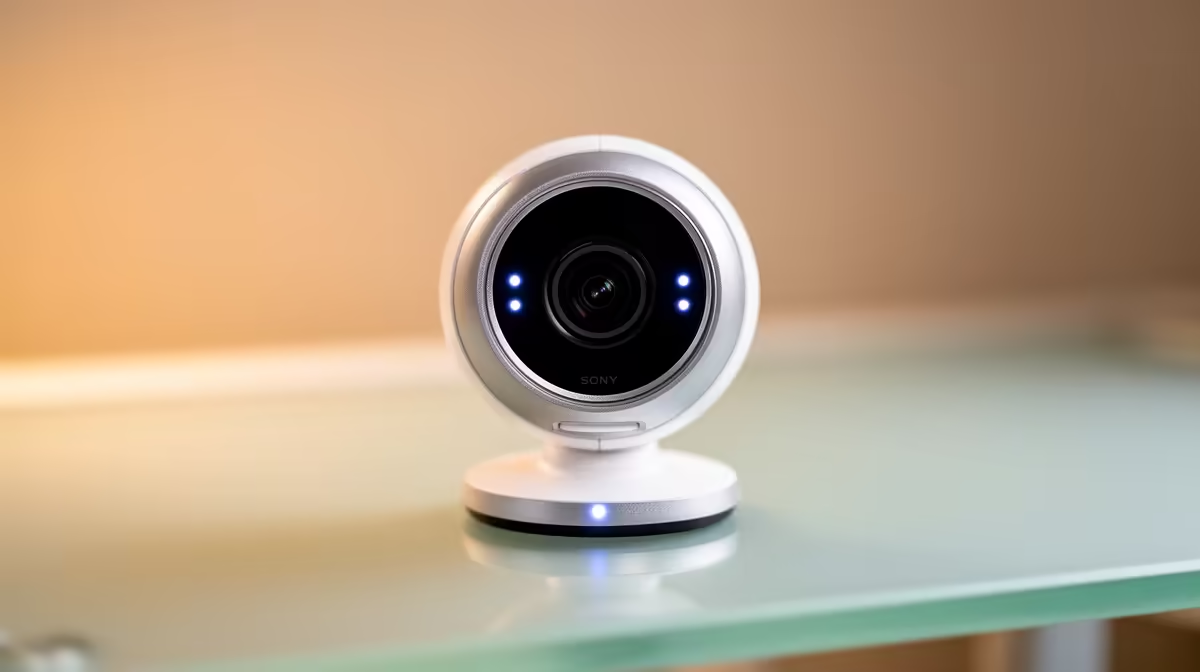
The gap between unboxing a webcam and actually going live is shorter than most people expect, because plug-and-play webcam broadcasting was specifically designed to eliminate the setup barrier that stopped earlier generations of creators from starting. Three decisions, one port, and roughly five minutes stand between a brand-new camera and your first stream.
Quick Answer
Plug the camera into a USB 3.0 port, open your streaming software and select it as the video source, then set the output to 1080p60. UVC-standard webcams need no drivers, so detection is instant. From unboxing to a live test stream takes about five minutes for most configurations.
🔌 The First Decision: Port Selection
The port you choose determines whether the camera performs at its full specification or operates below it. USB comes in generations, and the difference between 2.0 and 3.0 matters for webcams in a way it does not for keyboards or mice.
USB 2.0 carries a maximum theoretical bandwidth of 480 Mbps, and after overhead the practical ceiling is considerably lower. A 1080p60 webcam may cap itself at 30fps rather than degrade image quality beyond an acceptable point. USB 3.0 provides roughly ten times the throughput and removes that ceiling entirely.
Identify the USB 3.0 ports on your PC, typically marked with a blue tab inside the connector, and use one of those for the webcam. On a laptop with limited ports, a USB 3.0 hub lets the webcam share without competing with other peripherals.
⚡ Getting to a Working Source in the Stream App
Once the camera is connected, open your streaming software. OBS Studio, Streamlabs, and most alternatives show a source selection dialog when you add a video capture device to a scene. The webcam appears in the list by its model name almost immediately.
After selecting it, two settings need attention before anything else:
Resolution should be set to 1080p (1920x1080) rather than whatever the software defaults to. Some apps default to 720p to spare processing resources. Selecting 1080p here confirms the resolution the encoder will work from.
Frame rate should be set to 60fps if the camera supports it and your CPU can handle the encoding load. Check this value in the source properties rather than assuming the auto-detected value is correct. Some cameras will show 29.97fps rather than 30 in this field, which is normal and equivalent.
After those two settings are confirmed, a quick preview check confirms everything is working before the first broadcast.
🔧 What the Companion App Unlocks
Plug-and-play operation covers the broadcast basics, but the camera's full feature set lives in its companion application. For most major webcam brands, this is a separate piece of software that does not need to be installed for the camera to function but unlocks settings that the stream app cannot access.
Typical features the companion app controls include:
- Field of view presets (78 degrees, 65 degrees, or narrower depending on the room layout)
- Auto framing toggles, where supported by the model
- Noise reduction or background blur processing done on-camera
- Exposure and white balance manual lock settings
These settings persist on the camera itself after being set. You can uninstall the companion app once configuration is complete and the webcam retains its settings on subsequent connections. That is useful on a streaming PC where installed software should be minimised to keep system resources available for encoding.
Pro Tip ⚡
your scene's resolution and output frame rate to match in OBS: if the webcam source is at 1080p60, set your OBS canvas and stream output to 1080p60 as well. Mismatched canvas settings force OBS to resample the feed internally, which wastes processing cycles and can introduce subtle softness even when the source itself is sharp.
🎯 Autofocus Before Going Live
A step many first-time streamers skip: enable and test autofocus before the first broadcast rather than discovering it is off mid-stream.
Most webcams default to autofocus enabled, but a manual mode may have been set by a previous user or a default in the stream app. Confirm autofocus is active in either the companion app or the video source settings within the stream app.
With autofocus on, add enough light to the scene that the lens has something to focus on. Around 300 lux on the face, achievable with a small LED key light, gives the autofocus system adequate contrast to lock quickly and maintain focus as you move. Under dim ambient light, autofocus hunting, where the image repeatedly sharpens and softens, is almost always a lighting problem rather than a camera fault.
Frequently Asked Questions
What are the first steps to start broadcasting with a new plug-and-play webcam?
Connect it to a USB 3.0 port, then add a video capture source in your streaming software and select the camera from the device list. Set the resolution to 1080p and confirm the frame rate in the source settings. The camera needs no driver installation and appears in the device list within seconds of being connected.
Why is my webcam showing only 30fps when it claims to support 60fps?
The most common cause is a USB 2.0 connection. The lower bandwidth of USB 2.0 can force the camera to reduce its frame rate to stay within the port's reliable operating range. Moving the camera to a USB 3.0 port, identified by the blue plastic tab inside the connector, typically restores the full 60fps output.
Do I need to install the companion app to broadcast?
No. The camera works as a standard video source immediately without any additional software. The companion app is optional but unlocks additional controls such as autofocus settings, field of view presets, and background effects that operate on-camera. These settings persist on the device itself after being configured once.
What resolution should I pick when first setting up the source?
Select 1080p in the source settings and match it to your OBS canvas resolution. Streaming software sometimes defaults to 720p or a lower resolution to reduce encoding load. Explicitly setting 1080p ensures you are using the camera's native output rather than a scaled-down version of it.
Should I test stream before going live for the first time?
Always. Use a private or unlisted mode on your platform for a five-minute test. This confirms audio routing, resolution, autofocus tracking, and frame rate stability under real encoding load. Catching a USB bandwidth problem or incorrect audio source before the session starts costs minutes; catching it mid-stream costs the session.
Ready to go from box to broadcast? Browse the plug-and-play webcam range at Evetech to find a UVC-standard camera that gets you streaming within minutes of unboxing.










