


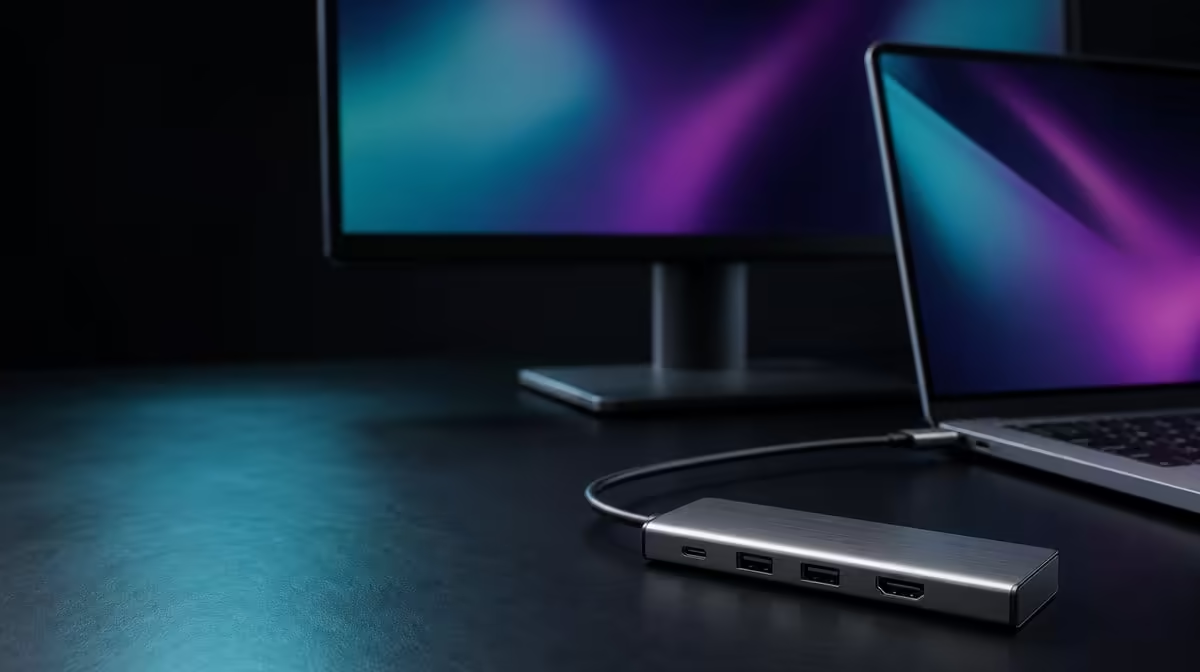
A 4K label on a hub is only the middle of the video route. To connect a 4K monitor through a USB-C hub, the host must send display video, the hub must carry it, the cable must support the chosen mode, and the screen must be listening on the correct input.
Quick Answer
Confirm USB-C display output on the host, connect the R399 UPERFECT UExtend, and attach the monitor with a suitable cable before selecting its input and checking display settings. The hub supports 4K video alongside 60W Power Delivery and wired networking, but the complete source-to-screen path determines the result.
🔍 Confirm video begins at the source
Check the exact laptop port rather than assuming every USB-C socket behaves alike. The host has to provide display output for a hub to pass a picture onwards; the UExtend cannot add that capability to a source that lacks it. A model name or connector shape is not enough when a device has several ports with different roles.
Start with the monitor as the only peripheral attached to the hub. This keeps storage, network traffic, and other devices out of the first test. Evetech's USB hub range is most useful when each option is compared against a source-capability list rather than a desired connector count.
🖥️ Build a clean display chain
Connect the UExtend firmly to the host, attach the suitable display cable, and select the corresponding input on the monitor. Open the operating system's display panel and check whether another screen appears. If it does, inspect the chosen resolution, arrangement, and scaling before changing picture controls.
The stated function is 4K output, but a successful mode still depends on host, hub, cable, and monitor agreement. Avoid asserting a refresh behaviour or display standard that is not established. The useful test is whether the actual equipment can produce the intended picture consistently.
🔋 Add charging and network after video
Once the monitor is stable, connect a compatible charger if Power Delivery is needed. The UExtend passes up to 60W towards a compatible laptop; charger output, cable capability, host negotiation, and system demand determine what reaches the machine. Check the laptop's reported charging state while the image remains active.
Add Ethernet next and verify the wired link without treating its 1000Mbps rating as a guaranteed internet result. A display path and a network path can operate through the same hub, yet both remain dependent on the host connection and the equipment beyond the hub.
For a more permanent workstation, compare the port strategy with Evetech's docking stations. A compact R399 hub can be the better fit when its exact display, power, and network roles cover the desk.
🧪 Diagnose a blank or unstable picture
If no image appears, return to the smallest known arrangement: host, UExtend, display cable, monitor, and any power the setup requires. Confirm source video support, reseat both ends, select the screen input manually, and check display detection. Test one change at a time so a successful step identifies the weak link.
If the screen is detected at another mode, confirm what the full path supports before requesting 4K again. A different suitable cable or a known compatible source can help separate a cable question from a host-port question without blaming the monitor prematurely.
After the picture works, reconnect SD, USB devices, and network traffic gradually. Save the working display arrangement and repeat it after a restart. Evetech's gaming-accessories category can supply context for the peripherals sharing the station. Check the UExtend's current availability when the R399 hub fits the complete route.
Test readability and arrangement after detection
A successful 4K signal is not the end of the display setup. Choose an operating-system scale that keeps text and controls comfortable, then decide whether the monitor extends or mirrors the laptop. Move a window across the boundary and confirm that both screens occupy the intended relative positions.
Open the applications that motivated the external display. A dense document, editing interface, presentation, or reference window reveals more than a static desktop. If the source struggles under the intended mode, treat that as a source-workload question rather than quietly assigning the result to the hub.
Create a known-good cable and input record
Write down the laptop socket, UExtend connection, display lead, monitor input, and selected mode that worked. If several similar leads are present, keep the confirmed display cable with the hub or label it. A physical match does not establish identical capability.
Repeat the connection from a fully disconnected state. Attach the hub, connect the monitor, select its input, and wait for detection before adding power and network work. This rehearsal proves that the route can be rebuilt after travel rather than only while the current desktop state is preserved.
Finally, test sleep and wake. Confirm the screen returns, the arrangement remains correct, and readable scaling has not changed. If video fails only after wake, preserve the cold-start result and investigate that event separately instead of replacing the whole route.
Before daily use, compare the intended monitor route with one second supported screen if the workstation may change. Keep the host and hub fixed so the display becomes the variable. Record a separate input and mode profile rather than assuming both monitors behave identically.
Frequently Asked Questions
Can the hub create display output for any USB-C laptop?
No. The connected host port must already support the required video function.
Why begin without storage devices attached?
A minimal path reduces variables and makes a blank screen easier to trace.
What should be checked after detection?
Inspect the selected monitor input, resolution, screen arrangement, and readable scaling.
Does charging prove the USB-C port also carries video?
No. Power and display are separate capabilities, so one working does not establish the other.
When should Ethernet be connected?
Add it after the display is stable, then confirm the wired link independently.
Ready to build a dependable 4K hub-to-monitor route? Match an Evetech USB hub to the exact video capability of your laptop, the display cable, charging plan, and screen before completing the workstation.











