Microsoft says some Windows 11 game crashes after KB5121003 or later updates are linked to RGB components and peripherals that install low-level drivers similar to inpoutx64. The issue does not affect every RGB device or every gamer. The safest response is to confirm the update, symptom and driver before applying a registry workaround that can disable lighting controls.
Quick Answer
The current known issue covers Windows 11 versions 24H2 and 25H2. Reported symptoms include games becoming unresponsive, closing with an access-violation error or restarting the PC. Microsoft names ARC Raiders, Marvel Tokon: Fighting Souls and The Finals among reported examples. The issue remains under investigation, and the published mitigation should be used only on an affected, backed-up system.
🧭 Confirm the pattern before changing Windows
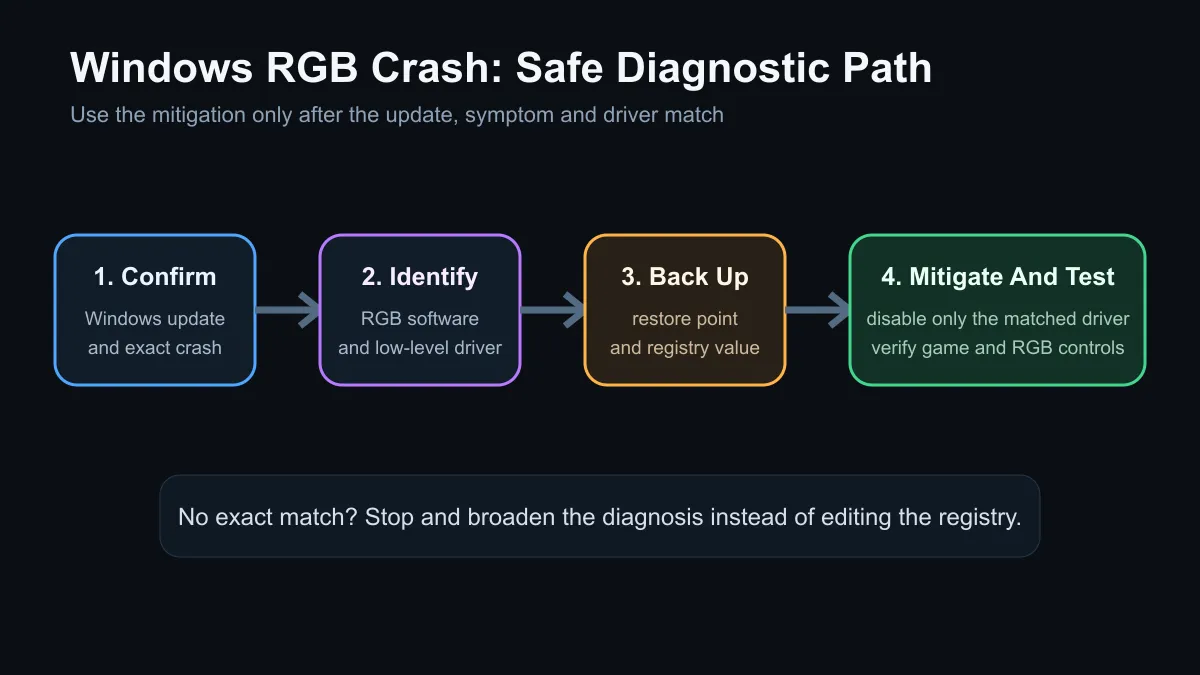
Start by opening Windows Update history and confirming whether KB5121003 or a later cumulative update is installed. Record the exact game, time and error message. If the crash began before that update, or affects unrelated applications as well, this known issue may not be the cause.
Next, list the lighting and hardware-monitoring tools that start with Windows. RGB keyboards, mice, memory, fans and motherboard components may bring their own services or kernel drivers. Microsoft is investigating drivers or files similar to inpoutx64, not blaming every illuminated peripheral. Removing hardware at random can waste time and create a second problem.
Check Reliability Monitor and Event Viewer for matching application errors. Update the game, graphics driver and the control software from the device or motherboard vendor. If one optional lighting application can be cleanly disabled at startup, test the same game again before editing the registry. Keep notes so each change has a result.
🛡️ The registry workaround carries a real trade-off
Microsoft's mitigation changes the affected driver's Start value to 4, which prevents the driver from loading. The company warns that this can disable RGB-lighting functions on related devices. That makes the workaround appropriate for an identified problem, not a general performance tweak.
Create a restore point or registry backup first, close games and save work. Confirm that the targeted service belongs to the low-level driver described in the issue. Change only that value, restart, then test both the affected game and the device controls. If the system behaviour does not improve, restore the original state rather than stacking more undocumented changes.
Less technical users should wait for the compatibility update or ask a qualified technician to apply the mitigation. Microsoft and device partners are still working on a resolution. A future Windows or vendor update may remove the need for the workaround, so keep the relevant control software current and revisit the release-health status.
🎮 Peripherals remain useful, but software support matters
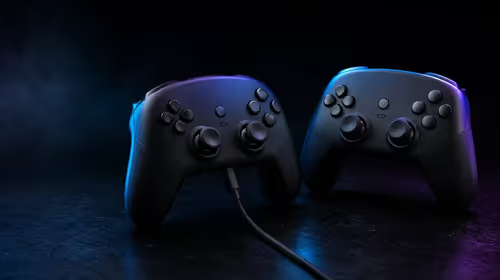
This incident is a reminder that a peripheral includes software as well as switches, sensors and lights. Compare the gaming keyboard range and gaming mouse range on layout, sensor, warranty and connection first. RGB should not outweigh a vendor's driver maintenance and clean uninstall path.
Windows licensing is a separate decision from this compatibility fault. The operating-system range helps a new builder choose a legitimate edition, but reinstalling or buying Windows is not the first fix for one recognised post-update crash pattern.
If the PC is stable, do nothing. If it matches the affected update, games and driver pattern, use the smallest reversible mitigation and verify the result. If crashes continue after the RGB driver is disabled, broaden the diagnosis to graphics drivers, memory stability, overlays, temperatures and game-file integrity. One known issue should not become an explanation for every fault.
Frequently Asked Questions
Which Windows 11 versions are involved?
Microsoft lists versions 24H2 and 25H2 after KB5121003 or later cumulative updates.
Does every RGB device cause crashes?
No. The investigation concerns some components or peripherals that install particular low-level drivers or similar files.
Should I edit the registry immediately?
No. Confirm the update, symptoms and driver first, create a backup and understand that the mitigation can disable lighting functions.
Is a permanent fix available?
The issue remains under investigation, with Microsoft and partners working on compatibility updates.
Troubleshooting a gaming PC after Windows Update? Record the exact failure, make one reversible change at a time and protect working device settings before testing again.