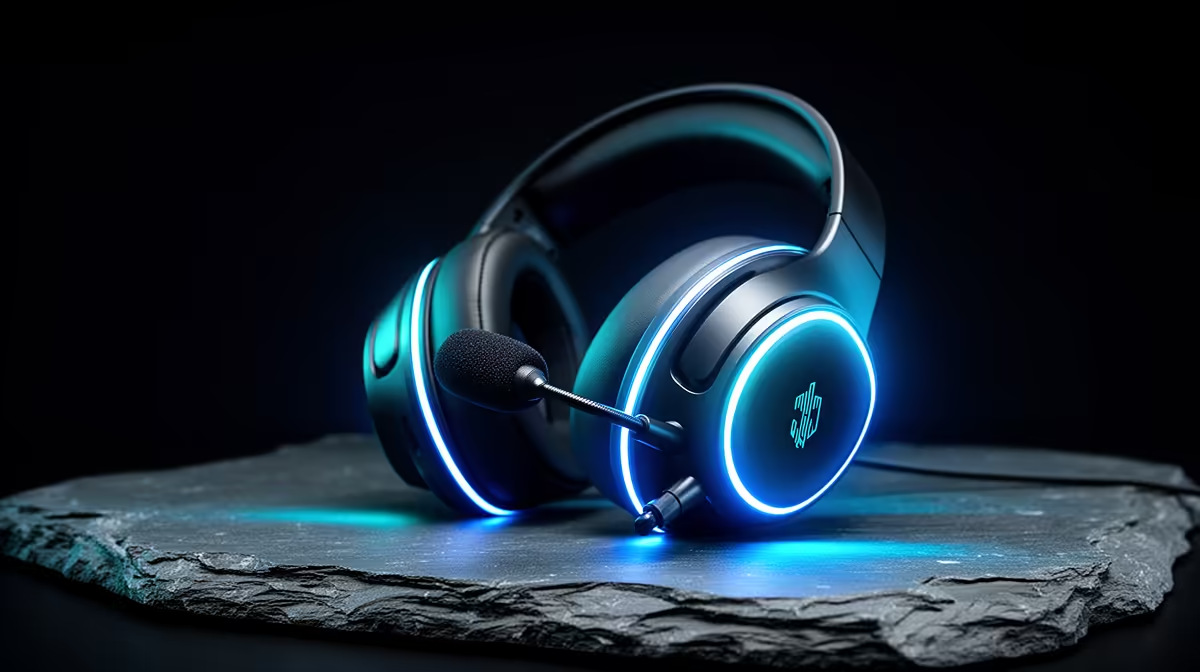
Clear Discord comms start with a clean microphone signal, the correct input and one processing chain. Push-to-talk can keep a noisy room out of the channel, while voice activity suits relaxed chat. Automatic gain, suppression and echo control each solve a different problem, so switch them based on evidence rather than a competitive preset.
Quick Answer
Select the mic by name, record a local clean sample and set its hardware gain first. In Discord Voice and Video, choose Push to Talk for a noisy shared room or tune Input Sensitivity for voice activity. Use one noise suppressor. Disable echo cancellation with closed headphones, and enable it when speakers feed call audio back into the mic.
Evetech's peripheral best sellers and gaming-accessory range help compare headsets and microphones. Choose comfort, mic placement and connection around your room; a push-to-talk key does not turn a poor capsule into a clear one.
Fix the Source Before Discord
Place a headset boom near the corner of your mouth and outside the breath stream. Aim a side-address desk mic from its correct face. Move it closer before adding gain so voice rises relative to keyboard, fan and room echo.
Set interface or microphone gain while speaking at your loudest normal level. Peaks should remain below clipping. In Windows, select the same device and leave a sensible input level. Disable stacked enhancements for the baseline.
Record thirty seconds locally. If the dry signal is distorted, noisy or distant, Discord processing has poor material to work with.
Select the Input Explicitly
Open User Settings, Voice and Video and choose the exact microphone under Input Device. Default can jump to a webcam, controller or monitor when hardware reconnects.
Choose the intended Output Device as well. Run Discord's mic test or join a private test call, noting that live channel processing can differ from a local loopback.
Set Input Volume after hardware gain. A low hardware signal raised to maximum in Discord carries more noise than a closer mic with clean gain.
Pick Voice Activity or Push to Talk
Voice Activity opens the mic when the signal crosses its threshold. It is convenient for long conversations and accessibility. Turn off automatic input sensitivity for a controlled test, then set the threshold above room noise and below quiet words.
Watch for clipped word beginnings. A threshold set too high misses soft consonants. Too low sends breathing, keyboard and chair noise.
Push to Talk sends only while you hold or toggle the assigned key according to the mode. It works well in a shared room or competitive team where idle noise carries a cost. Choose a key that does not break movement or aim and test it with every modifier you use.
Push-to-talk release delay can prevent the end of a sentence from being cut. Set a small delay, speak naturally and ask a teammate whether final consonants arrive.
Treat Automatic Gain as a Tool
Automatic gain control raises and lowers level as you speak. It can help a laptop or moving user whose distance changes. On a well-positioned fixed mic, it may pump room noise between phrases or change volume during excited speech.
Disable it for the first clean test. Set hardware and input level manually, then compare a live call with AGC on. Keep it only when it solves a real level swing.
Do not disable every automatic feature because a guide calls them bad. A headset with no physical gain and a user who moves may sound more consistent with AGC.
Use One Noise Suppressor
Discord can offer Standard, Krisp or other suppression choices as the app evolves. NVIDIA Broadcast, AMD Noise Suppression, headset software and Windows Voice Focus can process the signal before Discord.
Choose one. Stacking two or three creates watery speech, missing breaths and clipped word openings. Record keyboard, fan and speech together, then compare suppression off and each candidate alone.
Use the least aggressive option that controls the steady noise. A mechanical keyboard next to a distant mic is better fixed through placement before stronger algorithms.
Set Echo Cancellation Around Playback
With closed headphones, call audio should not reach the microphone at a useful level. Echo cancellation can stay off for the cleanest path. Open-back headphones at high volume can leak, so test rather than assuming.
When using speakers, echo cancellation helps stop teammates hearing themselves. Keep speakers at a moderate level and move the mic away from their direct path. The algorithm can struggle when game audio, music and speech all overlap.
Do not confuse acoustic echo with hearing your own delayed voice. A local monitoring path or duplicate Discord stream can create that. Trace the route before adding cancellation.
Check Attenuation and Priority
Discord attenuation lowers other applications when someone speaks or when you speak, depending on the setting. It can make game audio pulse and hide cues. Set it to zero for a baseline, then add a small amount only if comms are buried.
Operating-system communications settings can also reduce other sound. In classic Sound, Communications, choose the behaviour you want. Avoid letting Windows and Discord both attenuate the same game.
Streamer Mode and application priority do not repair mic quality. Leave process priority at default unless official support identifies a scheduling fault.
Set the Channel and Network Context
Server voice channels can use a configured bitrate up to the plan and channel limits. Higher bitrate cannot repair packet loss, clipping or a poor mic. Keep the channel region on Automatic unless a repeatable route problem calls for a test.
Open Discord's connection information during a bad call and inspect packet loss and ping. Robotic dropouts may be network trouble rather than suppression.
Use wired Ethernet or a strong Wi-Fi link where practical. Close a saturated upload and test without a VPN before changing audio filters.
Build a Competitive Profile
For a quiet room and close headset mic:
- Use voice activity or push-to-talk according to team preference.
- Keep one light suppressor or none.
- Turn echo cancellation off with headphones.
- Set attenuation to zero or a small measured amount.
For speakers or a noisy shared space, push-to-talk and echo cancellation have a stronger case. Keep a second Discord profile only when the app or operating workflow supports it cleanly; otherwise write the settings down.
Test With Real Teammates
Ask one person to listen during normal speech, a loud callout, keyboard use and silence. Have them describe clipping, level and missing words rather than say it sounds fine.
Record the Discord output only with consent and according to channel rules. A local dry track beside the processed call makes it easier to tell whether the source or Discord changed the voice.
Retest after a headset, interface or room change. Old thresholds and suppression can be wrong when the mic moves two centimetres.
FAQ
Is push-to-talk clearer than voice activity?
It prevents unwanted open-mic noise. The voice quality itself still depends on the same mic and processing path.
Should automatic gain always be disabled?
No. A fixed well-set mic may sound steadier without it, while changing distance can benefit from controlled automatic gain.
Should echo cancellation stay on with headphones?
Usually it is unnecessary when call audio cannot reach the mic. Enable it when real echo remains, especially with speakers.
Set a clean close-mic signal first, choose push-to-talk or a tested threshold and keep only one suppression or echo tool that solves a recorded problem.