


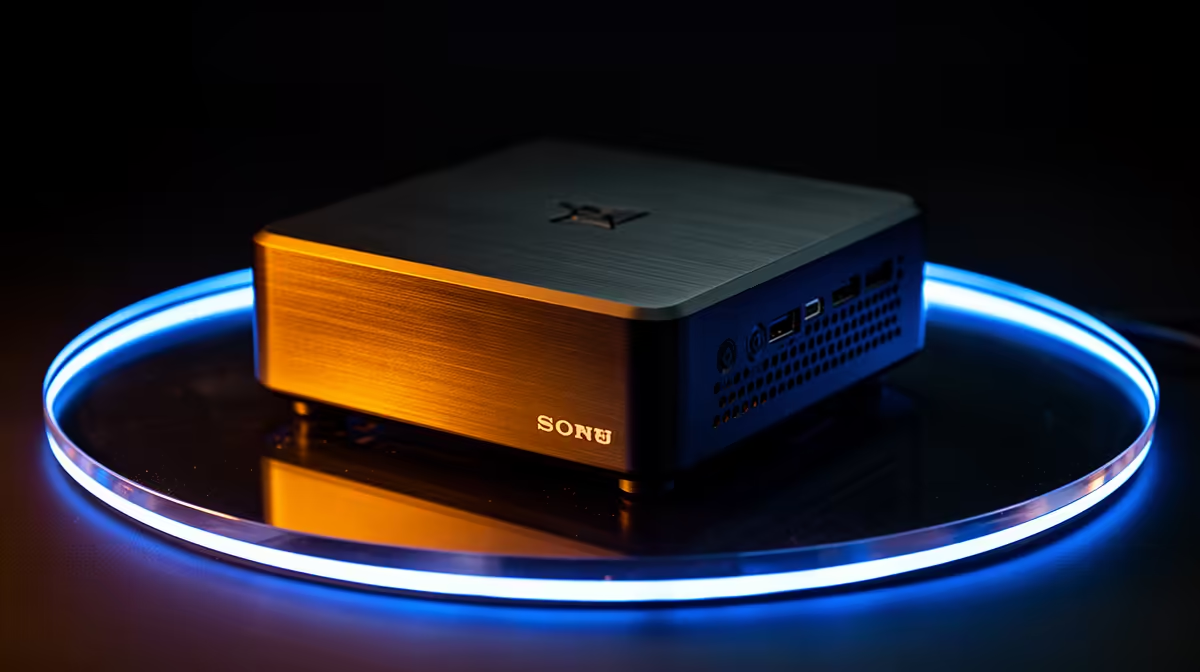
A blank screen right after you have plugged in a monitor is one of the most frustrating moments in setting up a new machine, and it almost never means the hardware itself is broken. On a gaming mini pc with several video output options like the GR70, display issues usually come down to the wrong port, cable, or a setting Windows has not yet been told to apply.
Quick Answer
Most display connection problems on a gaming mini PC trace back to the wrong port, cable, or refresh setting rather than a faulty component. Swapping between HDMI, DisplayPort and USB-C, then checking Windows 11's display settings, resolves the majority of cases on a R66,399 machine like the GR70 without needing any repairs.
🔌 Start With the Physical Connection
Before touching any settings, it is worth ruling out the basics first, since they account for more display problems than people expect.
Confirming the Right Port and Cable
The GR70 offers HDMI, DisplayPort and USB-C/Thunderbolt outputs, and not every cable supports every feature at every resolution or refresh rate. A cable rated for a lower bandwidth than your monitor's native settings can produce a black screen, flickering, or an unexpectedly low refresh rate even though the connection looks fine.
Testing With a Different Cable or Port
Swapping to a different port on the GR70, or trying a cable known to work with another device, quickly narrows down whether the issue sits with the cable, the port, or the monitor itself. This single step resolves a surprising share of "no signal" situations before any software troubleshooting is needed.
🖥️ Windows 11 Display Settings
Once the physical connection is confirmed, the next place to look is inside Windows 11 itself.
Detecting and Arranging Displays
Settings > System > Display includes a Detect button that forces Windows to recheck all connected outputs, which resolves cases where a monitor was connected after the system had already booted and was not automatically detected.
Refresh Rate and Resolution Mismatches
A monitor running below its native refresh rate, or with dark or wrong resolution, is often set incorrectly rather than faulty. Checking the Advanced display settings menu lets you manually select the resolution and refresh rate that match your monitor's specifications exactly.
🎮 GPU Driver Considerations
Display problems can also originate from software rather than the physical setup entirely.
Keeping GPU Drivers Current
An outdated graphics driver occasionally causes intermittent display dropouts or incorrect resolution detection. The RTX 5070 8GB inside the GR70 benefits from regularly updated drivers, both for stability and for squeezing out the performance the GPU is actually capable of.
When to Try a Different Output Entirely
If one port consistently causes problems across multiple cables and monitors, switching to a different output on this Ryzen 9 9955HX and RTX 5070 build is a reasonable next step while the original port is investigated further. For anyone comparing display connectivity across models before buying, Evetech's mini PC range is worth checking, and browsing current graphics card deals helps if the underlying issue turns out to be GPU-related rather than a simple cabling fault.
🧰 A Simple Troubleshooting Order Worth Following
Working through display problems in a consistent order saves time and avoids chasing the wrong fix. Start with the cable and port, move on to forcing Windows 11 to redetect connected displays, then check resolution and refresh rate settings before finally looking at GPU drivers. Most issues resolve within the first two steps, so it rarely pays to jump straight to reinstalling drivers or suspecting a hardware fault.
Multi-Monitor Complications
Display problems become slightly more involved once more than one monitor is connected, since Windows 11 has to correctly identify which output feeds which screen. If a second or third monitor shows a black screen while the primary display works fine, checking that each cable is fully seated at both ends, and that the correct port combination is being used across HDMI, DisplayPort and Thunderbolt, usually clears it up.
When a Dock Is Part of the Setup
Adding a Thunderbolt dock into the mix introduces another possible point of failure, since a dock itself can lose display signal if it is running outdated firmware or drawing more power than its supply allows. Connecting a monitor directly to the GR70 first, bypassing the dock entirely, is a fast way to confirm whether the dock or the direct connection is where the fault actually lies.
Frequently Asked Questions
Why does my monitor show no signal when first connected?
This usually means Windows has not detected the new display yet; using the Detect button in Display settings often resolves it immediately.
Can a cheap cable really cause display issues?
Yes, a cable not rated for your monitor's resolution or refresh rate can cause flickering, no signal, or a capped refresh rate.
Should I use HDMI, DisplayPort, or USB-C for my main monitor?
DisplayPort generally offers the highest bandwidth of the three, making it the best choice for a high refresh-rate primary display.
Does updating GPU drivers fix display dropouts?
Often yes, since outdated drivers are a common cause of intermittent display issues that have nothing to do with the cable or port.
What if the display problem only happens on one specific port?
Testing a different monitor and cable on that same port helps determine whether the port itself is the issue rather than the display equipment.
Ready to sort out display connection headaches for good? Check out ASUS's compact GR70 rig among Evetech's mini PC range, priced at R66,399 and will connect displays without the usual mini PC compromises.











