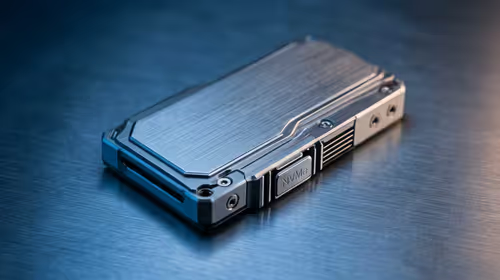
An external GPU only earns its money when the right software actually runs on it, and by default Windows does not always make that choice for you. Windows 11 has a built-in per-app GPU assignment panel that lets you force individual games and programs onto your eGPU, overriding both the system default and the driver control panels, and it takes about a minute per app.
Quick Answer
Open Settings, then System, then Display, then Graphics. Add the game or app, expand it, choose Options, and set GPU preference to High Performance to push it onto the eGPU. This Windows setting takes precedence over the NVIDIA and AMD control panels, so it is the most reliable single place to assign apps.
Why Windows Picks the Wrong GPU
When you connect an eGPU over Thunderbolt or USB4, Windows sees more than one graphics adapter: the laptop's integrated GPU, sometimes a built-in discrete GPU, and now the external card. Left to its own logic, Windows often runs apps on the internal GPU to save power, which is exactly the opposite of what you want from an eGPU.
The per-app graphics setting solves this by letting you tag each program with a preference. "High Performance" maps to the most capable adapter, which in an eGPU setup is the external card. Because this setting sits at the operating system level, it wins over conflicting choices in vendor control panels.
Step by Step: Assign an App to the eGPU
- Connect the eGPU and confirm Windows has detected it. Open Device Manager and check that the external card appears under Display adapters with no warning icon.
- Open Settings with Windows key plus I, then go to System, then Display, then scroll to Graphics under related settings.
- Choose how to add the app. For a normal installed program or game, set the dropdown to Desktop app and Browse to its .exe file. For a title installed from the Microsoft Store, set the dropdown to Microsoft Store app and pick it from the list.
- Add the executable. Once it appears in the list, click it, then click Options.
- Select High Performance. The panel usually labels which physical GPU this maps to, so confirm it names your eGPU rather than the integrated chip. Click Save.
- Fully close and reopen the app. The setting applies on next launch, not to a running process.
Confirm It Actually Switched
Do not assume the change took. Launch the game, then open Task Manager, go to the Performance tab, and watch the eGPU's utilisation graph while you play. If it climbs under load, the assignment worked. If the integrated GPU is doing the work instead, the app is still on the wrong adapter.
A second check is the in-game performance overlay if one is available, which often reports the active GPU by name. For laptops with a built-in discrete GPU as well as the eGPU, double-check the High Performance option is mapped to the external card specifically, since Windows may treat the internal discrete GPU as "high performance" too. The way these adapters are presented depends heavily on how the enclosure connects, which is why a solid Thunderbolt or USB4 link through a quality dock matters as much as the setting itself.
When the App Still Will Not Use the eGPU
If utilisation stays on the wrong GPU, work through the usual suspects. Some older games hardcode the adapter and ignore the Windows preference, in which case the NVIDIA or AMD control panel is the fallback. A loose or underspecified cable can also cause the eGPU to drop to a lower link state or disappear entirely, so reseat the connection and use the cable rated for your enclosure. It is also worth keeping the external card itself current; you can compare current options across the latest graphics cards stocked at Evetech if your eGPU is due an upgrade.
Frequently Asked Questions
Does the Windows graphics setting override the NVIDIA Control Panel?
Yes. The per-app preference in Settings, System, Display, Graphics takes precedence over the same kind of setting in the NVIDIA and AMD control panels. Set it in Windows first and only fall back to the vendor panel if a stubborn app ignores it.
Why does "High Performance" sometimes pick the wrong card?
On a laptop with both a built-in discrete GPU and an eGPU, Windows may treat either as the high performance option. Check the label the panel shows under the dropdown and confirm it names the external card.
Do I need to set this for every game separately?
Yes, the assignment is per application. You add each .exe or Store app individually. There is no single switch that forces every program onto the eGPU.
Will this work over USB4 as well as Thunderbolt?
Yes. Once Windows detects the eGPU as a display adapter, the assignment process is identical regardless of whether it connects over Thunderbolt or USB4, though link bandwidth affects performance.