💾 A connected drive does not prove your backup is current
Quick Answer
File History September 2026 failures can show a reconnect-drive warning even when the backup drive works. Check the last successful backup, preserve existing copies and make a separate copy of new files while Microsoft investigates. Buying another SSD is not a confirmed repair.
That comforting drive icon can hide an uncomfortable gap: the files you changed this week may not have reached your backup. The September Windows issue deserves attention before your next large work session, especially if File History is your only regular protection. Start by establishing the newest recoverable version of something you actually need.
Microsoft lists the problem in the KB5124008 release notes. On some affected devices, File History can fail to create or update backups and incorrectly ask you to reconnect a drive that is already connected and working. The last-backup information can also remain stale. This does not mean every Windows computer or every external drive is affected.
As checked on 22 September 2026, the release notes say Microsoft is working on a resolution for a future update. Check those notes again before applying any later advice. A promised future fix is not evidence that your own files have already been copied successfully today.
🔎 Check a recoverable file, then protect current work
Open the drive in File Explorer and check whether ordinary files are readable. If it does not appear or repeatedly disconnects, that is a separate symptom worth investigating; the documented software warning cannot explain every storage fault. Avoid formatting a drive that contains your only backup to make a warning disappear.
Next, open File History and inspect the last successful backup date. Pick a document you edited recently and check whether the expected version is available. When testing a restore, choose a different destination so that an older copy does not overwrite the file you are still working on. Microsoft documents restoring to another location for precisely this kind of separation.
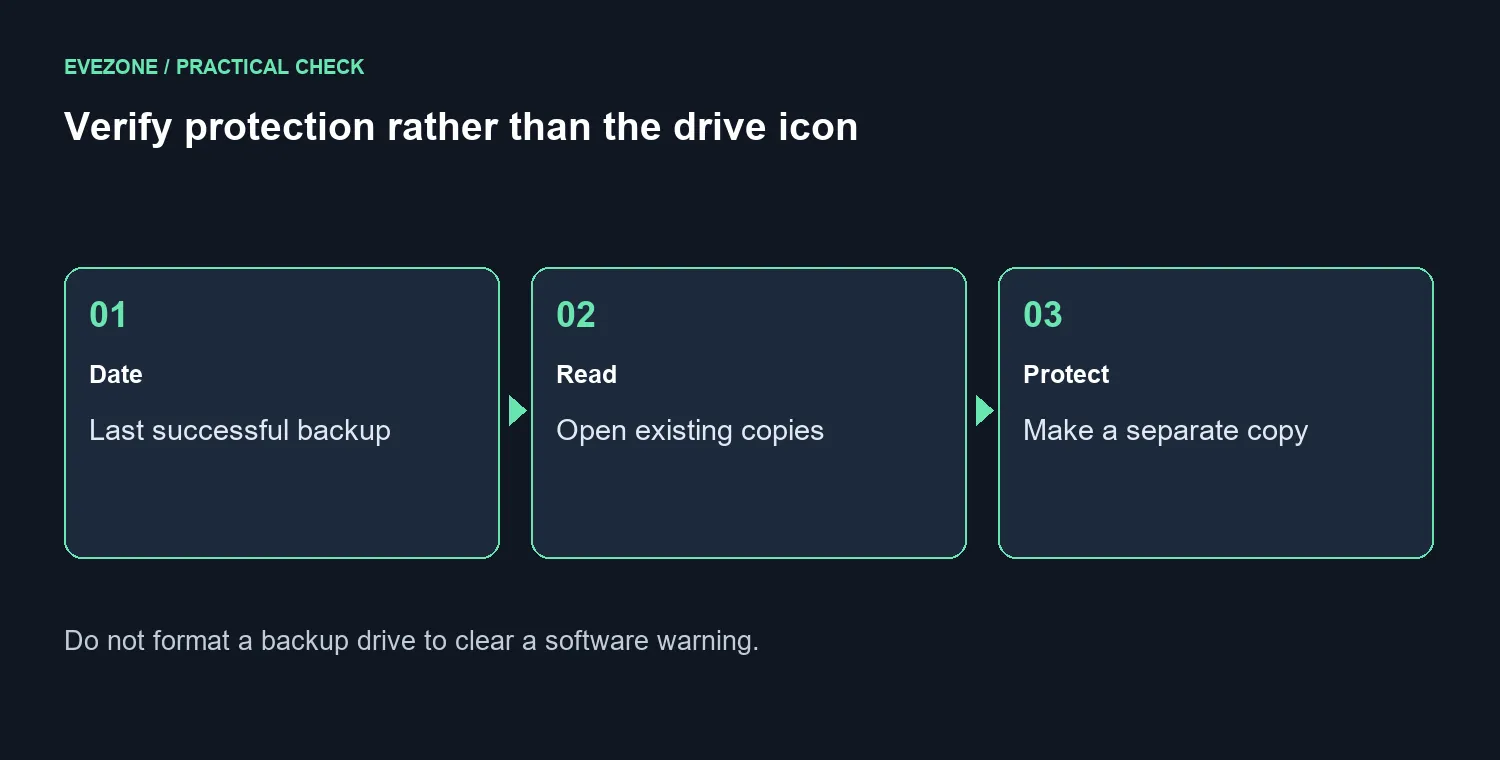
If the expected recent version is missing, make an independent copy of important current files to a separate safe destination. Open several copied files to check they are usable. A manual copy is a temporary way to protect those selected files; it does not prove the scheduled backup job has recovered or reproduce every version File History would normally retain.
Keep the existing backup intact while you do this. Also record the Windows update installed and the time of the last successful backup. Those details help you distinguish a known update issue from a cable, port, capacity or drive problem without changing several things at once.
💰 Spend on backup capacity only when you need it
The first checks cost R0. A second drive may be sensible if you genuinely need another copy or more room, but purchasing storage is a different decision from repairing Windows. Our 22 September catalogue read showed the Hiksemi T100 Pocket 1TB portable SSD at R1,299 and in stock. That is a dated budget reference, not a claim that this particular SSD fixes File History.
Compare the external SSD range against the volume of files you need to protect and the connections on your computer. Leave room for growth rather than sizing a backup destination to the last available gigabyte. Prices and availability can change after this read.
If you are also replacing internal storage, browse SSD best sellers separately and confirm the interface and physical fit. Internal and external upgrades serve different purposes, and keeping the only backup inside the same computer does not protect against every loss scenario.
After an official fix arrives, run another backup and repeat the restore-to-a-different-location test. A cleared notification is useful, but a recent file that you can recover is the stronger result. Keep the independent copy until you have confirmed that result.
Frequently Asked Questions
Which update is linked to the backup issue?
The KB5124008 release notes list a File History problem affecting some devices after the September 2026 security update.
Can the warning appear with a working drive?
Yes. Affected devices can incorrectly request reconnection even when a compatible backup drive is connected and working.
What should I check first?
Check the last successful backup date and whether the drive opens normally in File Explorer. Protect new files separately.
Is a repair update confirmed here?
As checked on 22 September, Microsoft says it is working on a future resolution. Recheck the current release notes for changes.
Should I format the backup drive?
No. Preserve existing backup data; formatting destroys it and is not a fix for the documented Windows issue.
What is a local external-drive reference?
The Hiksemi T100 Pocket 1TB portable SSD was R1,299 on 22 September. Buying one does not repair File History.
Need a separate home for your backup? Compare external storage at Evetech after checking your capacity, connection and existing recovery copies.