Steam disk write error can stop an update halfway through and make a perfectly usable library look broken. The message tells you that a write failed; it does not, by itself, identify a dead SSD. Begin with the named game and drive, protect your existing files and narrow the fault before deleting a library or buying replacement storage.
Quick Answer
Start with R0 checks: restart Steam, confirm the affected drive is connected and has free space, then verify the game's files. If other writes also fail or the drive disappears, back up important data and investigate storage health. Do not format the drive as a first repair step.
🔎 Identify what actually failed
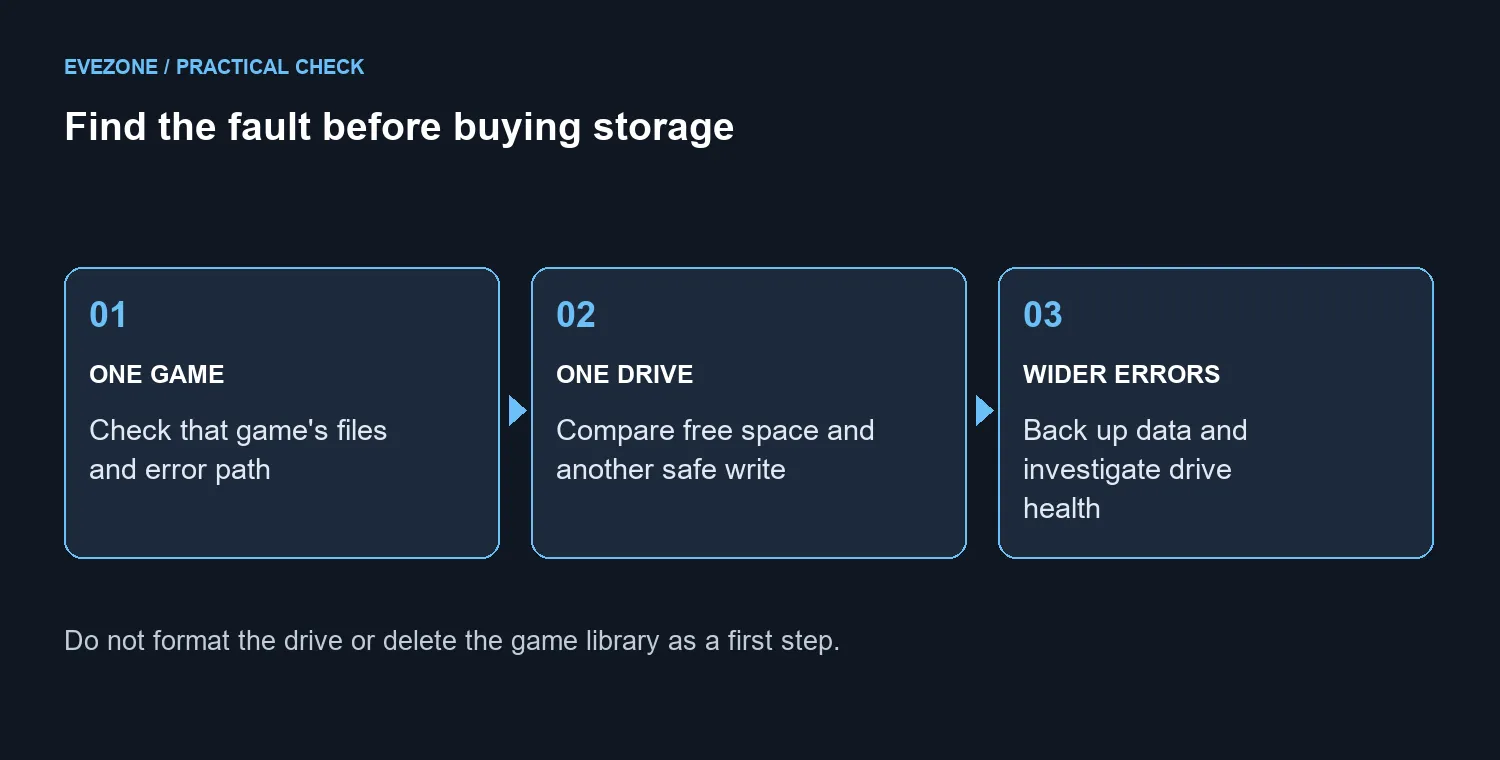
Read the error and note the game, library location and any path shown. A failure affecting one game is different from failures across every game on one drive, and both are different from Windows being unable to write ordinary files anywhere. That distinction helps prevent broad repairs for a narrow problem.
After saving work, restart the client and retry the same update once. Check free space on the affected volume rather than on whichever drive happens to appear first in File Explorer. If the library is on an external drive, confirm that the expected device is connected and remains visible. Do not unplug it while Steam or another application is writing.
If Windows can safely create a small test file on the same volume, that is a useful comparison, although it does not prove that every part of the drive is healthy. Stop experimenting if the device repeatedly disconnects or reports wider read and write failures. Protect irreplaceable files before trying increasingly disruptive repairs.
🧰 Verify the game without wiping the library
Open the game's Properties, choose Installed Files and run the file verification option. Run one verification at a time and avoid other intensive work while it proceeds. This gives the client a chance to check the installation without treating the whole library as disposable.
A verification warning is not always a fresh hardware fault. Some local configuration files can fail verification normally because they should not be replaced. Read the result in context and test whether the original installation or update now works, rather than assuming that every exception requires another download.
Interrupted writes can also leave a library in an unexpected state. Avoid forced shutdowns during updates and keep external storage connected until activity has finished. If security software reports a blocked file, inspect the detection and the official support guidance. Do not disable protection permanently or create a blanket exception for the entire drive simply to make the error disappear.
💾 Buy capacity only when the evidence supports it
If the drive is healthy but consistently too full for your library, extra capacity may solve a real constraint. Check interface and physical compatibility before choosing from internal SSDs. An M.2-shaped drive and a 2.5-inch SATA drive are not interchangeable just because both are called SSDs.
The 19 September 2026 catalogue read listed the ADATA SU650 512GB SATA SSD at R1,549. That is a storage-price reference, not the cost of fixing every Steam error. Compare SSD specials only after deciding whether you need more space, a replacement for a diagnosed failing device or no hardware at all.
Keep the original library intact until you have a clear migration or repair plan. A new SSD still needs the correct connection and a safe way to move or reinstall games. Important personal files deserve a separate backup; a successful game download is not a substitute for one.
Frequently Asked Questions
Should I reinstall Windows immediately?
No. First establish whether the failure is limited to Steam, one game or one volume. A broad reinstall can add work without identifying the cause.
Does file verification erase all my games?
It checks the selected game's installation. Choose the affected title and follow the client prompts rather than deleting folders manually.
When should I stop retrying?
Repeated disconnects, wider file errors or signs that important data is at risk justify backing up and investigating the drive before continuing large writes.
Ready to recover the stalled download? Identify the affected library, run the safe checks and keep your files protected. Compare storage only when the fault or capacity limit is clear.