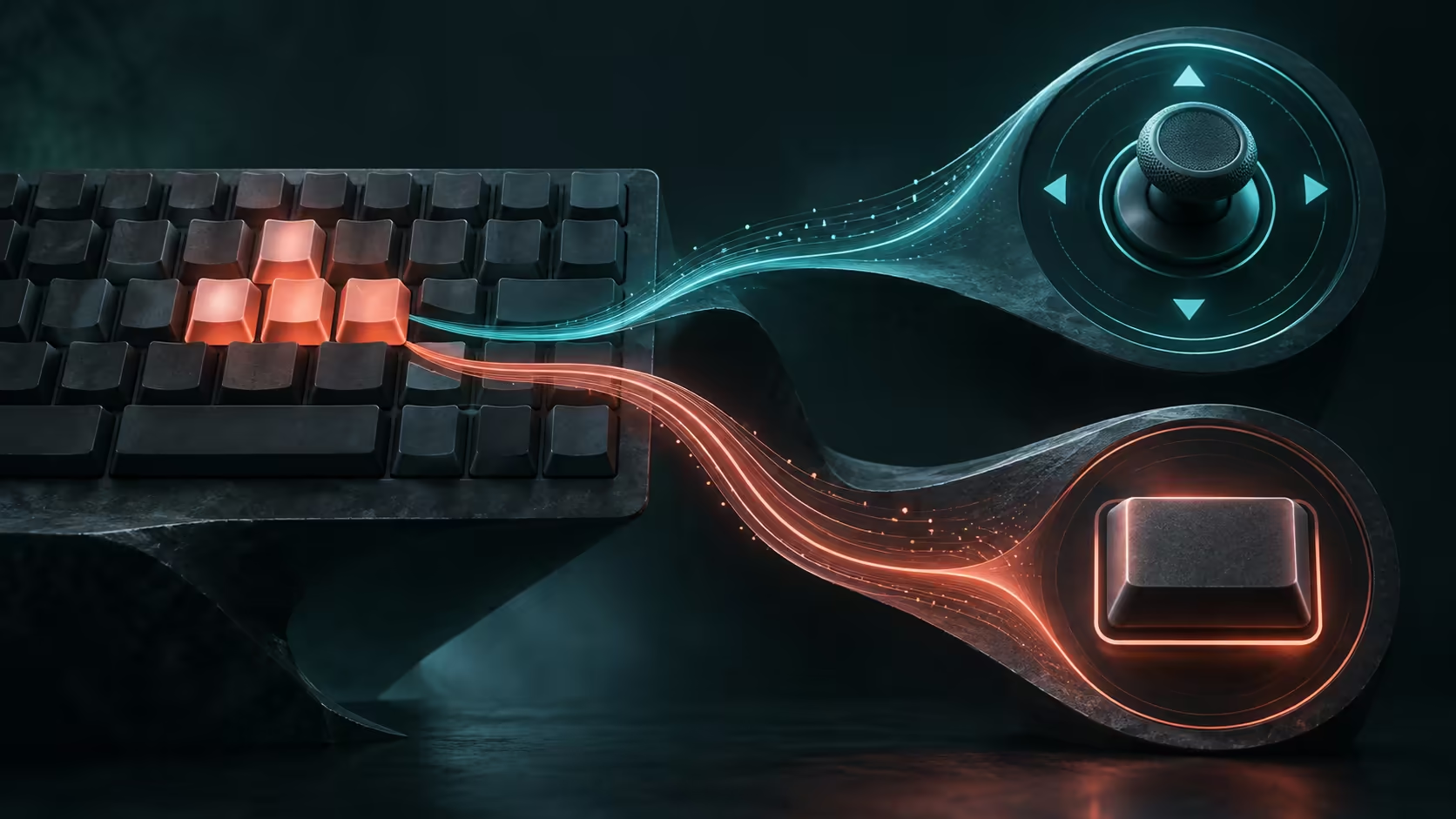
Your movement keys can feel broken when the keyboard is actually sending a different kind of input. If you are searching for Razer Huntsman V3 Pro WASD not working, start by separating normal typing from the game's controls. Analog profiles can map keys to a controller joystick, which makes a profile check more useful than immediately shopping for a replacement.
Quick Answer
Test W, A, S and D in a plain text editor, then inspect their assignments in the active Synapse profile. Use a normal typing baseline and retest the game before changing hardware. These checks cost R0; by comparison, Evetech's captured white Huntsman V3 Pro TKL 8KHz listing was R5,499 on 16 September. A replacement is an expensive way to discover a mapping problem.
⌨️ Find out where the keys stop working
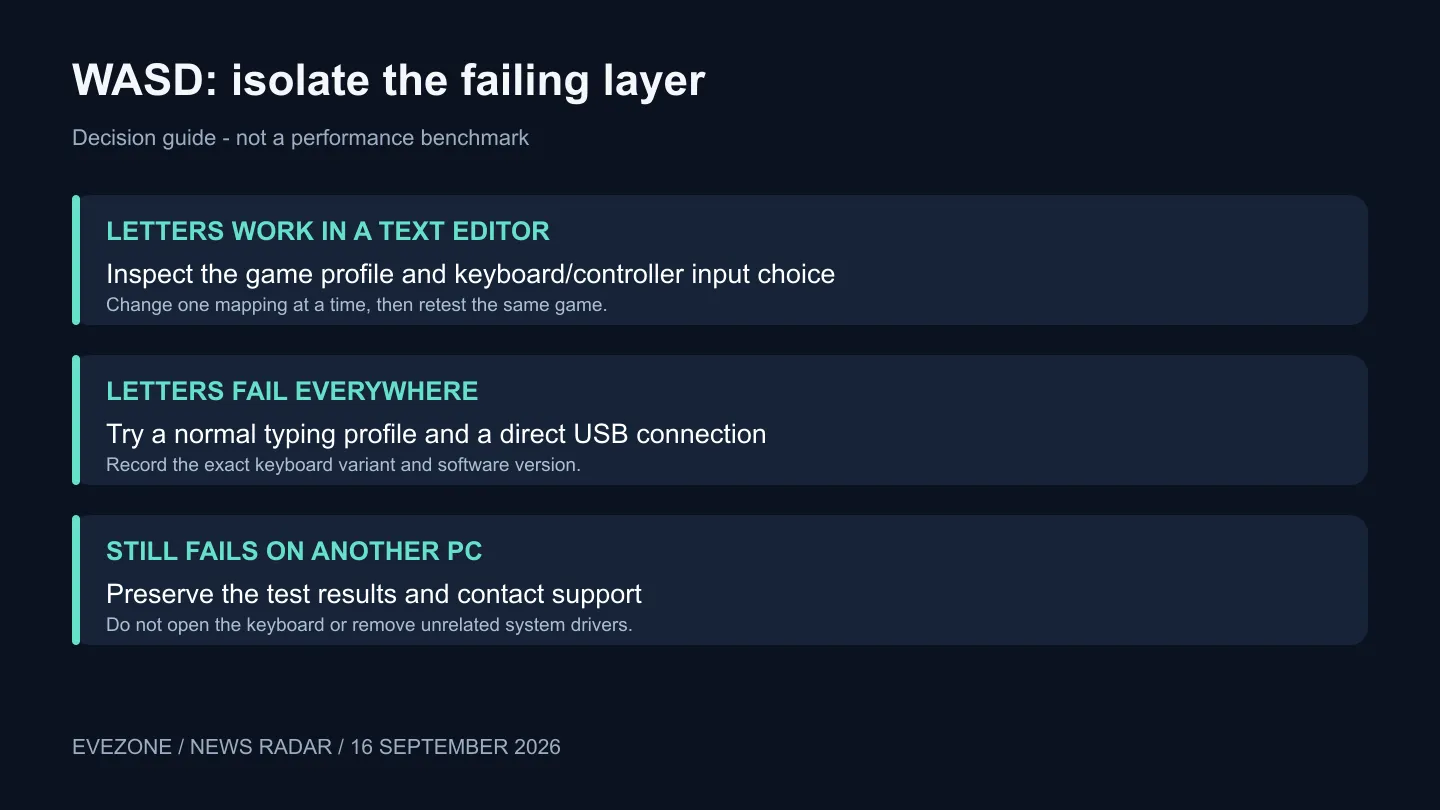
Press each movement key separately in a text editor and write down the result. Then repeat the test in the affected game. If letters work normally outside it, concentrate on that game's input choice and the profile that becomes active when it opens. If they fail everywhere, broaden the test to the typing profile and physical connection.
Record the full model name. Pro optical, low-profile and HE versions are different products, and guides or shortcuts for one should not be applied to another without checking. The gaming keyboard selection illustrates why the full variant matters when comparing features or support instructions.
🎮 Inspect assignments before changing drivers
The official Huntsman guides show gamepad remapping, including movement keys assigned to a controller joystick. They also describe a non-customisable factory typing profile. Use the guide for your model and Synapse version to select an appropriate typing baseline; create a separate custom profile when you need to change assignments.
Save a screenshot of the current configuration first. Check what each affected key sends rather than changing several sensitivity settings at once. A rapid-trigger adjustment and a controller assignment solve different problems. Restore ordinary keyboard input for this test, restart the game if needed and compare the same movement action again.
Temporarily simplify the desk. Disconnect an optional controller for the test and use a direct USB connection for the keyboard. If a gaming headset or another peripheral shares a hub, changing the keyboard connection can help isolate the test without replacing either device. This is a comparison step, not proof that the hub is faulty.
🔧 Escalate with a repeatable result
If the same keys still fail in a text editor with a normal profile, try another available PC before making a purchase decision. Record whether the failure follows the keyboard or stays with one installation. That distinction gives support a useful starting point and avoids a vague report that the device sometimes stops working.
Do not remove unrelated input drivers or open the keyboard as an early experiment. A model-specific reset can erase settings, so preserve the profile and read that model's instructions before using it. If a simple profile change restores the keys, keep the working setup and reintroduce optional features one at a time.
Frequently Asked Questions
Why does the game show controller prompts?
An analog key assignment can present controller input. Check the active mappings and the game's selected input method; that symptom alone does not prove physical damage.
What if the factory profile does not solve it?
Continue with the text-editor, connection and second-PC comparisons. Do not keep repeating the same profile toggle when the evidence points elsewhere.
When is replacement worth considering?
After the fault persists across a clean typing test and another system, or support identifies a hardware issue. Keep the test notes and purchase details for that conversation.
Recover the controls before replacing the board. Run the simple input tests first, then compare Evetech's keyboard types if your needs or support outcome justify a different model.