Steamwebhelper not responding often appears just when you want to open the library and start a game. A frozen launcher is frustrating, but the message alone does not prove that your GPU or whole PC needs replacing. Work through the client's recovery options, test the rendering setting and keep a note of what changes the result.
Quick Answer
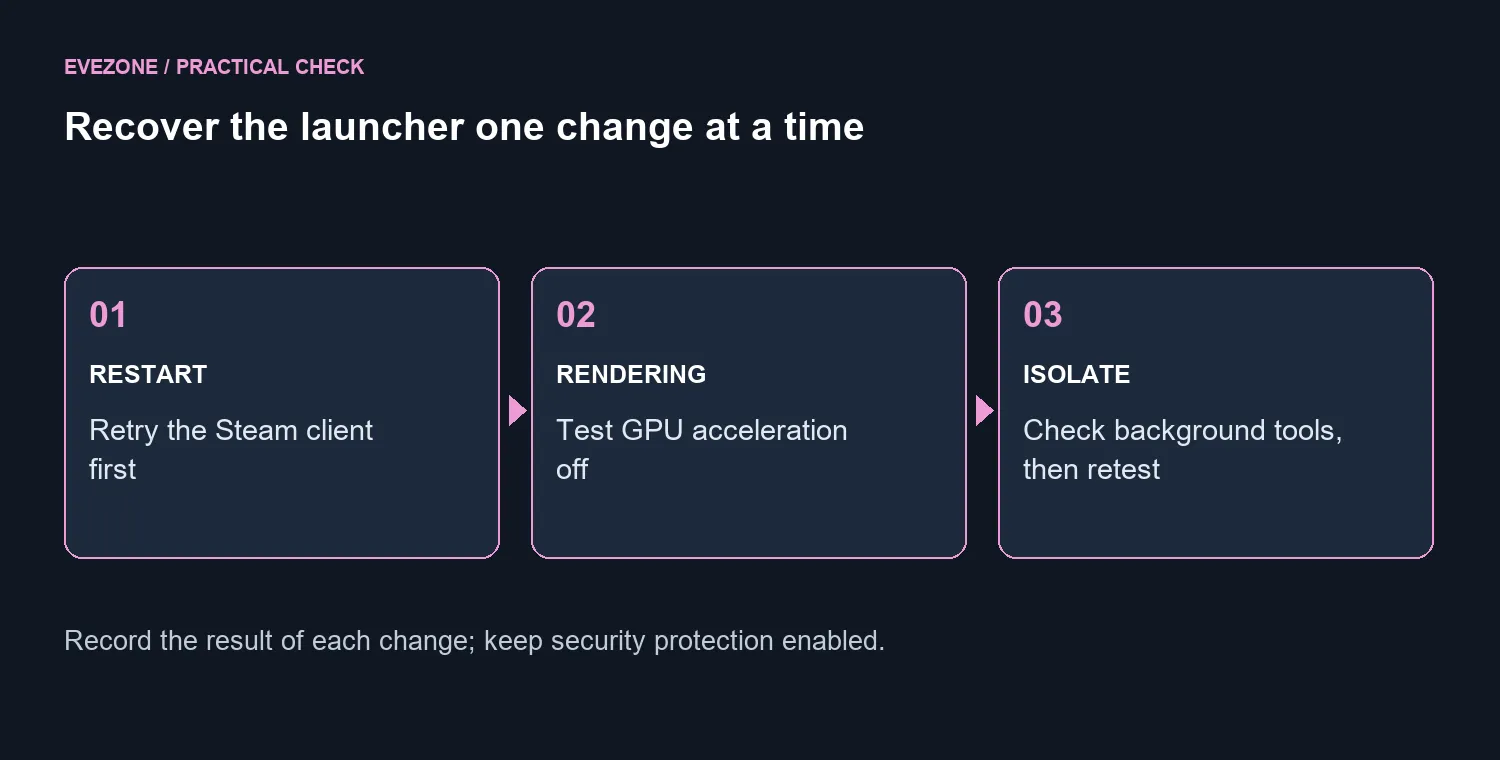
Start with R0 hardware spending. Restart Steam, then test its GPU acceleration setting if the interface opens. Check background-software interference before reinstalling the client. Keep security protection enabled and avoid downloading replacement DLL files from unofficial repair sites.
🔄 Recover the client first
The error means that a key Steam component was slow to respond. Use the dialog's Restart Steam option where available, or close and reopen the client. If you need to restart Windows, save other work first. A client restart is a smaller and more informative first step than deleting application folders.
Pay attention to when the failure returns. Does it happen at launch, when opening the store or after leaving the client idle? Capture the exact message and note whether a particular action reliably triggers it. That detail helps separate an intermittent slowdown from a repeatable rendering problem.
Steam's recovery guidance also includes restarting the rendering component. Use the options provided by the client rather than terminating unfamiliar Windows processes at random. Once the interface responds, try the same action again before changing several settings. Otherwise, a successful restart can get lost among unrelated adjustments.
🖥️ Test the rendering setting
When you can open Settings, look under Interface for GPU acceleration. Some video-driver combinations can have trouble with Steam's rendering path. Temporarily disabling acceleration is a way to test that possibility, not proof that the graphics card is defective.
Restart as requested and repeat the action that previously failed. Disabling acceleration can affect interface performance, so judge both stability and usability. If it makes no difference, restore the original setting before investigating another cause. Keeping track of the starting state makes the test reversible and avoids leaving a collection of unexplained changes behind.
If the setting clearly changes the outcome, review the appropriate graphics driver through the GPU or computer manufacturer's support route. Branded systems may have their own driver guidance. Record the current version before updating and retest the same launcher action afterwards. Do not assume that installing an unrelated driver utility will repair the client.
🧪 Isolate background interference
Applications that monitor disk, network or system activity can interfere with Steam. Security tools, recording software and other background utilities deserve a controlled check, especially if the problem began after a recent installation or update. Close a nonessential application, test again and restore it if nothing changes.
Keep security protection enabled while reviewing its logs and support guidance. A detection should be investigated rather than silenced with broad exclusions. Avoid unofficial replacement system files, registry-cleaning promises and instructions to delete the whole game library. None of those is established by this error message.
Hardware shopping comes later, if separate tests establish a real limitation. The 19 September 2026 catalogue snapshot put an ASRock Arc A380 6GB at R3,999; that price is context for how much an unnecessary replacement can cost, not a proposed Steam repair. Compare graphics cards or complete gaming PCs only when your broader workload justifies it.
If the client still fails after these checks, contact Steam Support with the screenshot, Windows and driver details, trigger and results of each test. That is more useful than reporting only that you tried everything, and it reduces the chance of repeating a disruptive step without a reason.
Frequently Asked Questions
Does this message diagnose a broken GPU?
No. It describes an unresponsive client component. Rendering settings and interfering software are among the possibilities to test.
Should GPU acceleration stay off forever?
Judge the result. It can be a useful workaround when it helps, but retest after a relevant driver or client change and consider the effect on interface performance.
Will a new PC guarantee that the error disappears?
No such guarantee follows from this message. Investigate the client and its software environment before making that purchase.
Ready to get back into your library? Restart, test one rendering change and record the result. Escalate the exact fault before turning a launcher problem into a hardware bill.