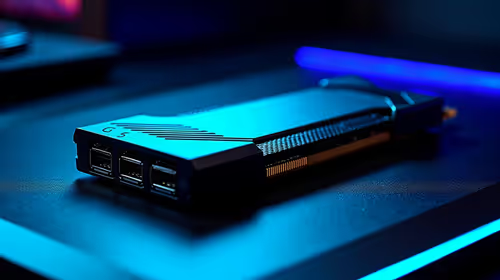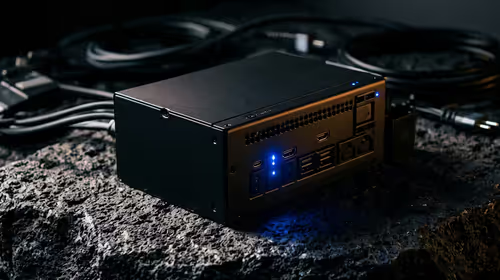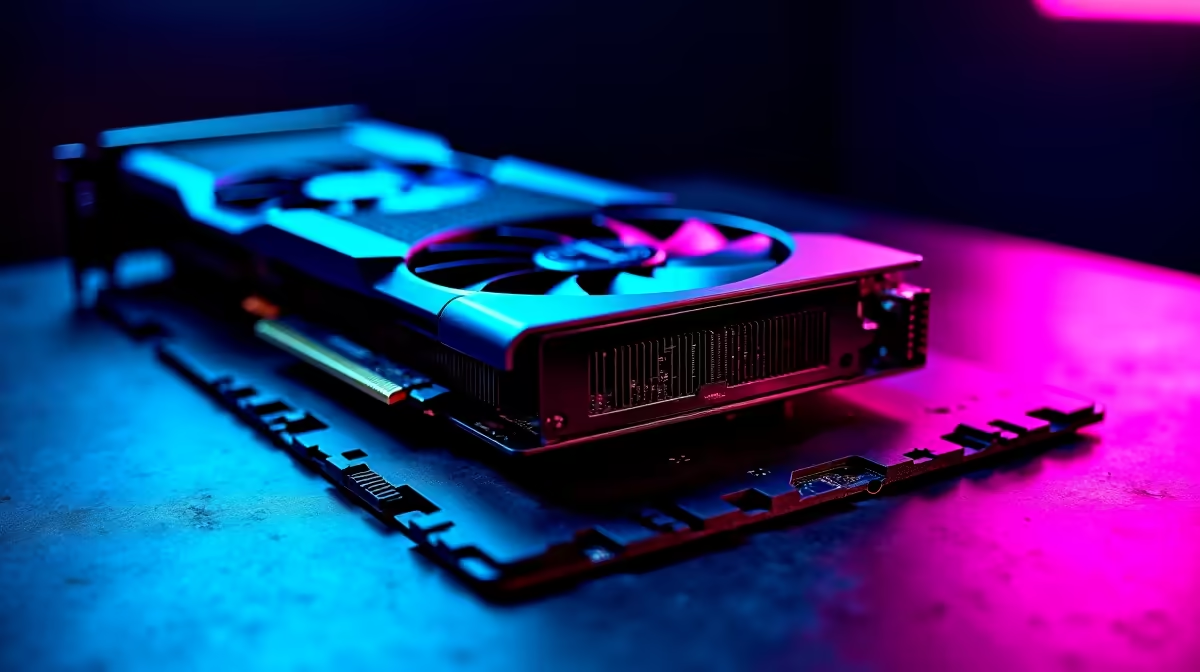
Dropping a desktop graphics card into an eGPU enclosure looks intimidating until you realise it is the same job as fitting a card to a motherboard, just inside a smaller box with its own power supply. The card seats into a full PCIe x16 slot, gets a bracket screw, then takes its power connectors before the panel closes. Get the seating and the power right and a laptop or mini PC can suddenly drive a full-size GPU over a single Thunderbolt cable.
Quick Answer
Open the enclosure, seat the card fully in the PCIe x16 slot until the latch clicks, secure the rear bracket with a screw, attach the 8-pin and 6+2 PCIe power connectors, then close the panel and connect Thunderbolt. The whole job takes about 20 to 30 minutes.
Before You Start
Confirm three things first. The enclosure must physically fit your card's length and the slot must be a real x16. Your host needs a Thunderbolt 3 or Thunderbolt 4 port for the bandwidth, which runs up to 40 Gbps; Thunderbolt 5 works too and adds headroom. And check the GPU's power draw against the enclosure's built-in supply: a 250W card in a 350W enclosure is fine, but a high-draw flagship in an underpowered box will crash under load. Have a Phillips screwdriver ready and work on a non-static surface.
What to look for in the enclosure
Enclosures come in a few formats. Compact models fit single-slot and smaller dual-slot cards but struggle with modern triple-fan designs that can exceed 330mm. Full-size enclosures accommodate longer cards comfortably and often include a better power supply. Check the listed maximum card length and the PSU wattage rating before buying, and look for an enclosure that states its PCIe slot is a true x16 electrically, not just physically. The docking station range at Evetech lists current enclosure options to cross-reference against your card's dimensions.
Step by Step
- Power everything down and unplug the enclosure from the wall. Slide out or unscrew the enclosure tray according to its manual, most use a single thumbscrew or a latch at the rear.
- Remove the PCIe slot blanking plates at the rear of the tray that line up with where your card's display outputs will sit. A dual-slot card needs two removed.
- Line the card's gold contacts up with the x16 slot. Press down evenly across the top of the card until the slot's retention latch clicks shut. The card should sit flat and level with no gap at either end.
- Drive the bracket screw (or screws, for a dual-slot card) through the rear bracket into the tray. This stops the card sagging and keeps the outputs aligned.
- Connect power. Attach the enclosure's 8-pin and 6+2-pin PCIe cables directly to the card's power sockets. Push until each clip locks. A card that boots but throttles or black-screens under load almost always has a power connector half-seated.
Closing Up and First Boot
- Slide the tray back into the enclosure and refit the panel screw. Plug the enclosure into the wall, connect the Thunderbolt cable to your host, then power the enclosure on before or as you boot the machine.
- Connect your monitor to the GPU's own outputs, not the laptop's, and set it as the primary display for the best result.
Drivers and Verification
- On Windows, open Device Manager and confirm the card appears under Display adapters. On macOS, check System Information. If it is not detected, install the latest GPU drivers from the manufacturer's website and reseat the Thunderbolt cable. A reboot after driver installation resolves most first-connection issues.
Quick troubleshooting checklist
If the card is not recognised or crashes under load, work through this list before assuming a hardware fault. First, confirm every PCIe power connector is clicked home, not just inserted partway. Second, check the Thunderbolt device approval prompt in Windows; the OS may be waiting for you to authorise the external hardware before it enumerates the card. Third, ensure the enclosure is powered on before the laptop boots, not after. Finally, verify the Thunderbolt cable is the enclosure's own cable or a rated active cable, since passive cables degrade signal over longer runs. Most detection failures trace back to one of these four points. For compatible enclosures and cards that are confirmed to be available locally, the GPU best sellers at Evetech are a clean reference on current card options to slot into your enclosure.
Frequently Asked Questions
Do I need to remove the laptop's internal GPU?
No. The eGPU runs alongside it. Windows treats the external card as an additional display adapter, and pointing your monitor at the enclosure's outputs ensures games and apps render on the bigger card.
Why does my card black-screen under heavy load?
The most common cause is a PCIe power connector that is not fully seated, followed by an enclosure power supply that cannot sustain the card's peak draw. Reseat both 8-pin and 6+2 connectors and check the card's rated power against the enclosure.
Can any desktop card go into any enclosure?
Within reason, if it fits the length, slot width and power budget. Always check the card's physical dimensions and TDP against the enclosure spec before buying. The current crop of cards is easy to cross-check in the best-selling graphics cards at Evetech.
Will I get full desktop GPU performance?
Close, but Thunderbolt's bandwidth introduces a small overhead versus a card in a desktop slot, most noticeable at high frame rates. For most creative work and 1440p gaming the difference is minor.
Does the monitor have to plug into the enclosure?
For best results, yes. Routing the display through the GPU's own outputs avoids sending frames back over the Thunderbolt link to the laptop screen, which costs performance.
Turn a thin laptop into a full graphics workstation. Match the right enclosure to your card from the docking station range at Evetech and get building.