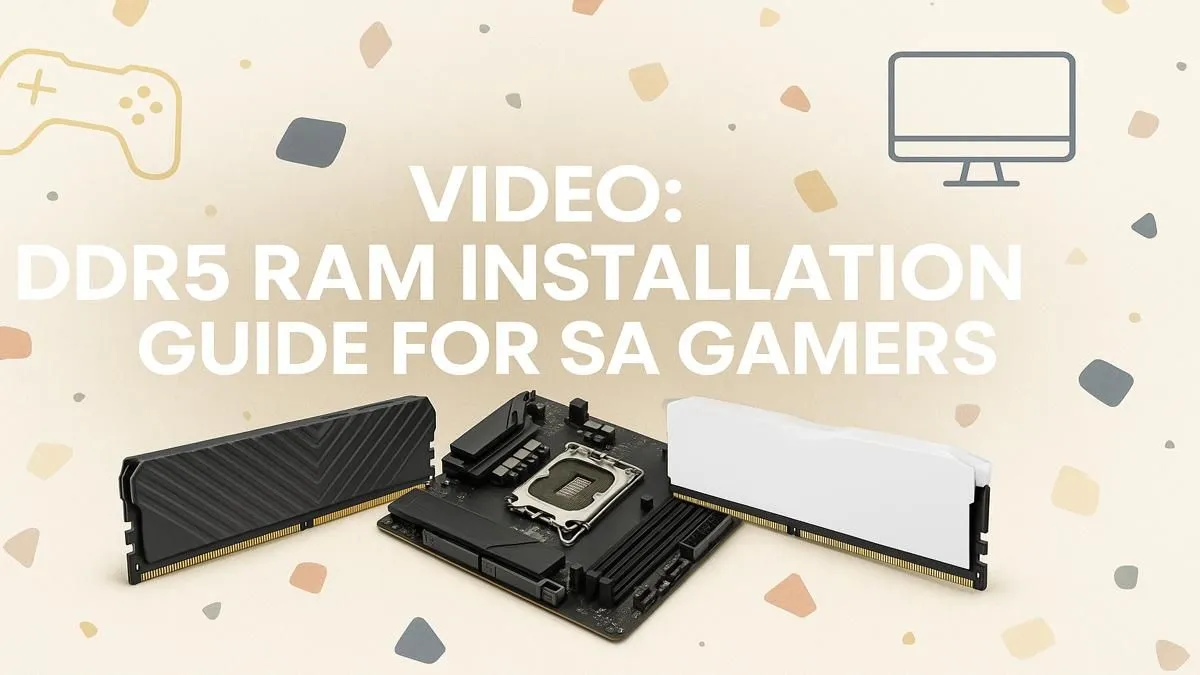
So, you’ve snagged a shiny new kit of DDR5 RAM, ready to blast your PC’s performance into the stratosphere. Awesome! But staring at those sleek modules can be a bit daunting. Don't stress, we've got your back. This simple guide and walkthrough will show you exactly how to install DDR5 RAM safely and correctly. Let’s get your rig upgraded and ready for action in minutes. 🚀
Before You Begin: The Pre-Installation Checklist
A successful PC upgrade is all about preparation. Before you even touch a component, a few quick checks will save you a world of headaches. Getting this right is the most important part of your DDR5 RAM installation.
First, Check Your Compatibility
This is non-negotiable. DDR5 is a completely new standard and is not backward compatible. You cannot install DDR5 RAM into a motherboard designed for DDR4.
- Motherboard & CPU: You need a compatible motherboard (like an Intel Z690/B660 or newer, or an AMD X670/B650 or newer) and a matching CPU (Intel 12th Gen or newer, AMD Ryzen 7000 series or newer).
- The Notch: The small cutout on the bottom of a RAM stick, called a key notch, is in a different place on DDR5. This physically prevents you from installing it in an older DDR4 memory slot. Always double-check your motherboard specs!
Gather Your Gear 🔧
You don't need a full workshop, just a few basics:
- Your new DDR5 RAM kit.
- Your PC.
- An anti-static wrist strap (highly recommended to protect your components from static electricity).
- A clean, well-lit, and clutter-free workspace.
How to Install DDR5 RAM: A Step-by-Step Guide
Alright, let's get to the main event. Follow these steps carefully, and your new RAM will be up and running in no time.
- Power Down Completely: Don't just shut down Windows. Power down the PC, flip the switch on the back of your power supply to 'Off', and unplug the power cable from the wall. Press the PC's power button one more time to discharge any lingering electricity.
- Open Your Case & Ground Yourself: Place your PC on its side on your workspace and remove the main side panel. Before touching anything inside, ground yourself by touching a large, unpainted metal part of the PC case. If you have an anti-static strap, clip it to the case now.
- Locate the RAM Slots: You'll find the DIMM (RAM) slots next to the CPU socket. Most motherboards have four. Open the retention clips at one or both ends of the slots you plan to use. If you're replacing older memory, perhaps from a much older build using DDR3 gaming RAM modules, this is when you'd gently push the clips to pop the old sticks out.
- Align and Seat the DDR5 Module: Pick up a DDR5 module by its edges. Carefully align the key notch on the RAM stick with the bump in the motherboard's DIMM slot. It can only go in one way... don't force it!
- Apply Firm, Even Pressure: Once aligned, push down firmly on both ends of the RAM stick simultaneously. You'll feel and hear the retention clips on the sides of the slot click into place, locking the module securely. That's it! Repeat for any other modules.
BIOS Pro Tip ⚡
Once your PC boots, jump into the BIOS UEFI (usually by pressing DEL or F2 on startup). First, check that your system recognises the full amount of RAM you installed. More importantly, find and enable the XMP (for Intel) or EXPO (for AMD) profile. This one-click setting ensures your RAM runs at its advertised high speed, not the much slower default JEDEC speed.
After Your DDR5 Installation: Quick Verification
With everything reassembled and plugged back in, it's time for the moment of truth. Power on your PC. If it boots into Windows, that's a great sign!
You can quickly confirm the upgrade in Windows by right-clicking the taskbar, opening Task Manager, and heading to the 'Performance' tab. Click on 'Memory' to see the total capacity and speed. This final check confirms a successful DDR5 RAM installation.
Now that you're a pro, you can confidently explore the incredible speeds available. Upgrading gives you a massive performance uplift in the latest games and demanding creative software. Feel free to browse our full range of high-speed DDR5 memory and find the perfect kit for your rig. ✨
Ready to Build Your Dream Machine? Installing new RAM is just the first step. Whether you're planning a full build or looking for the next key upgrade, Evetech has the components and expertise you need. Explore our massive range of PC components and build something truly epic.